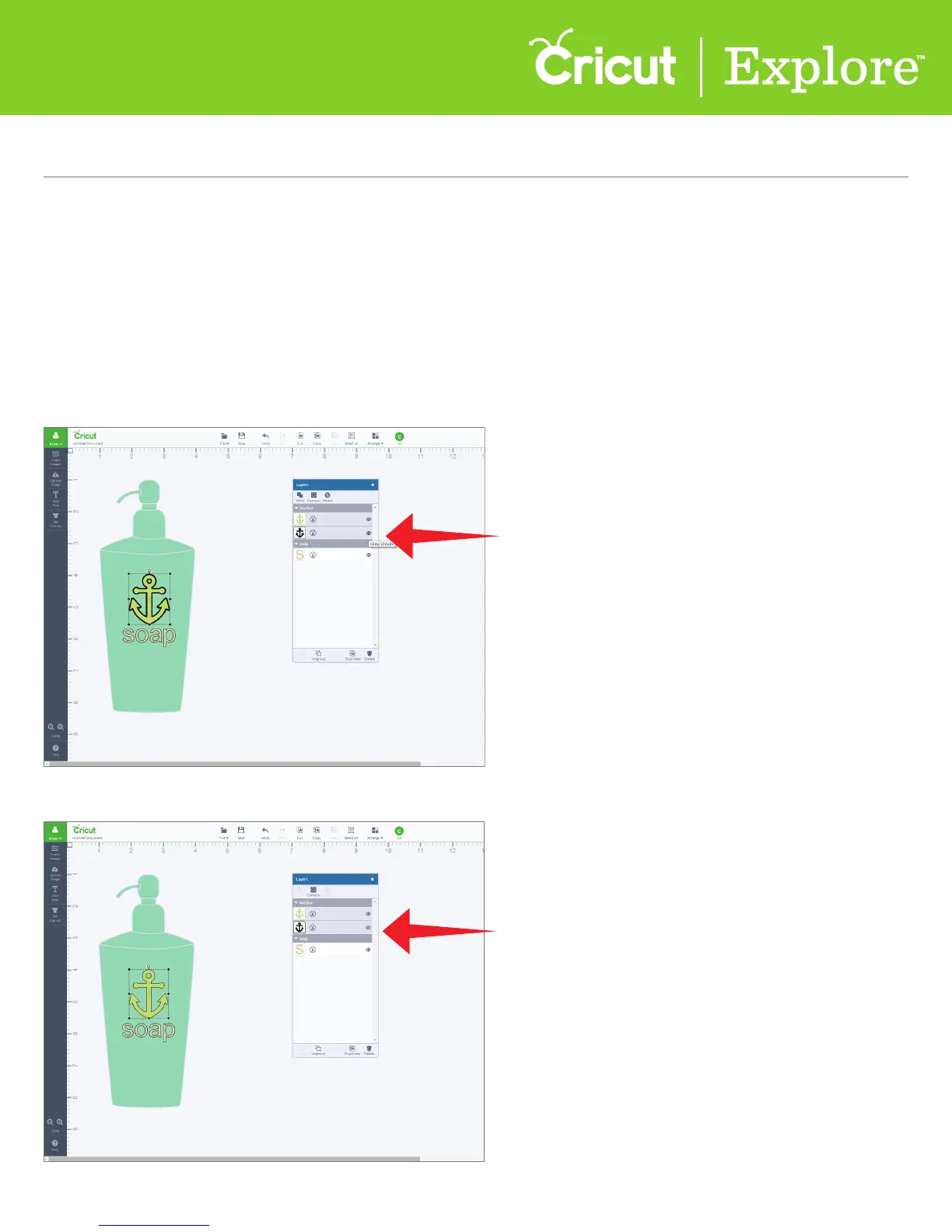
All images appear in the layers panel as separate layers. Many images when inserted from the Cricut
Design
™
Space Image Library have layers (often shadows) that are present but do not immediately
appear on the canvas. These layers are hidden. When a layer is hidden, it will not appear on your
canvas or cut with the final project; however, it will appear in the layers palette with a crossed-out
eye icon.
Hide an image layer
Step 1 To hide a layer, click on the eye icon in the layer band of the layers panel.
Step 2 The icon will change to a crossed-out eye and the layer will no longer appear on the project.
Section 9E
Layers Panel - Hide/Unhide an Image Layer
Layers Panel (cont.)
Section 9E Page 1













 To Next Page