Section 10
Sync Panel
Section 10 Page 1
Sync Panel
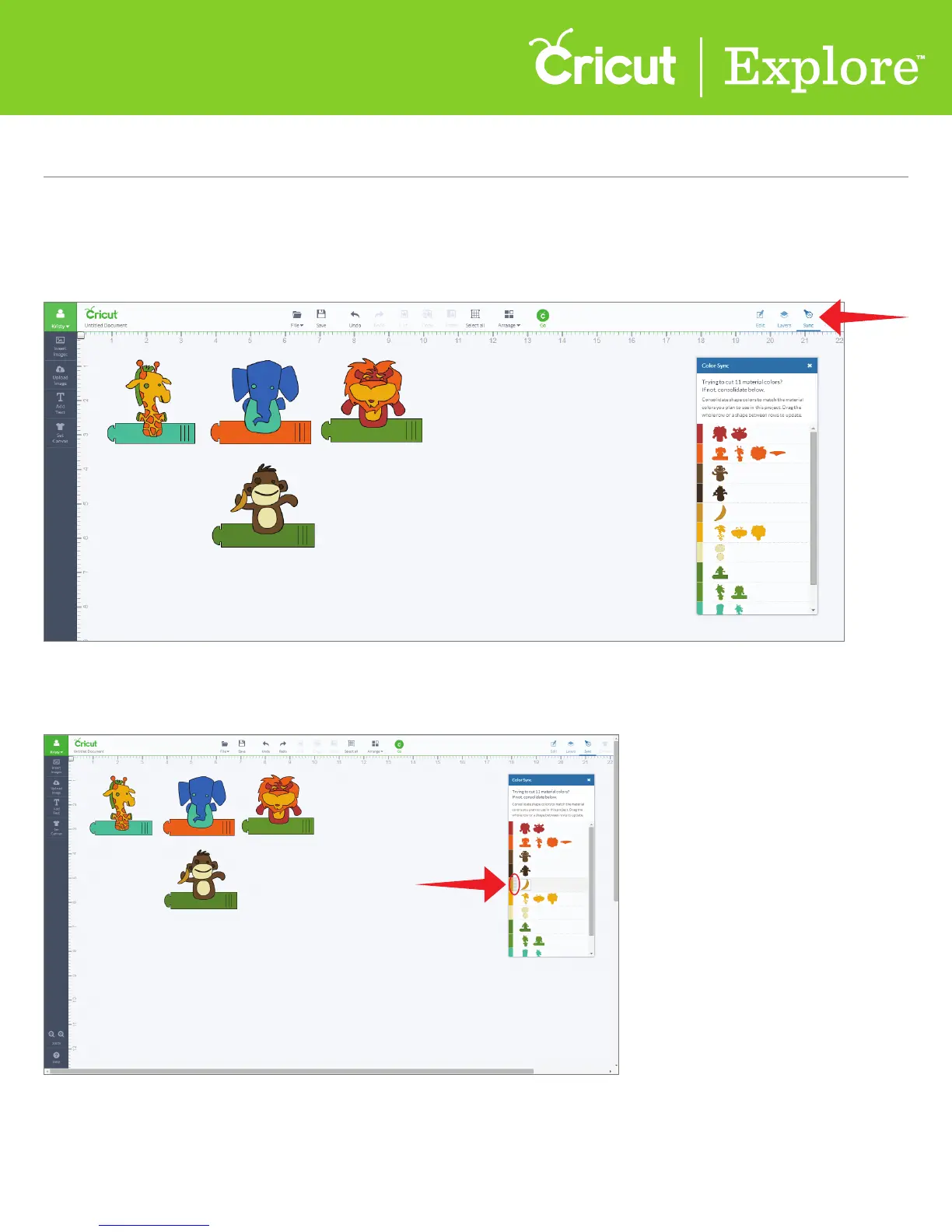
The Sync panel helps you coordinate colors within your project. This can also help reduce the number
of cutting mats need for a project.
Step 1 Open the Sync panel using the button in the top menu.
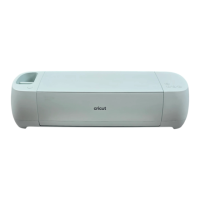
Step 2 Drag a shape from one row to another in the Color Sync panel. The color of the shape will
change to the selected row color.
Tip: If you would like to move an entire row of shapes to a new color, hover over the row. Next to the color
swatch, a verticle row of horizontal stripes will appear. Grap that handle and drag it to another color. All
the pieces of the original color will be updated.













 To Next Page