Layers Panel (cont.)
Section 9B
Layers Panel - Change Color on Image Layers
Section 9B Page 1
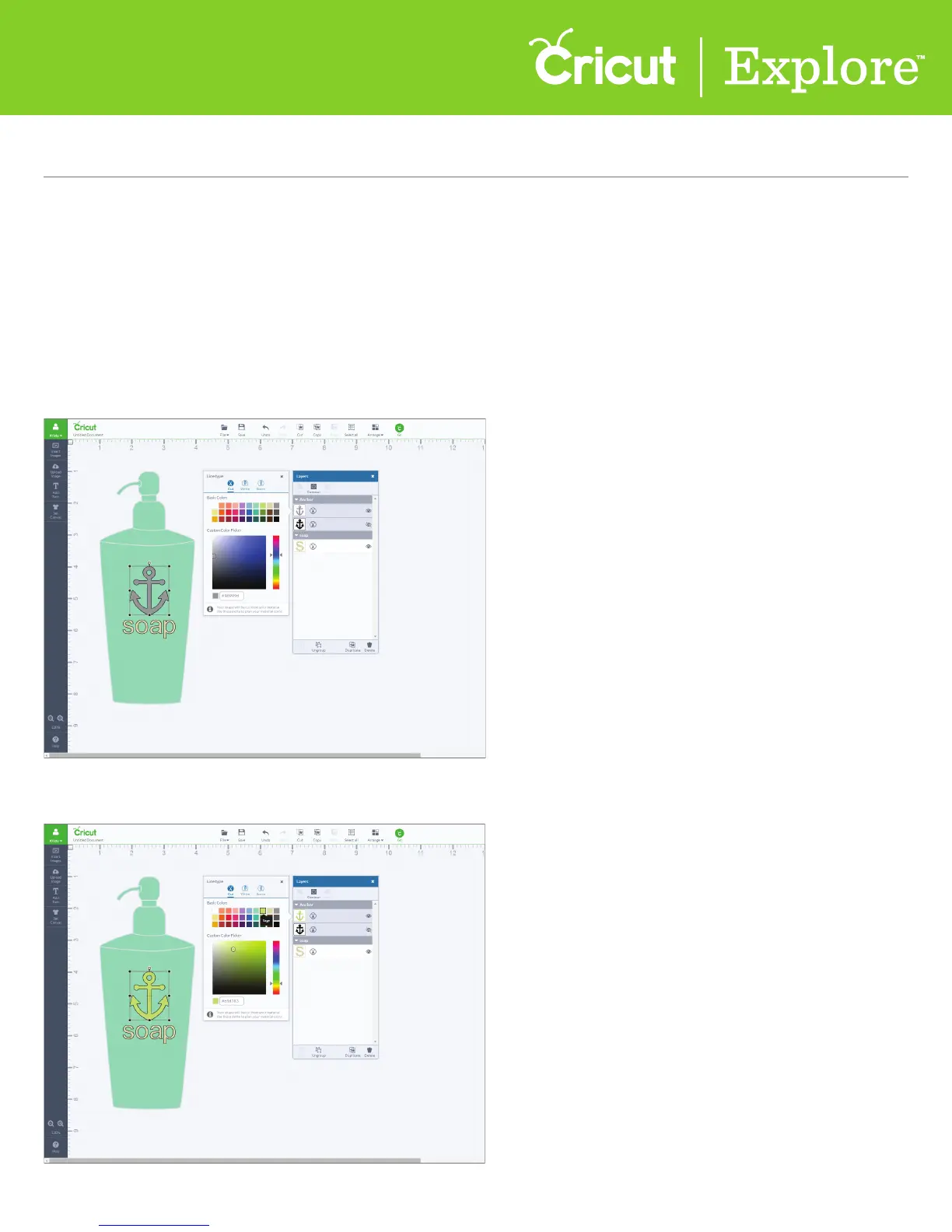
Step 1 To change the color of a layer, click the layer thumbnail in the Layers palette. For a cut object
you can choose from a Basic color palette or use the Custom Color Picker. For a written or drawn
object, you can choose from the Cricut
®
pen colors.
Step 2 As color is chosen in the window, the image will change reflecting your choice.
Fill color allows you to change the color of your image so you can better visualize your final project.
The color is only a representation. The material that is placed on your cutting mat will be the
project’s final color.
Change color on image layers













 To Next Page