Section 2B
Smart Set
™
Dial - Custom Settings
Smart Set
™
Dial (cont.)
Section 2B Page 8
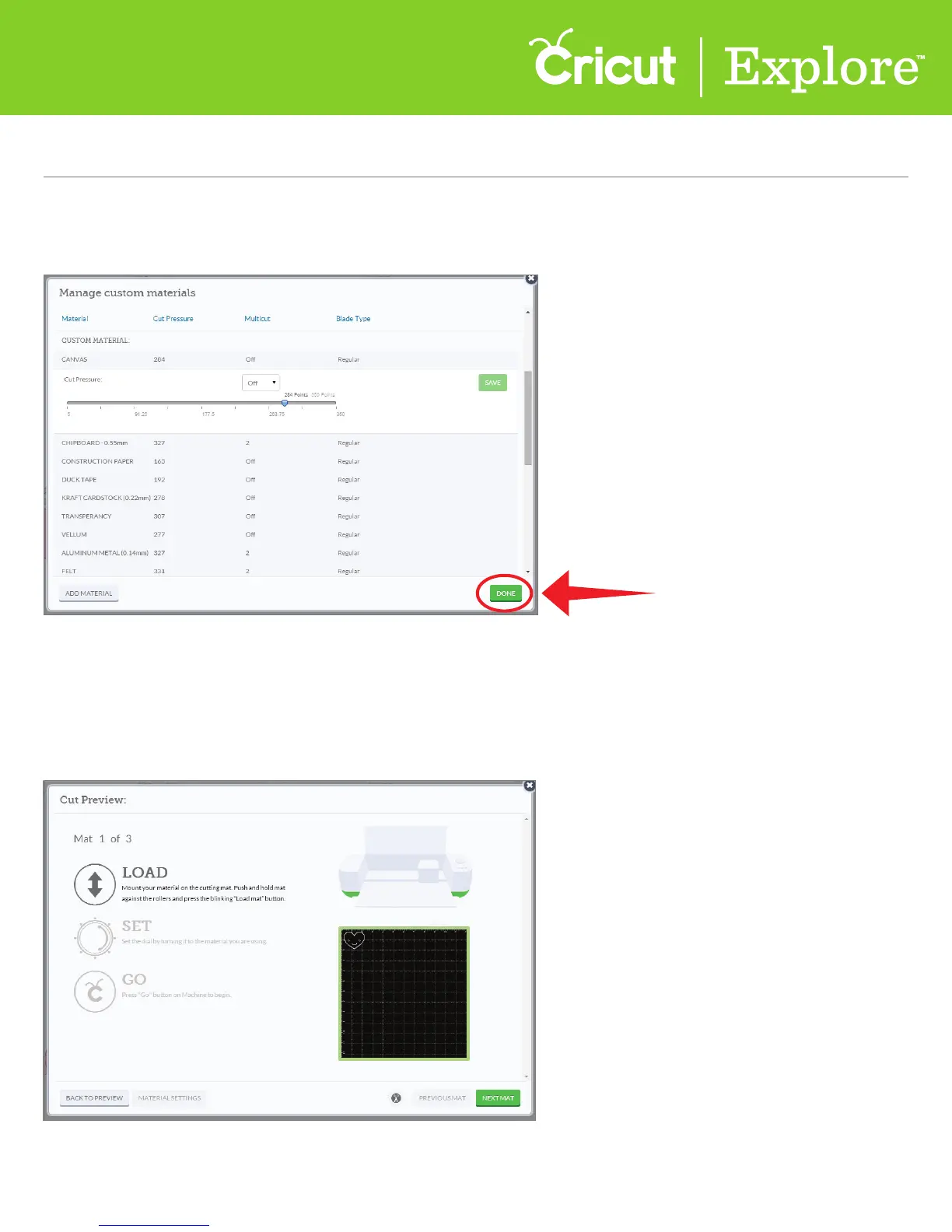
Step 5 Once you have finished making adjustments, click “Done” to close the window and press the
“Go” button on your Cricut Explore
®
.
Deleting a custom material
Step 1 You have the option to delete any of your defined custom settings. Once your project is ready to
cut, click “Go.” From the Cut Preview window, follow the prompts to load your cutting mat into
the machine.













 To Next Page