Mat Preview (cont.)
Section 12
Mat Preview
Section 12 Page 3
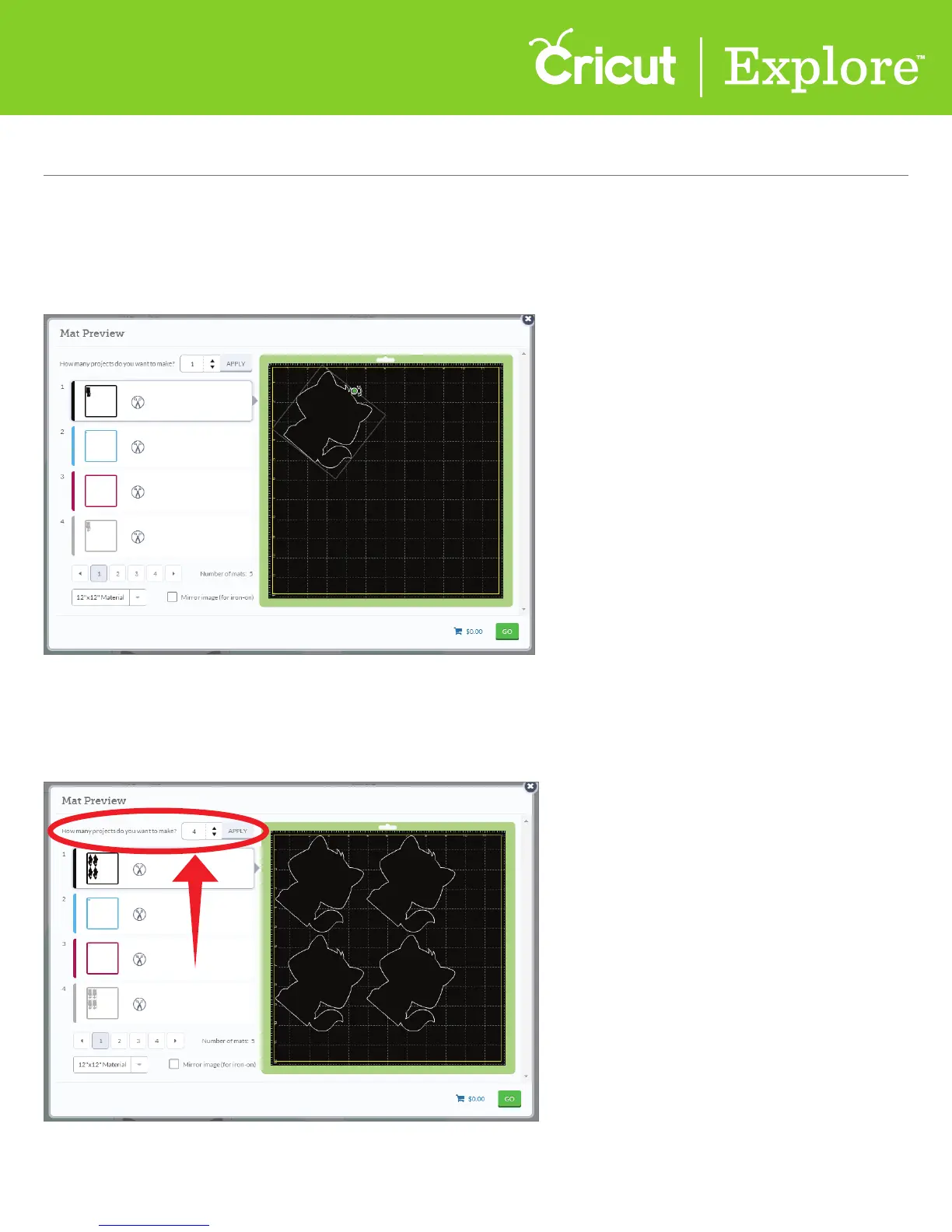
Adjust the position of an image by dragging or rotating it to your desired placement. To move an
image, select the image and drag it to the desired location. To rotate an image, select the image and
use the handlebar at the top of the image to rotate it in either direction.
It is easy to make multiple copies of your project. After the question “How many projects do you
want to make?” type in a number or use the arrow keys to indicate the number of projects you’ll be
making. When you are finished, click “Apply.”
Tip: Cricut Design Space™ will automatically multiply each image and add mats as needed to make
the number of projects you entered.
Move/Rotate Images
Make Copies













 To Next Page