Image Library (cont.)
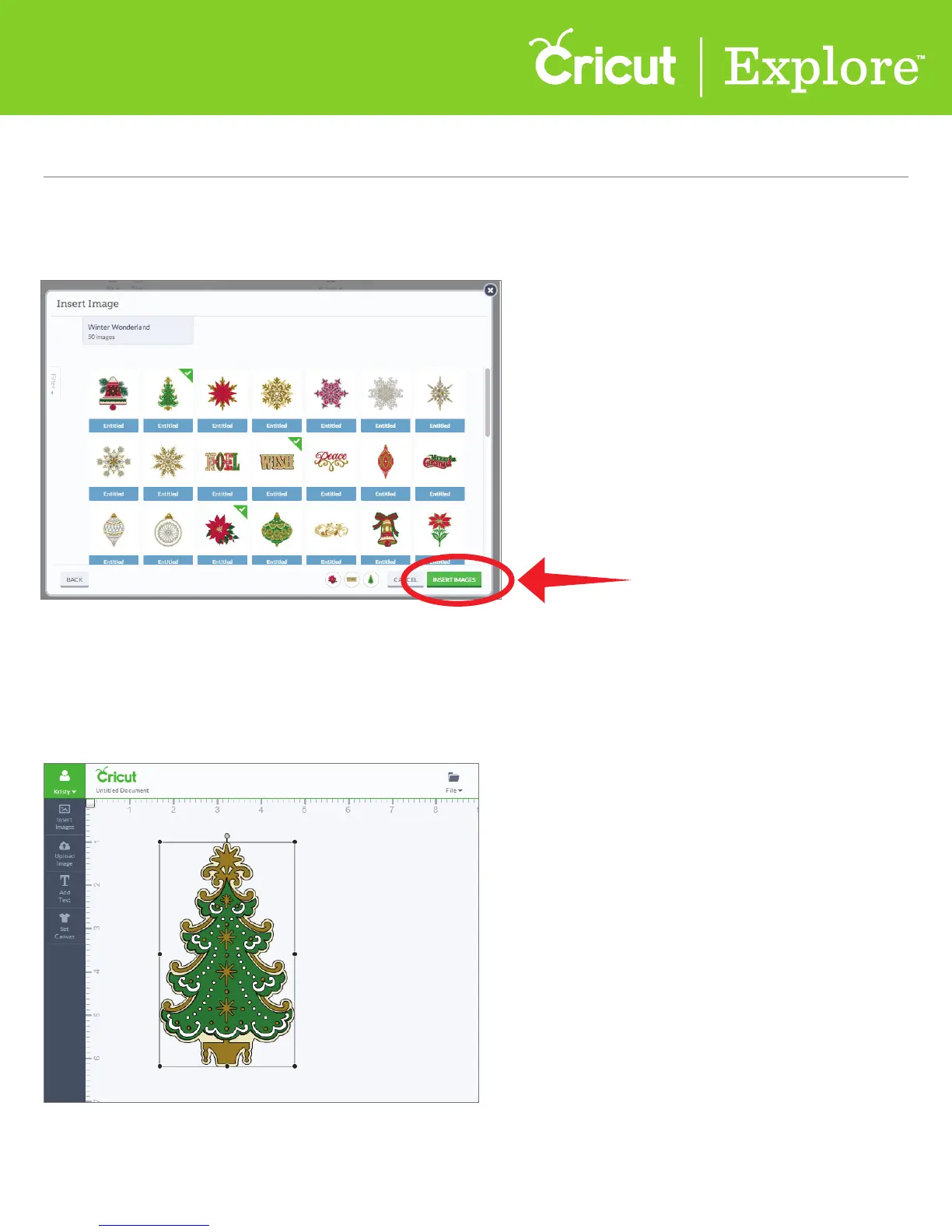
Step 5 Select one or more images by clicking on each image you would like to use. Thumbnails of these
images will be displayed in the image queue near the bottom of the Insert Image window. When you’re
finished selecting images, click “Insert Images.”
Step 6 The image will be added to your design screen. You can now move and size images to
visualize how they’ll look on your project.
Section 4B
Image library - Insert/Search for images
Section 4B Page 4
Section 4B
Image Library - Search for Image Sets/Cartridges














 To Next Page