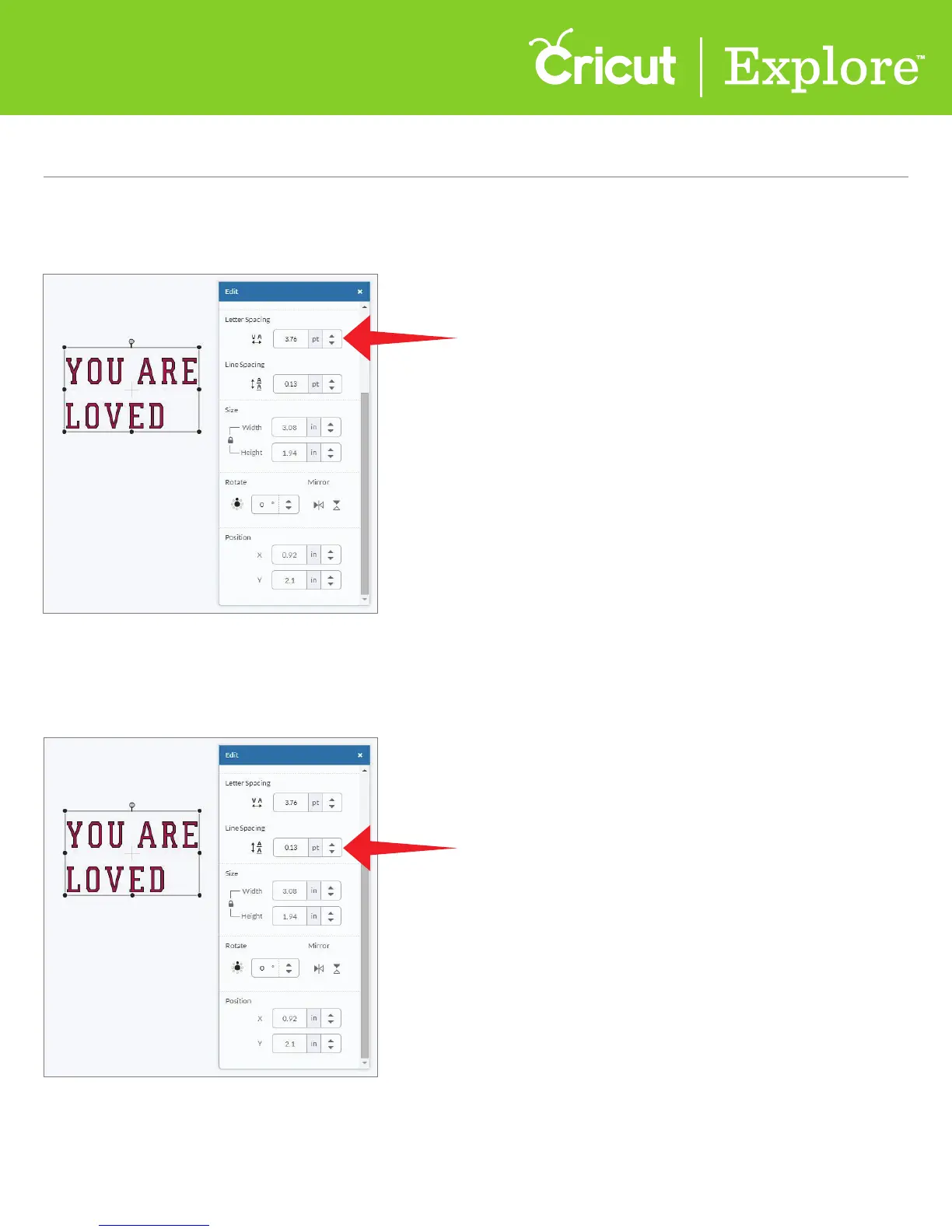
Step 6 In order to make letters touch or get further apart, use the letter spacing option by typing an
exact number in the field or clicking the up and down arrows.
Step 7 When working with multiple lines of text, you have the option to increase or decrease the
line spacing. To do this, change the line spacing by entering an exact number in the field or clicking
the up or down arrows.
Section 8B
Working with Text/Edit Panel - Selecting Text
Working with Text/Edit Panel (cont.)
Section 8B Page 5













 To Next Page