Using the Keyboard 79
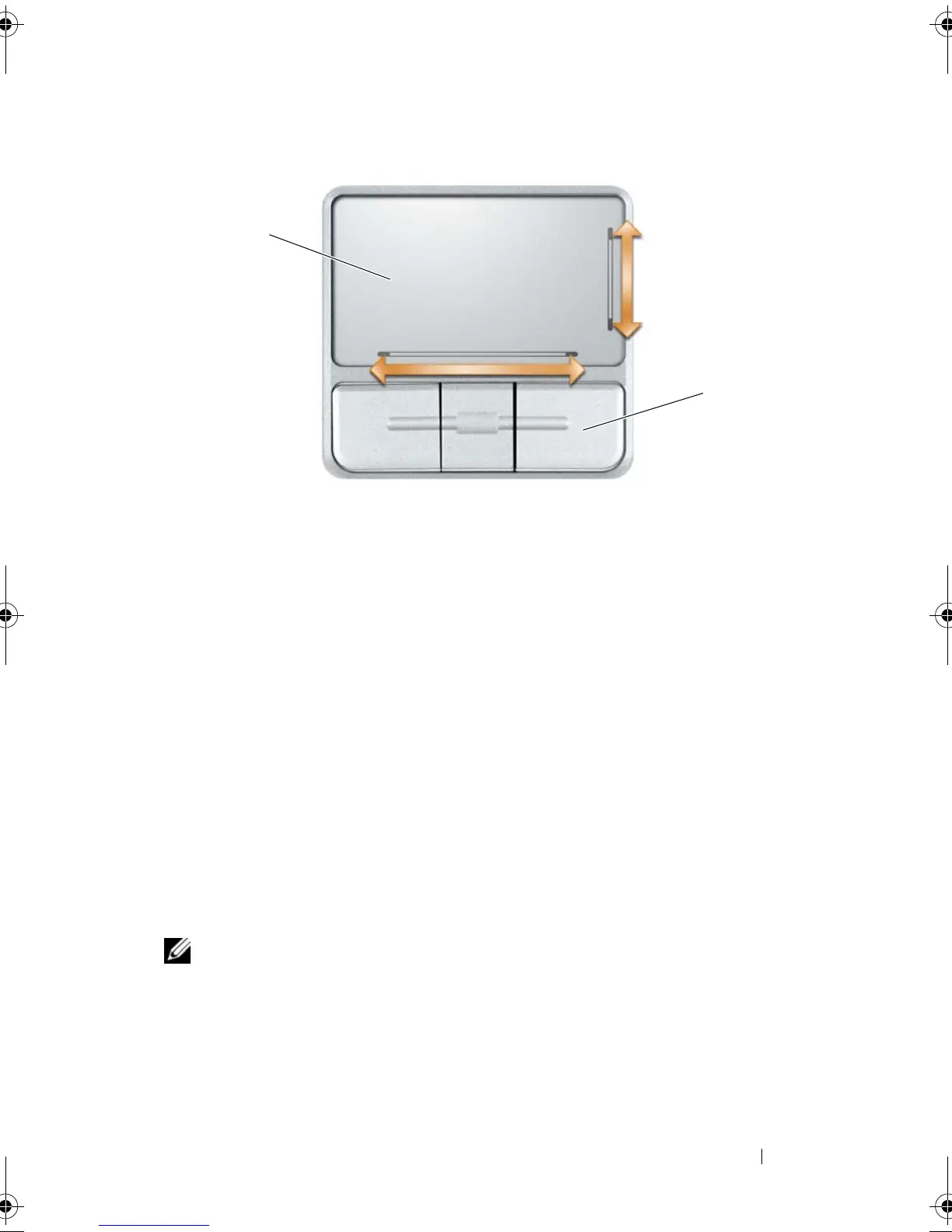
• To move the cursor, lightly slide your finger over the touch pad.
• To select an object, lightly tap once on the surface of the touch pad or use
your thumb to press the left touch-pad button.
• To select and move (or drag) an object, position the cursor on the object
and tap twice on the touch pad. On the second tap, leave your finger on
the touch pad and move the selected object by sliding your finger over the
surface.
• To double-click an object, position the cursor on the object and tap twice
on the touch pad or use your thumb to press the left touch-pad button
twice.
The touch pad has silk screening on the right side and the bottom to indicate
scrolling abilities. Scrolling is enabled by default. To disable this feature,
modify the mouse properties within the Control Panel.
NOTE: The scroll zones may not work with all applications. For the scroll zones to
function properly, the application being used must support the touch pad scroll
feature.
1 touch pad 2 touch pad buttons (3)
1
2
book.book Page 79 Tuesday, August 28, 2007 10:20 AM




 To Next Page