59
PULSE MX
Palette window
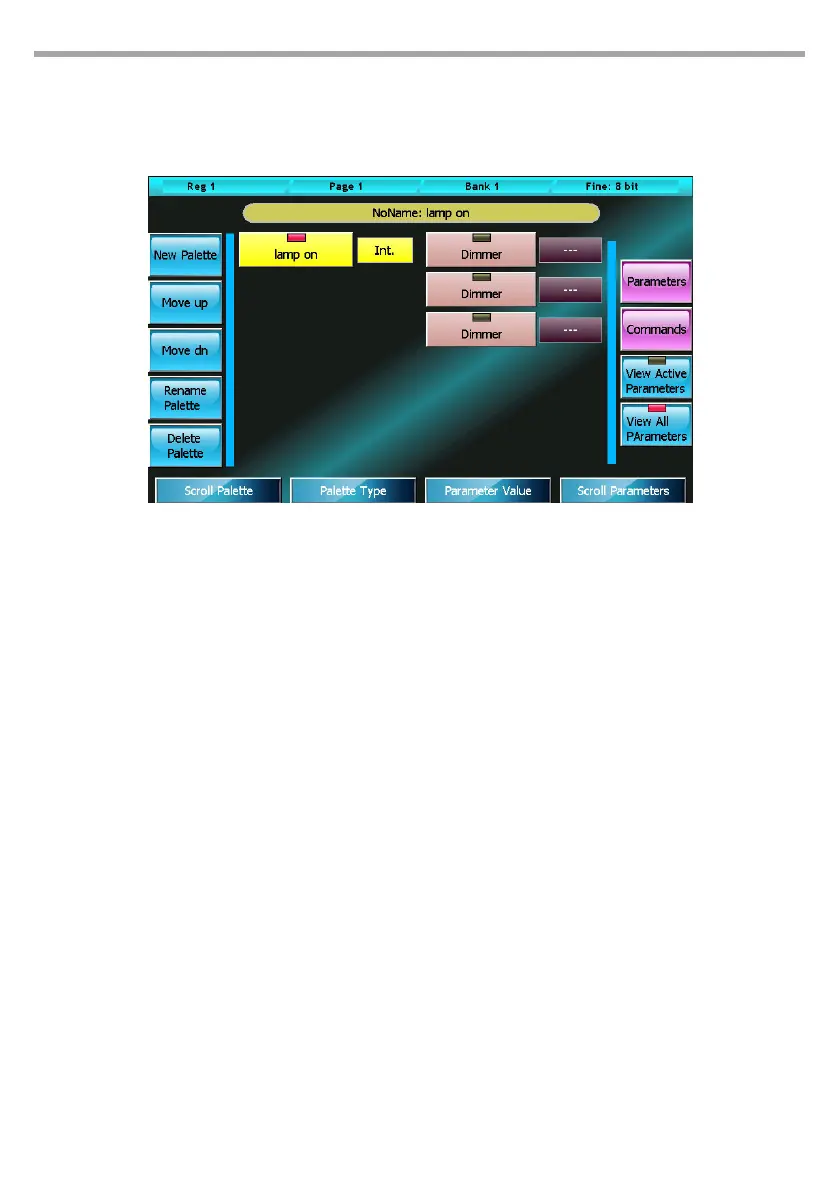
The xture could be now considered as completed, but predened palettes can also be added. In order
to do so, press the Palettes button to open the Palette window.
The information necessary for inserting a new palette is: name, type, (Int., PT, Color, Gobos, Prism or
Blade) and the state of the features aected by the palette (palette body).
Pressing the New Palette button activates the digital keyboard allowing to type in a name for the
new palette to be created. Afterwards, the palette can be assigned a type and a value for each chan-
nel aected, by using the wheels. Channels not aected by the palette must be set to “---”.
The window includes several buttons for editing data:
New Palette:
Allows to insert a new palette
Move Up e Move Down:
Moves the selected palette respectively up and down
Rename Palette:
Allows to change the name of a selected palette
Delete Palette:
Permanently delete the current palette, after conrmation
View Active Parameters:
Displays in the palette body only the parameters which are actually involved; oers a compact visu-
alisation of all relevant palette data. To eliminate a parameter of the set of active parameters, set it
to “---”.
View All Parameters:
View all parameters in the palette body- The display mode allow you to add parameters to the set of
parameters used by setting them to a value other than “---”
Palette window Fig.50


 To Next Page