Page 45
Use Locks
Set or Change Channel Locks
Note: You can lock any channel, even a pay per view channel.
1. Press MENU and then select the
Locks menu.
2. Select the
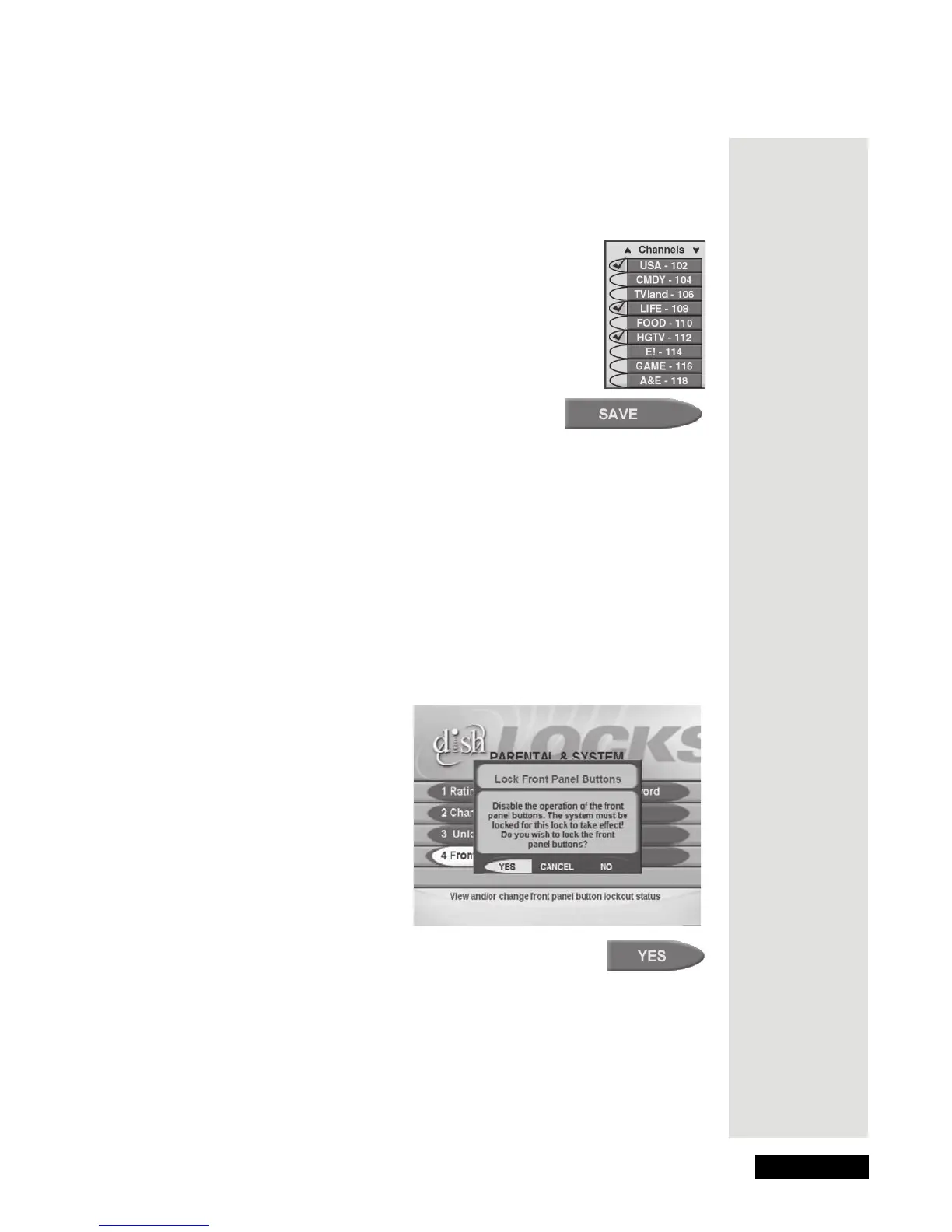
Channel Locks option. Select the channel(s)
you want to lock. A checkmark shows up next to the
channel(s), as you can see in this example.
3. To unlock a channel, select that channel. The checkmark
next to the channel goes away.
4. Select the
Save option to save your changes.
5. You must lock the receiver to apply the lock you
just set. Please see Lock or Unlock the Receiver on
page 47.
Lock or Unlock the Receiver Front Panel Buttons
Note: You can lock the receiver buttons and hide the remote to limit how
people use the receiver.
Note: Even if you lock the receiver front panel buttons, the Power button will
continue to work.
Here’s what to do:
1. Press MENU and then select the Locks menu.
2. Select the
Front Panel Lock
option. The Lock Front
Panel Buttons popup
displays.
3. Select the
Yes option.
4. You must lock the receiver to apply the lock you just set.
Please see Lock or Unlock the Receiver on page 47.









 To Next Page