DTG M Series Maintenance Manual Care & Maintenance
5.5 Other Maintenance Items
5.5.1 Powerful Head Cleaning
In some instances, the Head Cleaning mentioned above in Section 3.5.5 "Performing a Head Clean
from the Operation Panel" p.41 is not strong enough to clear stubbornly blocked nozzles. In these
cases, it may be necessary to execute a stronger cleaning on the printer via the Control Panel menu.
The same menu can be used to execute an ink charge in instances where it is necessary to move a
larger volume of ink through the printer (such as refilling of inks, flushing the system etc.).
It must be noted that this process consumes a considerable amount of ink and should only be used
in extreme situations:
Ensure that the Waste Ink Container has been emptied in accordance with Section 5.4.6 "Emptying
the waste ink container" p.96
The powerful clean / ink charge options can only be accessed through a “hidden” menu called the
Self-Diagnosis menu.
Note that the Self-Diagnosis menu contains several menu options which are intended for use ONLY
by a trained & authorized DTG technician. It is very important that you do not execute any other of
the menu options available in the Self-Diagnosis menu – incorrect settings or the execution of some
menu items may result in damage to your printer.
5.5.1.1 Accessing the Self-Diagnosis Menu
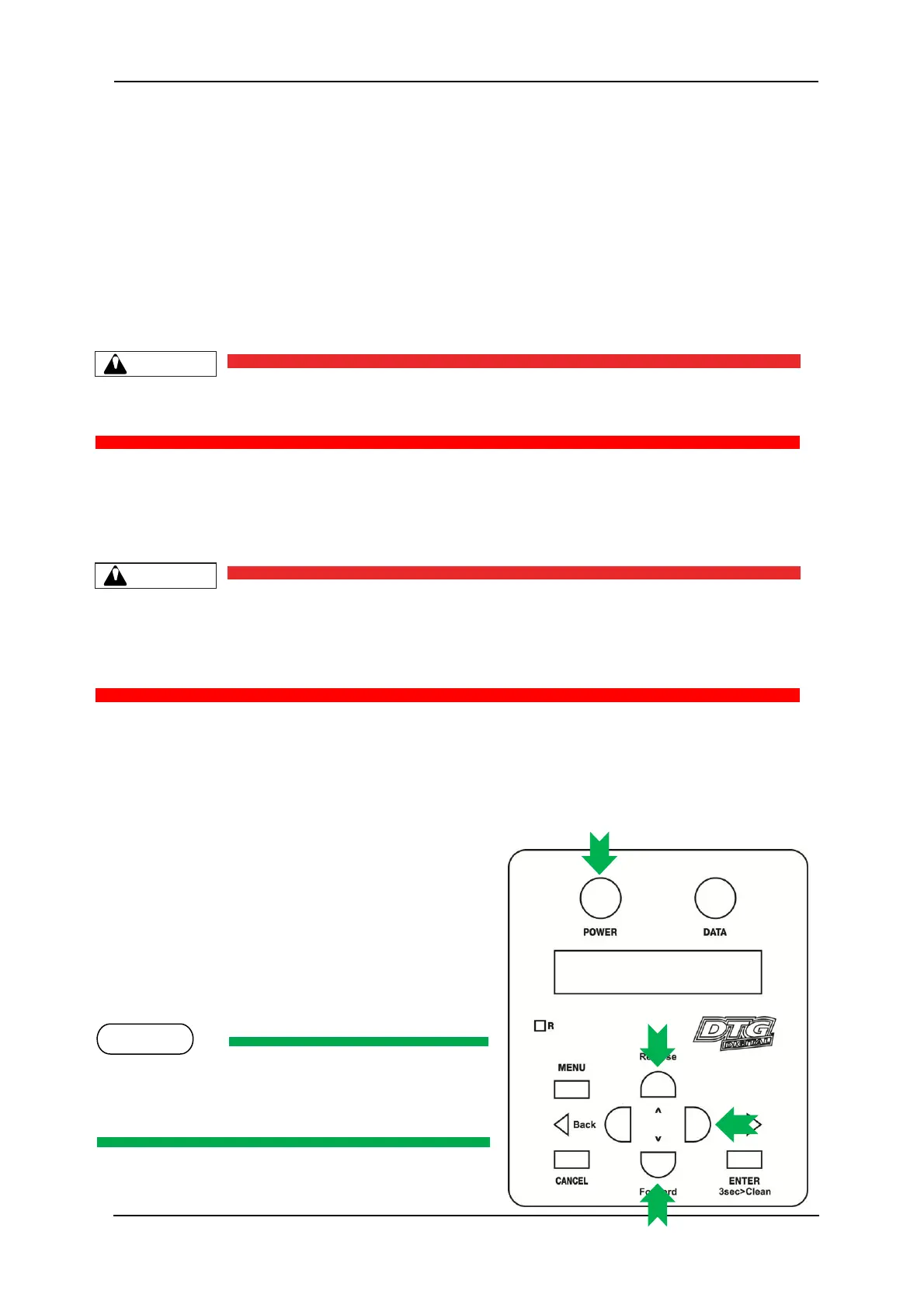
To access the Cleaning menu , select the self-diagnosis menu on the operation panel.
The self-diagnosis menu is completely independent of the normal operation mode and self-
diagnosis display mode. To call up the self-diagnosis menu, follow the steps below.
3. If the system is in the operation mode or the self-
diagnosis menu mode, press [Power] key to turn
the printer off.
4. While holding down [Reverse] key, [Forward] key
and [Next >] key in the operation panel
simultaneously, press [POWER] key.
Be sure to continue to depress the [Reverse] key,
[Forward] key and [Next >] key in the operation panel
until the printer emits a series of “beeps”.



 To Next Page