1.
2.
3.
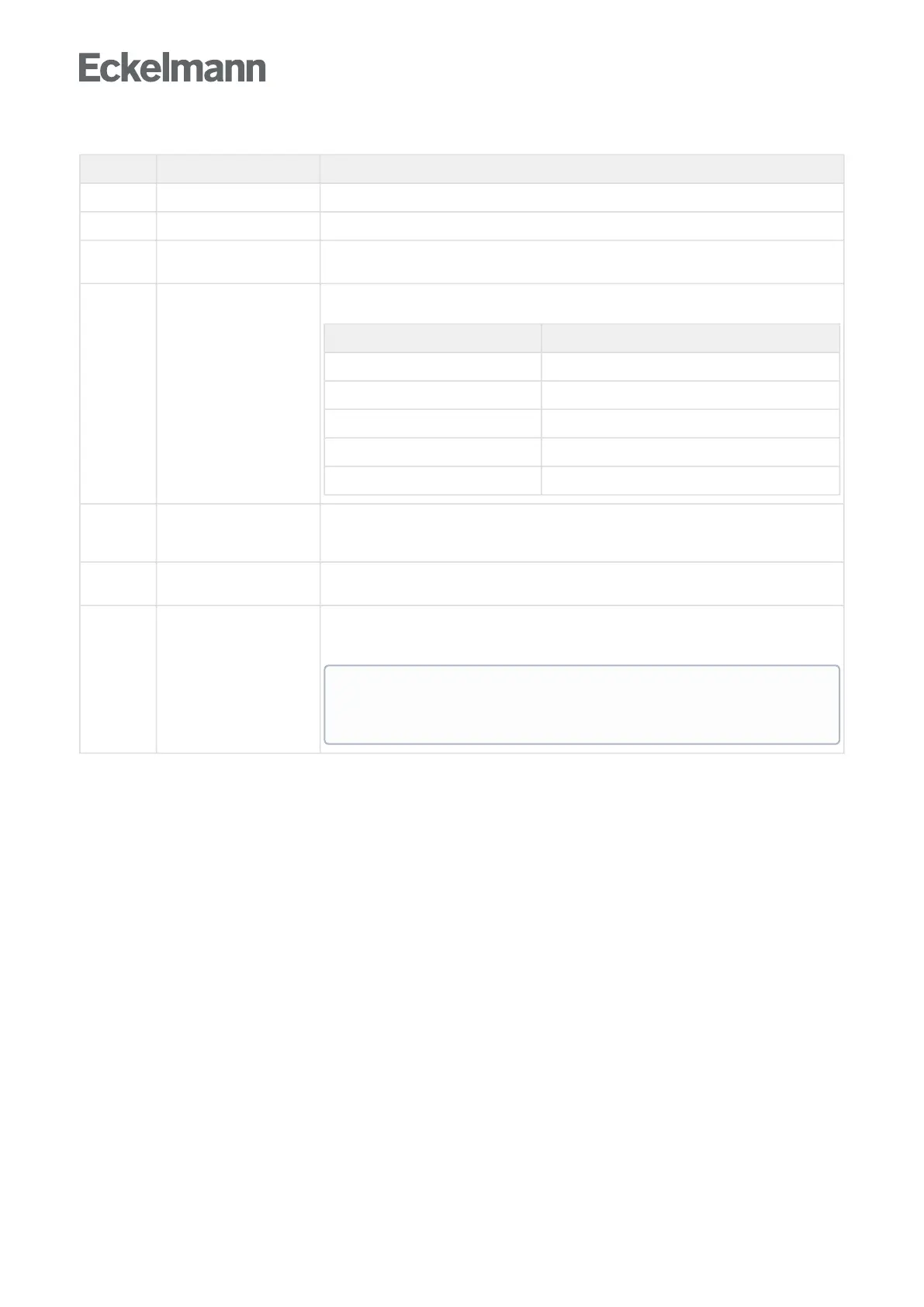
The areas in detail:
No. Description Explanation
(1) Title Title of the opened signal list
(2) Menu The menu bar in the top line with the selection
(3) DDC selection The code for one DDC, a selection or all DDCs can be generated selectively. This can save
time if only one DDC will be changed.
(4) Code generation buttons Here, either all or individual program files for CODESYS can be generated by clicking a
button.
Action button Generated CODESYS file (x = 1..4)
All All files
EA assignment EA_DDC_x.exp, Visu_DDC_x.exp
Setpoints DDC_x_Sollwerte.exp
Error texts DDC_x_AlarmPrepare.exp
Glt.cfg ~x glt.cfg (for all DDCs)
(5) Actions status Status of the actions for the respective DDC.
Green: OK, code generated.
Red: error, no code generated
(6) Status and error messages This shows how many data points the building automation system visualises and archives and
detailed error messages in the event of input errors in the signal list.
(7) Status line Progress display
Status message such as "Finished"
Error messages
Note
Simply double click on one of the error messages in the status line to display the
error highlighted in colour in the Signal List.


 To Next Page