Epson Artisan 700/Epson Stylus Photo PX700W/TX700W Revision C
ADJUSTMENT Adjustment Using Adjustment Program 228
Confidential
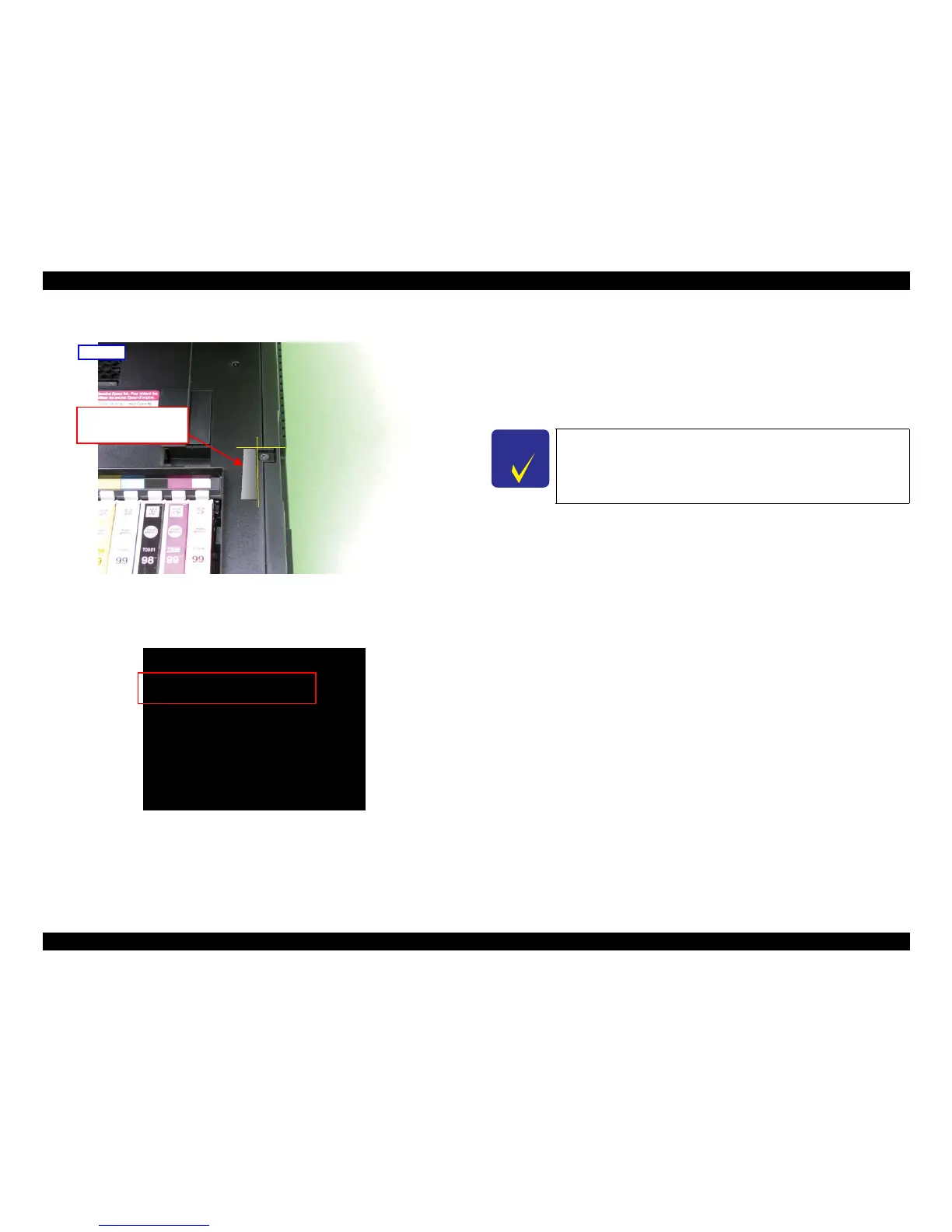
5. Place the thickness gauge 0.9mm on the location described in Figure 5-20.
Figure 5-20. Placement of the Thickness Gauge
6. Close the scanner and confirm the Cover open sensor co
ndition changes to
“Closed!”.
Figure 5-21. Case open sensor check (4)
7. Open the scanner and replace the gauge to
the thickness gauge 3 mm, and confirm
th
e Cover open sensor condition changes to “Open!” even when the scanner is
closed. (Refer to Figure 5-19.)
8. Press “CD/DVD tray” button to return to “Special Inspection” menu.
9. By pressing the “Power” button, turn off the printer to complete Check 1, and
perform Check 2 (p229) continuously.
Front left
Place the gauge (0.9mm)
aligning it with the edge
of Upper Housing.
Sensor Check
Cover open sensor condition
Close!
Photo Tray sensor condition
Open!
DUP unit sensor condition
Open!
After Check
Push [CDR Guide] Button
C H E C K
P O I N T
If you confirm that the cover open sensor is not operating correctly
in
Step 4, Step 6, Step 7, check the connection of FFC between the
cover open sensor and the Main Board. If the correct connection
cannot
improve the symptom, replace the scanner unit with a new
one.








 To Next Page