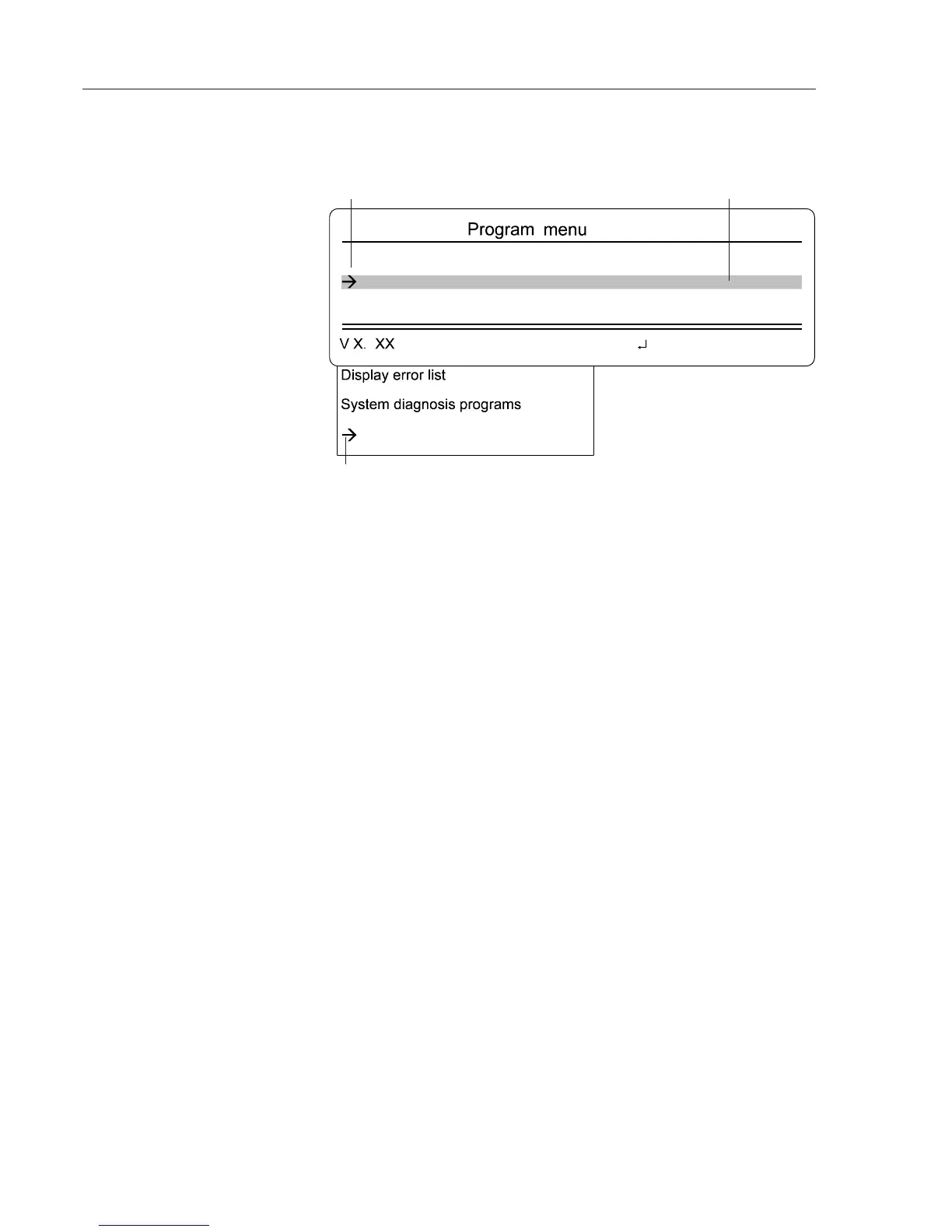
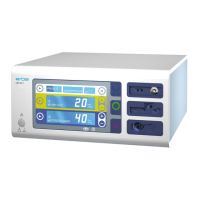
Press the enter key to leave the standard display. Now you are in the Pro-
gram menu.
Finding your way around in the
APC 300's program structure
Cursor
Start of the menu
End of the menu
All the APC 300's menus have the same structure. There is a cursor in the
second line. If you press the up or down keys, the cursor runs up and down
the menu items.
Using the enter key, the marked menu item can be called.
At the start and end of each menu there is a menu item Quit menu. If you
mark this with the cursor and press the enter key you will return to the next
level up in the program structure. If you leave the program selection menu,
for example, you will return to the standard display.
1. Press
ENTER key.
2. Mark menu item Configure user programs in the Program menu using
the
UP / DOWN keys. Confirm with the ENTER key.
3. Mark menu item Flow adjustments in the Configure user programs menu
using the
UP / DOWN keys. Confirm with the enter key. You are now in the
Flow setup.
4. In the Flow setup menu, mark Quit menu using the
UP / DOWN keys. Confirm
with the ENTER key.
5. In the Configure user programs menu, mark Quit menu using the UP /
DOWN keys. Confirm with the ENTER key.
6. In the Program menu, mark Quit menu using the
UP / DOWN keys. Confirm
with the ENTER key.You are now back in the standard display.
Example: how to get from the
standard display to the Flow
setup menu and back again.



 To Next Page