Patch 121
{Database} Display and Settings
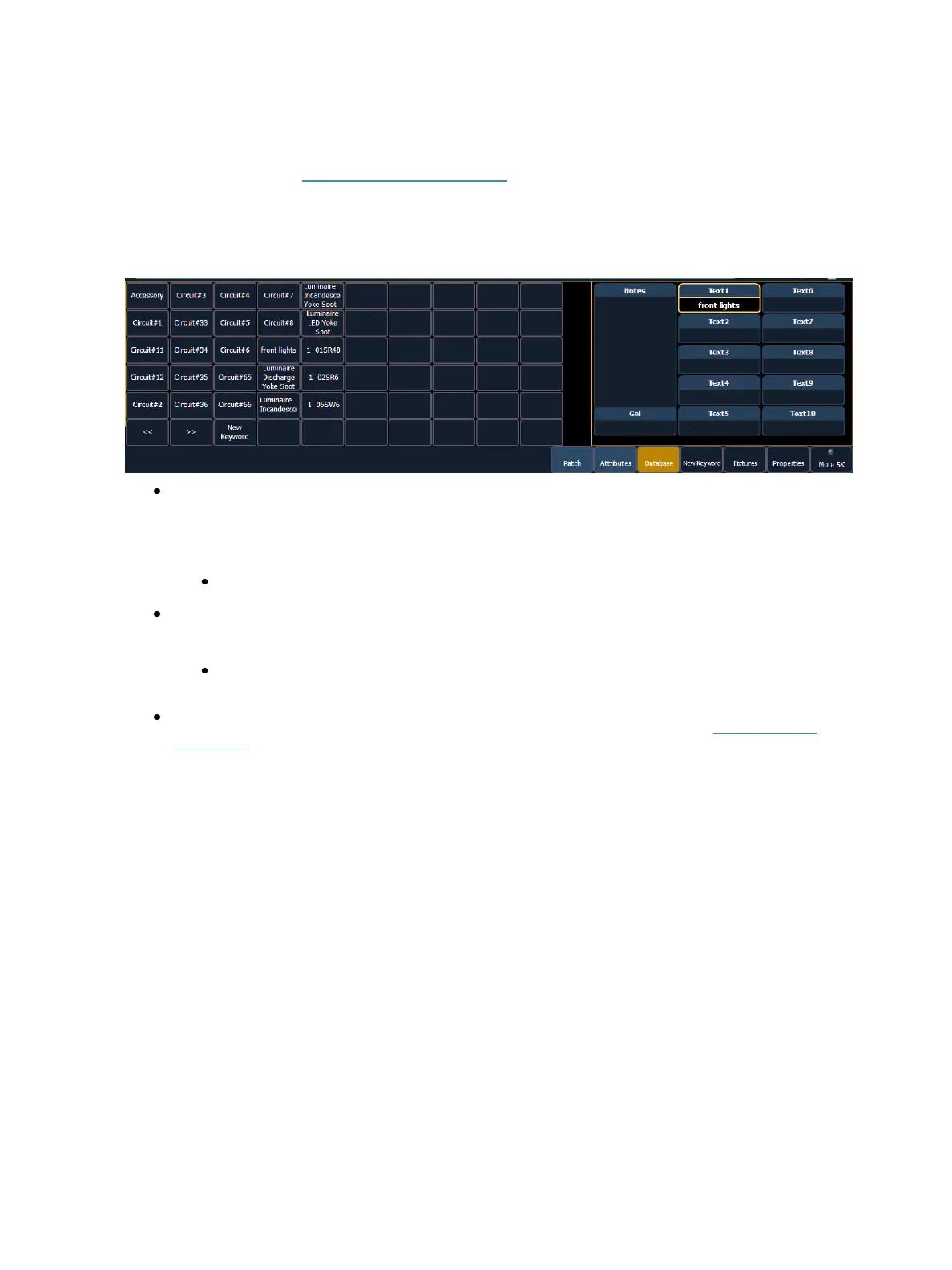
The {Database} page provides you with additional fields for entering information that can be used by
the Query function. See Using {Query} (on page286). These fields include {Notes} and {Text 1}
through {Text 10}. Clicking on {Text 1} through {Text 10} will open up a display for selection of
keywords. It will display keywords that were already created as well as showing an option for cre-
ating new keywords. Clicking on {New Keyword} will display an alphanumeric keyboard for entering
in a new keyword.
{Text} - Text fields are used to provide up to ten keywords about any channel or group of chan-
nels. These fields can be anything that you think is important about a channel, such as its loc-
ation (FOH), an attribute of it (wash, spot) or other characteristics of the channel (such as gel
R80). You may use the virtual keyboard in the CIA, or an external keyboard, to provide up to
30 characters of key words about the device.
[5] {Database} {Text 1} < FOH right> [Enter] - adds text to channel 5.
{Notes}- Provides you the ability to attach a text note to a channel or group of channels.
Select the {Notes} button on the CIA to display the virtual keyboard. You may type a label or
any length of note regarding your channel in this space.
[5] {Database} {Notes} <this fixture is a backup to channel 15 for front of house right /
new lamp installed on 10/4/17> [Enter] - adds a note to channel 5.
{Gel} - The Gel field automatically populates with the gel selected from the Gel Picker (on
page167).
Adding Keywords in Patch
If you plan on being able to query channels based on a keyword association, the keyword must be
defined in patch.
To enter a keyword for a channel:
1. Press [Displays], to the right of the CIA.
2. Press {Patch} at the bottom of the CIA.
3. Press {Database}.
4. Select a channel or range of channels in the command line.
5. Touch one of the {Text (1-10)} touchbuttons in the CIA to specify which keyword you are
entering. A list of previously defined keywords will be posted. Select from these or press {New
Keyword}. A virtual alphanumeric keyboard will appear.
6. Type the keyword or words you wish to use.
7. When finished, press [Enter].



 To Next Page