Patch 133
1. With the fixture selected, press {Lamp Ctrls}. The lamp control display will open.
2. Press {New} to add as many lamp control options as needed.
3. Click on the name in the lamp control column to name it.
4. Click in the Steps columns (Time, DMX, and Level).
5. Press {New} to add as many steps needed for the lamp control.
6. Select the time column to change the timing for each step. Timing is in seconds. The standard
time in the Eos Family library is 12 seconds.
Note: It is not recommended that you set the time to {Hold} unless the DMX value
should permanently remain at that level. In order to alter a level set with a time of
{Hold}, another lamp control to change that DMX value would need to be created.
7. For each step created, click in the DMXcolumn and press {New} to add as many DMX
addresses and levels as needed. You may setup as many levels as needed for each step.
Snap Parameters
Certain parameters may not want to be subjected to cue timing. Those parameters can be set to
snap. By default, Ion will snap the parameters listed in the following table:
Beam FX
Index/Speed
Effect Library MSpeed Shutter
Camera IR Image Enable Negative Shutter Strobe
Clip Directory File Object Directory Strobe Mechanism
Color Effect File Type Object File Sync Source
Color Index
Front/Rear Pro-
jection
Output Command Text
Color Mix Generator Page Texture
Control Generic Control Position Blink Timeline
Copy Mod
Image Movement
Speed
Projector Input Timeline Position
Cue
Internal Media
Frame
Relay Tracking Object
Dimmer Curve Library Select Transition Speed
Edge Blend Profile Macro Shape Transition Time
Effect File Mode Shape Library Transition Type
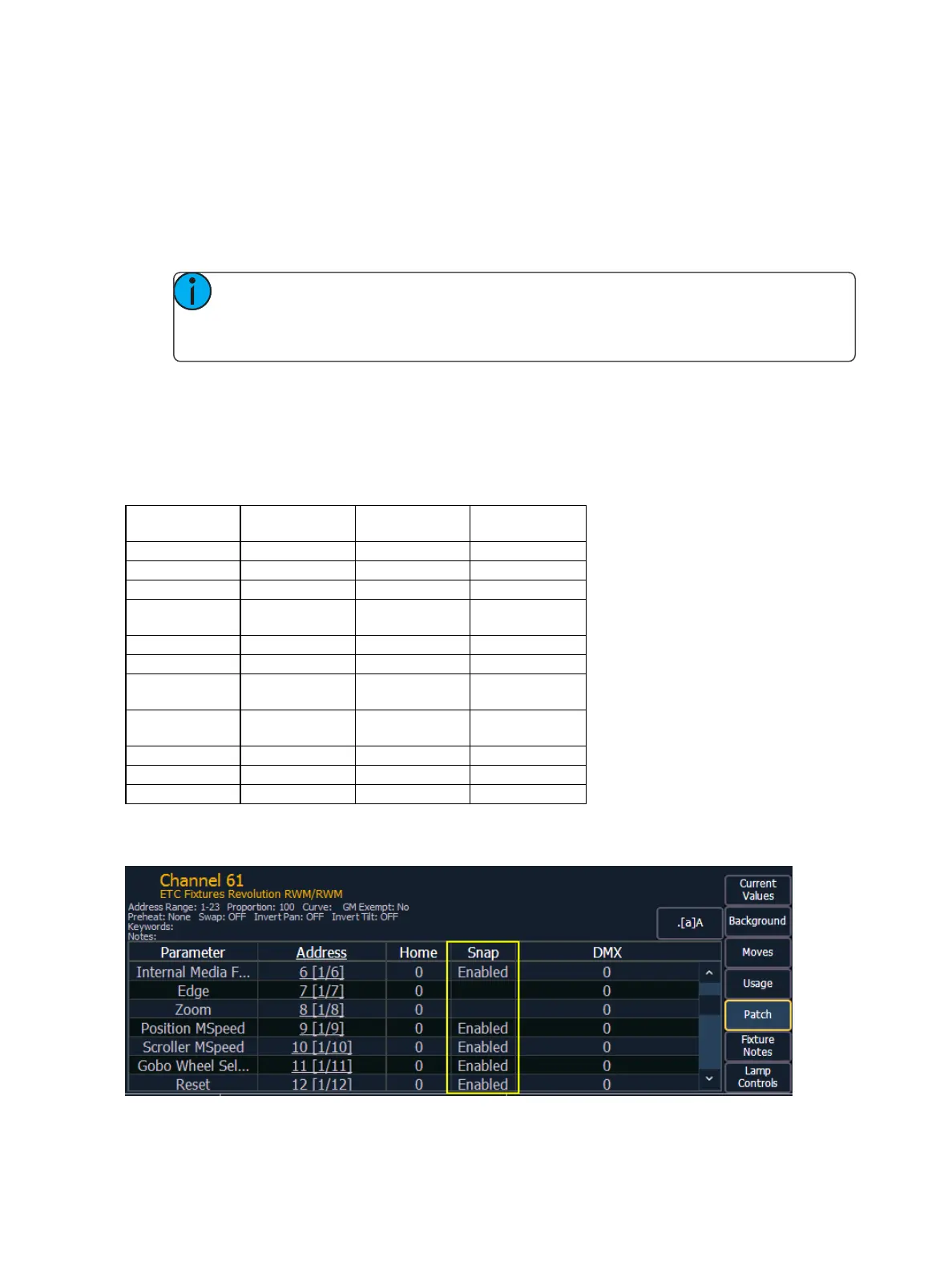
In the [About] channel patch screen, the snap column shows which parameters for that channel are
currently set to snap.



 To Next Page