148 Ion Operations Manual
{Blackout} - which disables the [Blackout] hardkey here. By default, blackout is “Enabled”.
{Grandmaster} - which disables the Grandmaster. By default the Grandmaster is “Enabled”.
Keyboard
There are four options available:
{Sounds}- allows you to enable or disable sounds. When disabled, the volume level controls
will not display.
{Spacebar [Go]} - allows you to enable the spacebar on an external keyboard as the hotkey for
[Go]. By default, it is “Disabled”.
{Hide Mouse} - With hide mouse enabled, if the mouse is left idle for 10 seconds, the cursor
will go away. Once the mouse is used again, the cursor will return. By default, this is “Dis-
abled”.
{UseShift as Eos Shift} - allows the SHIFT key on an alphanumeric keyboard to be used as the
console's [Shift] key. If not selected, the Z key on an alphanumeric keyboard will function as
the [Shift] key.
Volume Level
Note: External speakers are required for playing sounds.
You can adjust the frequency and length of the audible signals that your console delivers. Signals are
qualified as being either an error, advisory, or click sound. All types of sounds can be adjusted from
this setup screen in the CIA.
To adjust a sound, move the virtual slider with your finger (or mouse) on the CIA. To hear the result
of your adjustment, press the {Test} button respective to the sound type, located beneath the sliders.
Auto Repeat
This setting allows you to adjust the auto repeat settings (delay and speed) for the facepanel keypad.
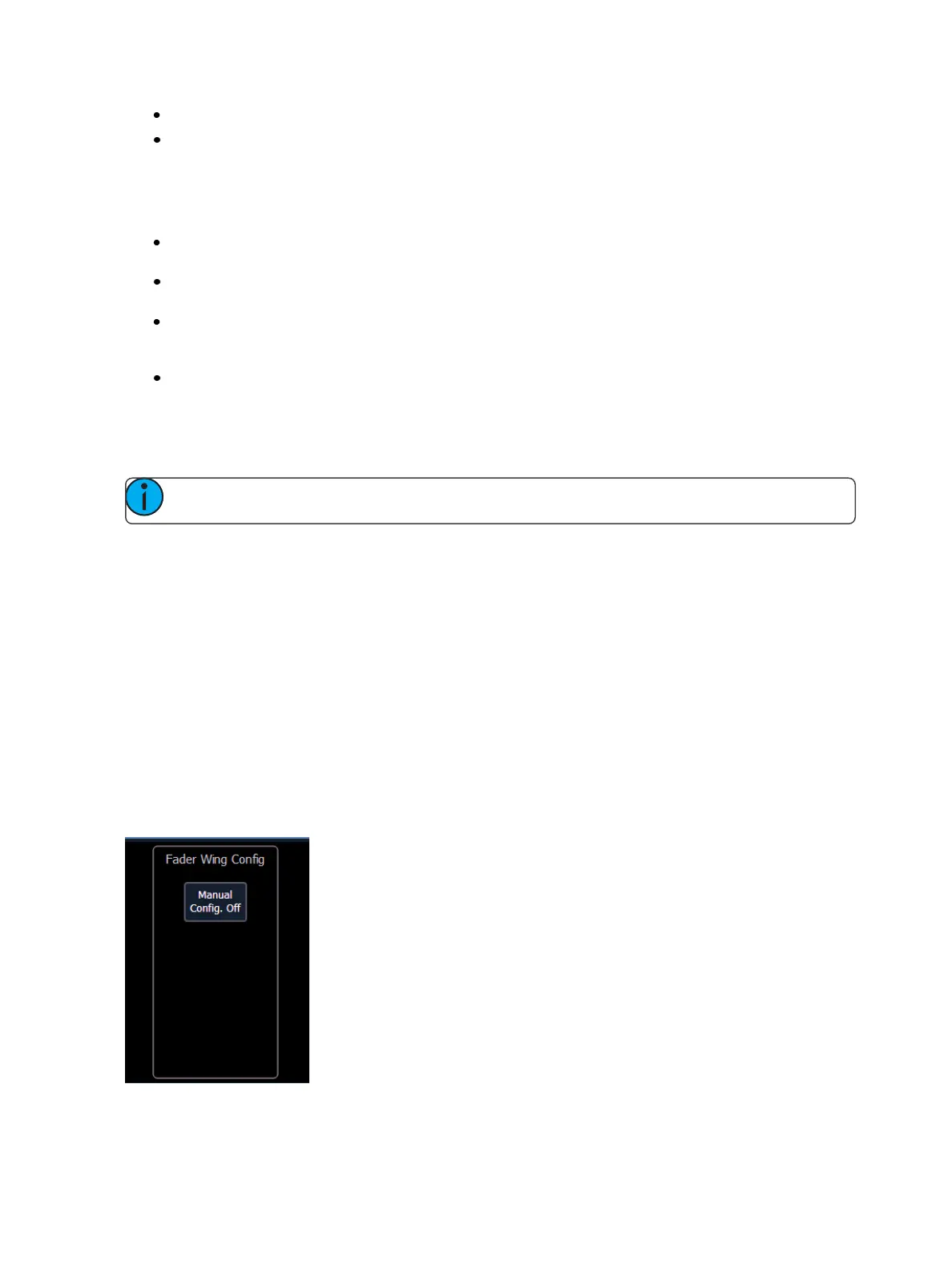
Fader Wing Config
This screen allows you to manually configure the positions of fader wings connected to your con-
sole. The console will default to configuring the wings on its own. To manually configure, you must
click on the {Manual Config. Off} softkey.



 To Next Page