Setup 149
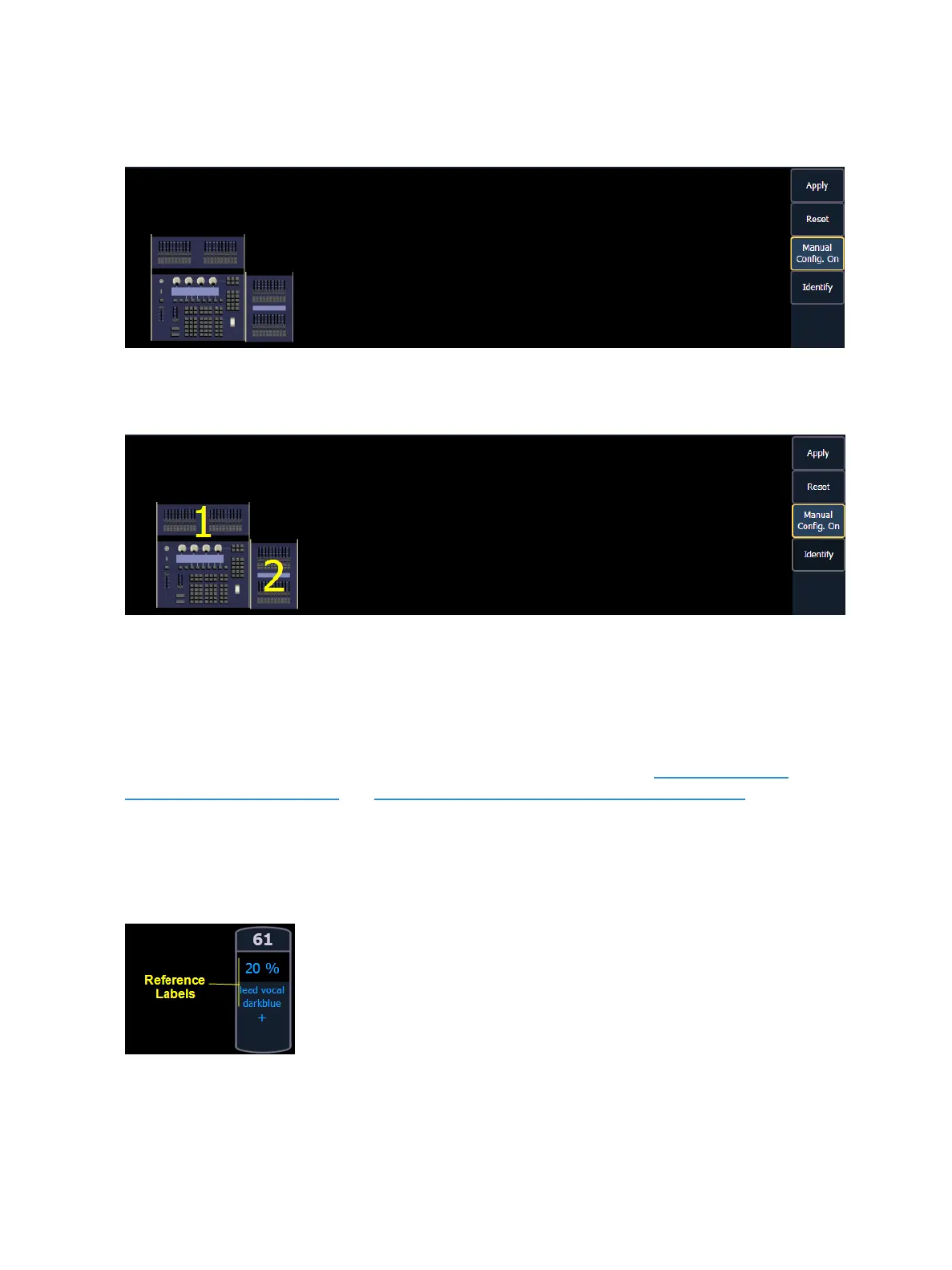
Clicking on the {Manual Config. Off} button turns manual configuration on and displays the Fader
Wing Configuration screen.
Clicking{Identify} will display numbers on each wing’s display to aid in configuration. The numbers
do not identify the wings as to their actual order. Order is determined from left to right. The left most
wing will contain the first faders.
Click and drag the wings to match your physical layout. Click {Apply} to save the changes. Clicking
{Reset} will restore to the last saved configuration. Clicking {Manual Config. On} will turn off manual
configuration and will require a restart of the application before the console will automatically con-
figure the wings. For more information on using fader wings, see .
Displays
This device setting button gives you access to the following settings. See Live and Blind Con-
figuration Menu (on page54) and Playback Status Display Configuration (on page63) for additional
display settings.
Show Reference Labels
When enabled, referenced record targets (such as presets or palettes) with labels will have their
labels displayed rather than their target type and number. This is disabled by default.



 To Next Page