22 Ion Operations Manual
Note: While it is possible to assign a resolution lower than the minimum (1280x1024), it is
recommended to be at 1280x1024 or higher.
For monitor configuration, please see Monitor Arrangement (on page451).
Control Keypad
The control keypad area is divided into several sections including record targets, numeric keypad
with modifiers, display, softkeys, navigation, and special function controls.
Display and navigation keys are used for quick access to common displays, format, paging, and nav-
igation within displays.
Navigation Keypad
Used for quick access to the Live and Blind displays, tab selection, location, paging and navigation
within displays.
Fader Control Buttons
The [Fader Control] button is used to access the fader control softkeys, and to access additional
pages of faders. Control softkeys include: {Manual Override}, {Rate}, {Spread}, {Release}, {Off},
{Assert}, {Go to Cue 0}, {Stop Effect}, {Freeze}, {Filter}, and {Timing Disable}.
See Playback Fader Controls (on page298) and Changing Fader Pages (on page297) for more inform-
ation.
Grandmaster and Blackout
The grandmaster inhibits all live intensity values. If the grandmaster is set at 50%, all live intensities
will be at 50% of their actual values.
Blackout sets all lighting levels to zero.
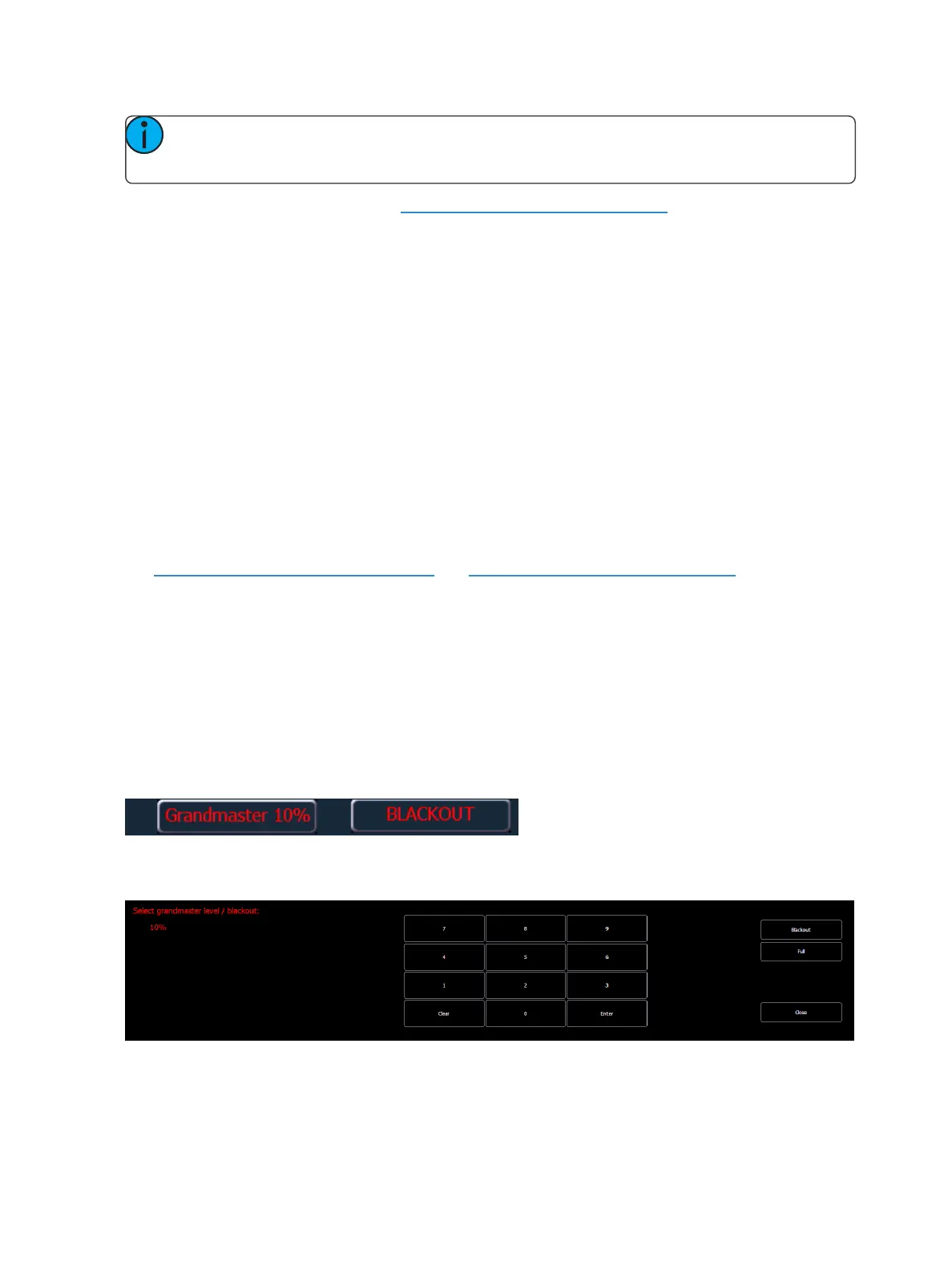
If a grandmaster is set to a value other than 100%, a grandmaster button with the set value will be
shown at the top of each display. If blackout is currently on, a blackout button will be shown at the
top of the displays.
Clicking on either button will open a new display which will allow you to turn off blackout and set the
grandmaster to a different level.



 To Next Page