36 Ion Operations Manual
Note: Single clicking on a Controls Tab will bring it to the front of the frame but will not
move focus to that tab unless the tab’s frame already has focus. Double clicking on a Con-
trols Tab will bring it to the front and grab focus. Single clicking on a Display Tab will bring it
to the front and grab focus.
Tab Numbers
The following table lists the tab number for each of the Control and Display tabs:
1 Live/ Blind 11 Show Control 21 Curves 31 Lamp Controls
2 Playback Status 12 Patch 22 Intensity Palettes 32 Channels In Use
3 Magic Sheet 13 Effects 23 FocusPalettes 33 Color Path
4 Direct Selects 14 Magic Sheet List 24 Color Palettes 34 Not Currently Used
5 MLControls 15 Submaster List 25 Beam Palettes 35 Fader List
6 Effect Status 16 Cue List 26 Presets 36 Fader Configuration
7 Keys 17 Groups 27 Color Picker 37 sACN Output View
8 Effect Channels 18 Macros 28 Virtual Faders 99 Diagnostics
9 Pixel Maps 19 Snapshots 29 About 100 User Manual
10 Pixel Preview 20 Park 30 Command History
Display Tabs
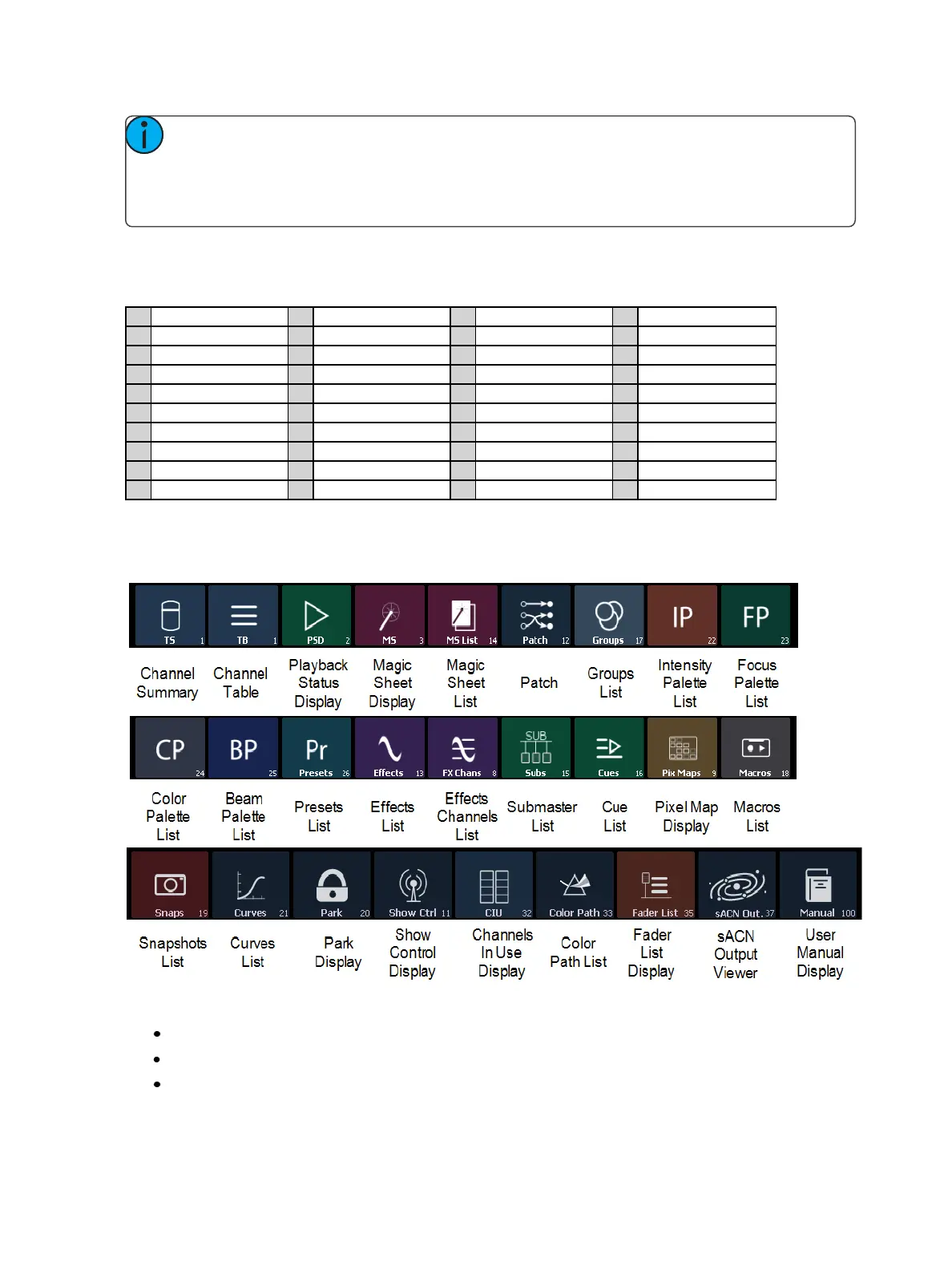
The following displays can be selected, and they will open in a new tab in the selected frame:
The following displays can have multiple instances open:
Channel (Summary)
Channel (Table)
Split Channel



 To Next Page