78 Ion Operations Manual
In the above screenshot, Fader 1 has discrete off . There is a link icon that displays to indicate that dis-
crete is off.
Master Fader Configuration
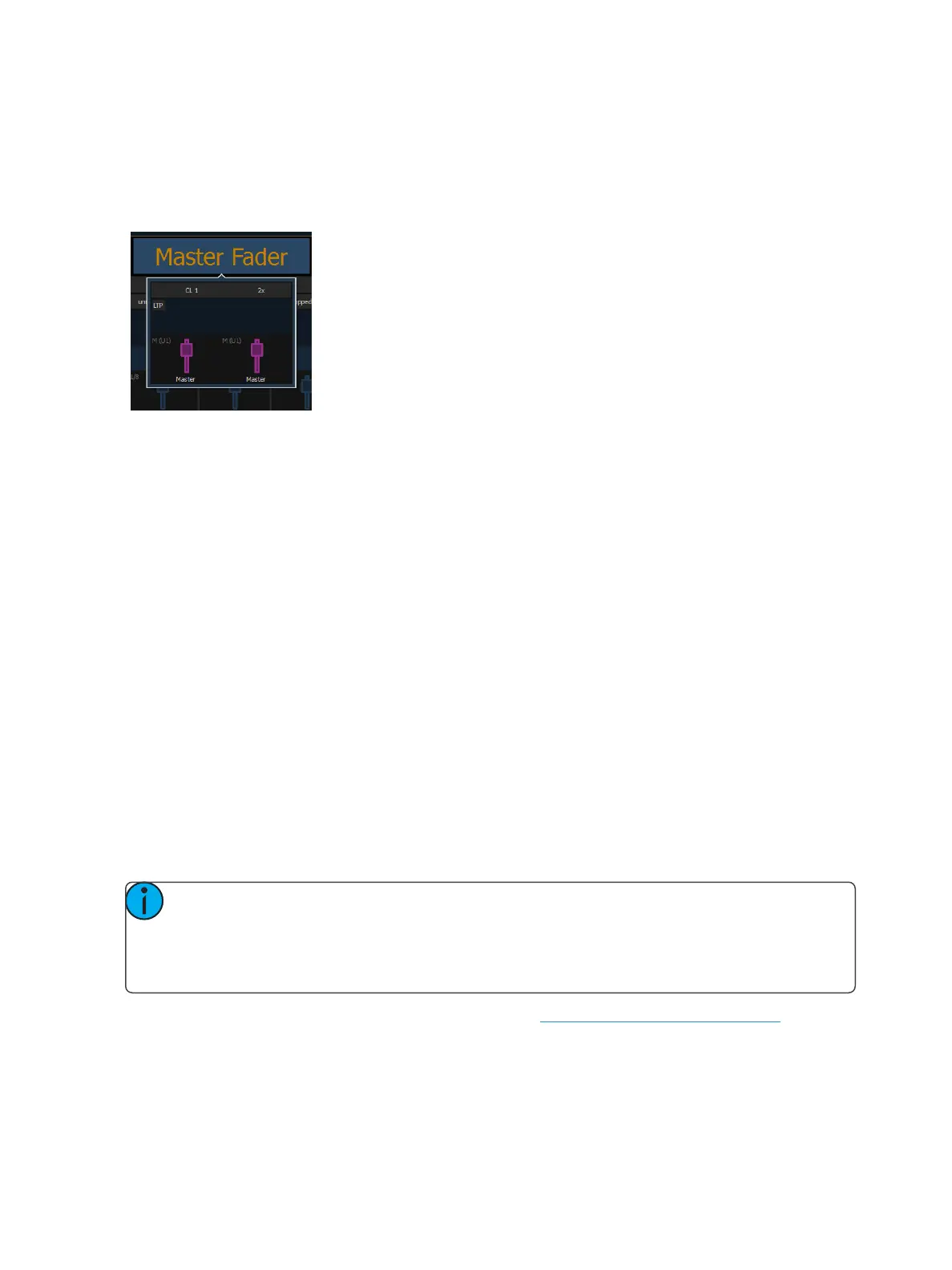
Click or tap Master Fader to open the master fader configuration window.
Target
This setting allows you to map a cue list to a fader.
ID
This sets the number of the target assigned to the fader, such as cue list 2. For a list of available Tar-
get IDs, click or press the {...} button beside ID.
Discrete Instance
This setting default to Yes and applies to cue lists. When a fader is discrete, it will track other faders
that are running the same cue list, BUT if a fader that is tracking manually changes to a different cue
list, a discrete enabled fader will not change its content. When set to No (or disabled), once a fader is
in sync with another fader running the same cue list, it will stay in sync when content is changed. Dis-
crete disabled is noted in the fader ribbon with a link icon.
Size
Master fader is set to a size of 2 faders and cannot be changed.
Buttons &Slider
You can select to use default mapping for the fader, or you can use local mapping.
Note: When a user first joins a session, the master fader is unmapped. Once a cue list is
established for that user, any other devices joining the user group will have the same cue list
automatically mapped to their master. If a device changes its user ID, the cue list on the mas-
ter will be remapped accordingly.
Additional configuration options are available. Please see Cue List Properties (on page263)for more
information.



 To Next Page