XRF6 RF Router Manual
OPERATION Revision 1.0 Page 6-1
6. OPERATION
The router matrix may be controlled via SNMP over the Ethernet port, or by RS232/422 over the frame’s
serial port. The Evertz X-NCP2 control panel uses SNMP over Ethernet, while many third party monitoring
and control systems use the RS232/422 port.
6.1. X-NCP2 ROUTER CONTROL PANEL
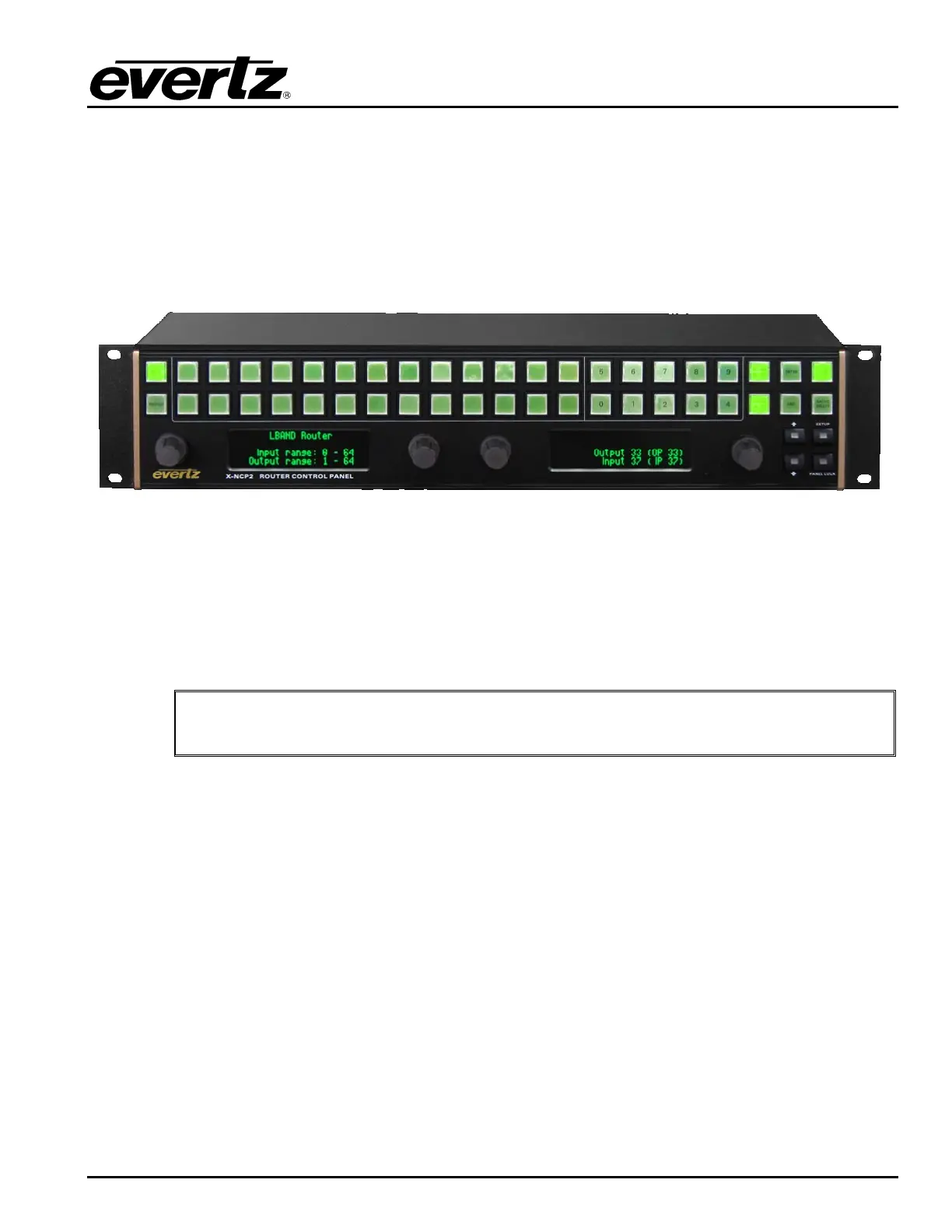
Figure 6-1: X-NCP2 Router Control Panel
The Evertz X-NCP2 control panel is a multi-function control panel used to control the XRF6 router, as well
as other Evertz products. The control panel may be connected directly to the router’s Ethernet port (using
a crossover Ethernet cable) or to a hub or switch, which is connected to the router’s Ethernet port (using a
standard Ethernet cable). A hub or switch is required to connect multiple control panels to a frame
controller. The panel communicates with the router’s frame controller using SNMP. See section 2.5.2 for
more information on Ethernet connections and cabling.
To connect an XNCP2 control panel directly to an XRF6 router Ethernet port, a
crossover Ethernet cable is required.
To control the XRF6 router via the XNCP2 panel, the IP address of each frame controller must be added
to the XNCP2 list of controlled devices on the network. This is detailed in section 6.1.1.
6.1.1. Adding XRF6 router frame controller to XNCP2 control list
The addition of XRF6 router frame controllers can be performed once the XNCP2 panel and XRF6 frame
controllers are on the same IP subnet.
Follow this procedure to add a frame:
1. Enter the <setup> menu at the top level menu of the XNCP2.
2. Depending on the firmware version in the X-NCP2, select the <add frame> item in the list, or if
present select the <add XNCP device manually> item in the list and skip to step 4.
3. Select the frame type as <NON-SNMP>.
4. Enter the IP address of the XRF6 frame controller using the scroll knob and [SETUP] key.
5. The XNCP2 will update and display the IP address of the added frame controller.



 To Next Page