XRF6 RF Router Manual
FIRMWARE UPGRADES Revision 1.0 Page 8-3
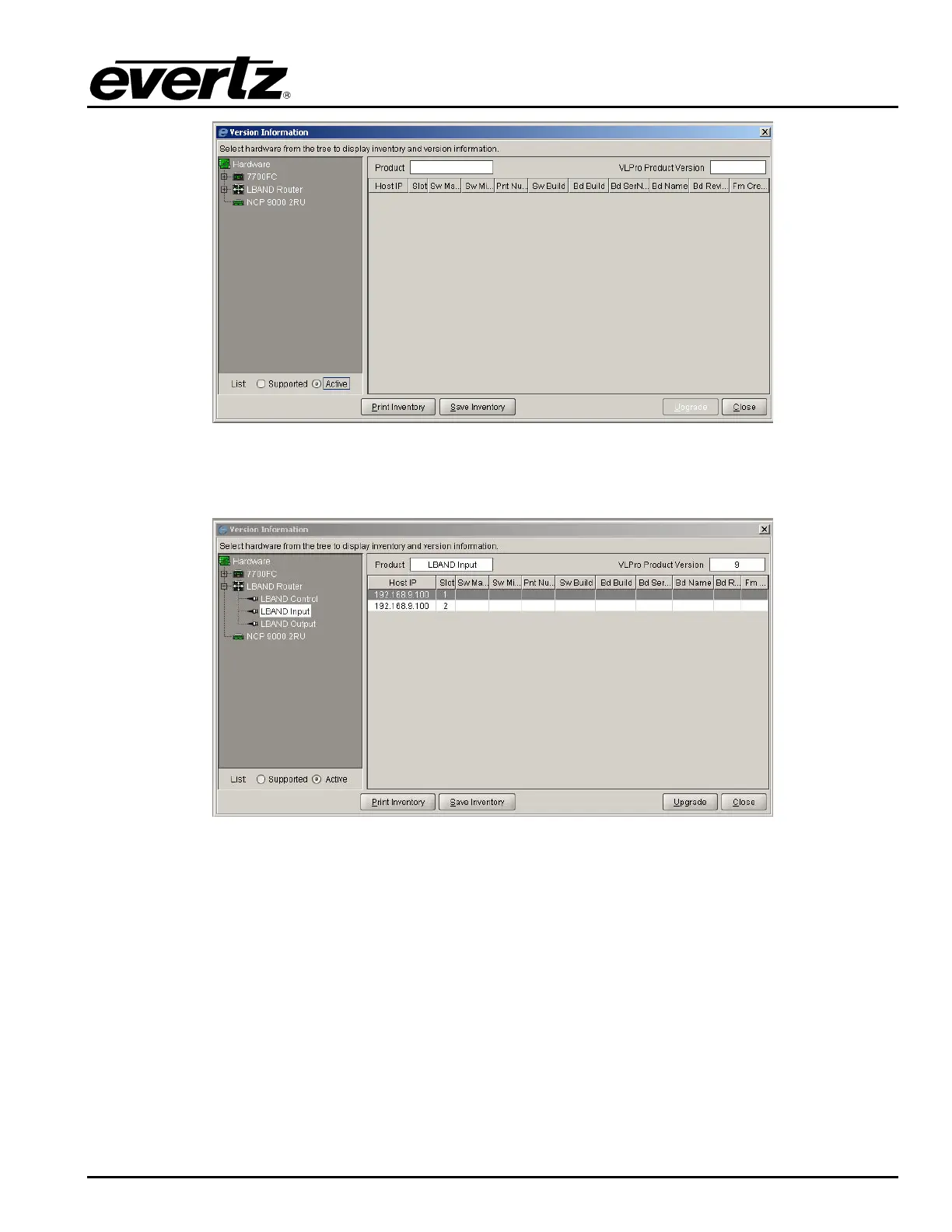
Figure 8-4: Active Radio Button
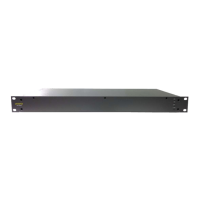
4. Expand the entry for LBAND Router from the hardware tree at the left and select LBAND Input.
Figure 8-5: XRF6 Hardware Tree Listing
5. Click on Upgrade. A popup window named Upgrade Firmware will appear. Listed will be all of the
XRF6 input cards detected in XRF6 systems on your network.
6. Click
Browse and select the appropriate firmware file from your system, e.g. xrf6-i16lb-1-05-0037.bin



 To Next Page