XRF6 RF Router Manual
FIRMWARE UPGRADES Revision 1.0 Page 8-11
8. When the upload is complete, allow the card to reboot prior to removing the upgrade cable.
9. Repeat the above process for each card in the system requiring upgrade.
8.2.2. Upgrading Frame Controller Firmware
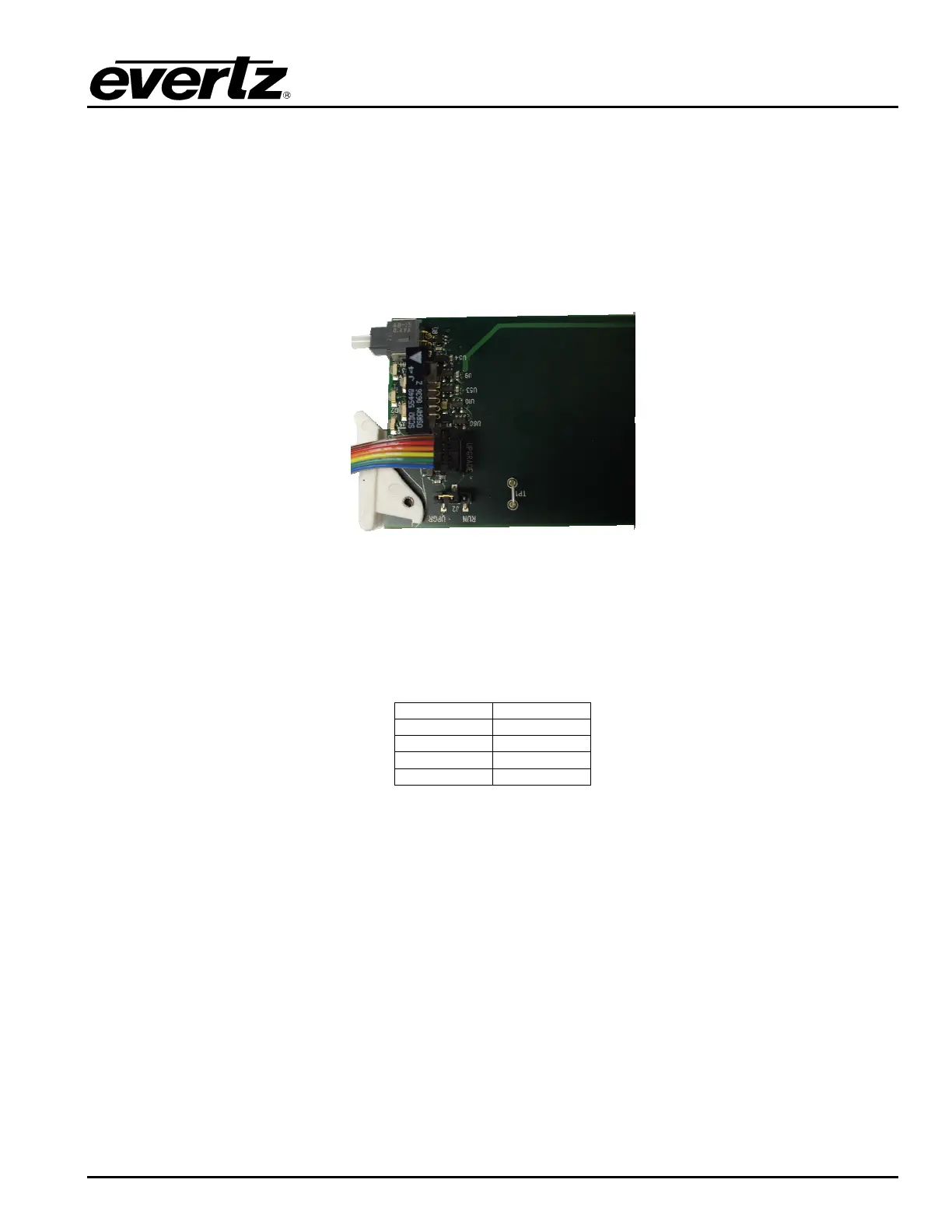
1. Pull the frame controller out of the frame, exposing the first ¼ of the card. Locate the J20 header and
connect the ribbon cable.
Figure 8-21: Frame Controller Card Upgrade Header With Upgrade Cable Connected
2. Connect the other end of the ribbon cable to the PC to be used for the upgrade.
3. Locate the RUN/UPGRADE jumper, J2, and move the jumper to the
UPGR position.
4. Open a terminal session and enter the following settings:
Baud
115200
Parity
no
Data bits
8
Stop bits
2
Flow Control
None
5. Insert the card into the XRF6 frame and allow it to power up.
6. Wait for the command prompt (PPCBOOT>) to appear.
7. At the prompt, type
upload and press Enter.
8. Upload the appropriate file using the X-Modem protocol.
9. When the upload is complete, allow the card to reboot.
10. Pull the card from the frame far enough to access the upgrade cable and jumper. Remove the cable
and put the jumper back into the RUN position.
11. Re-insert the card in the frame.



 To Next Page