Fanvil Technology Co., Ltd
HQ Add: Level 3, Block A, Gaoxinqi Building, Anhua Industrial Park, Qianjin 1 Road, 35th District, Bao'An, Shenzhen, 518101 P.R. China
Tel: +86-755-2640-2199 Fax: +86-755-2640-2618 Email: fanvil@fanvil.com www.fanvil.com Beijing Tel:+86-10-5753-6809
Suzhou Tel: +86-512-6592-0605 SEA Tel: +60-3-203-50737
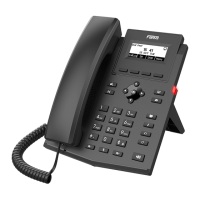
1.6.2 Power Indication LED (Power Light Disabled)
LED Status Description
Blinking red There is an incoming call
2 Initial Connection and Setting
2.1 Connecting the phone
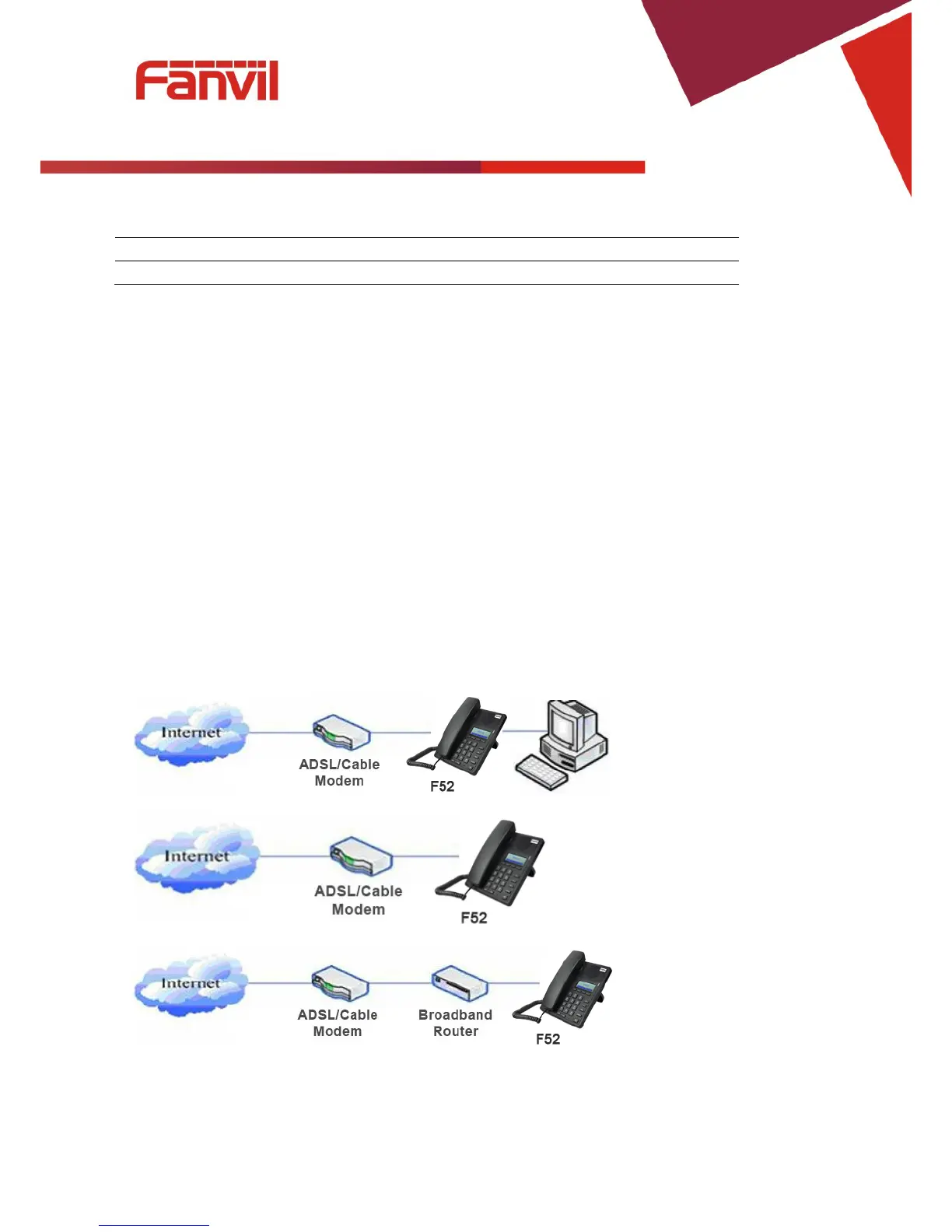
1. Connect to the network. Use the Ethernet cable in the package to connect the WAN port on the back of
your phone to an Ethernet port. The following 3 figures show connection options.
a. Shared network connection—This method requires at least one available Ethernet port. Connect the
WAN port on the back of your phone to the Ethernet port. Since the phone has a built-in router, it can
be connected directly to the network.
b. Direct network connection—Use this method if you have a single Ethernet port which is already in use.
Disconnect the Ethernet cable from the Ethernet port and attach it to the WAN port on the back of the
phone. Then use the Ethernet cable in the package to connect the LAN port on the back of the phone to
the other device. The IP Phone now shares a network connection.
c. Access by router connection—Connect one end of the network cable to the F52’s WAN port the other
end is connected to your broadband router’s LAN port, so that the completion of the network hardware
connections. In most cases, you must configure your network settings to DHCP mode.


 To Next Page