Update via SD Card
If you have the firmware update file on your computer, you can use the SD card to transfer it to the
scanner. Copy the update file to the folder Updates on your SD card. If this folder does not exist,
manually create it. Pay attention to lower and uppercase, when entering the folder name. Insert the SD
card into the scanner, and tap Update from SD Card.
NOTICE: Risk of data loss and non-functional device!
DO NOT manually shut-down, reset or power-off the scanner during the firmware update
process! Any interruption of the firmware update process can result in corruption of the
system and making the device inoperable.
After the update is complete, the scanner might automatically restart, depending on the nature of the
updates.
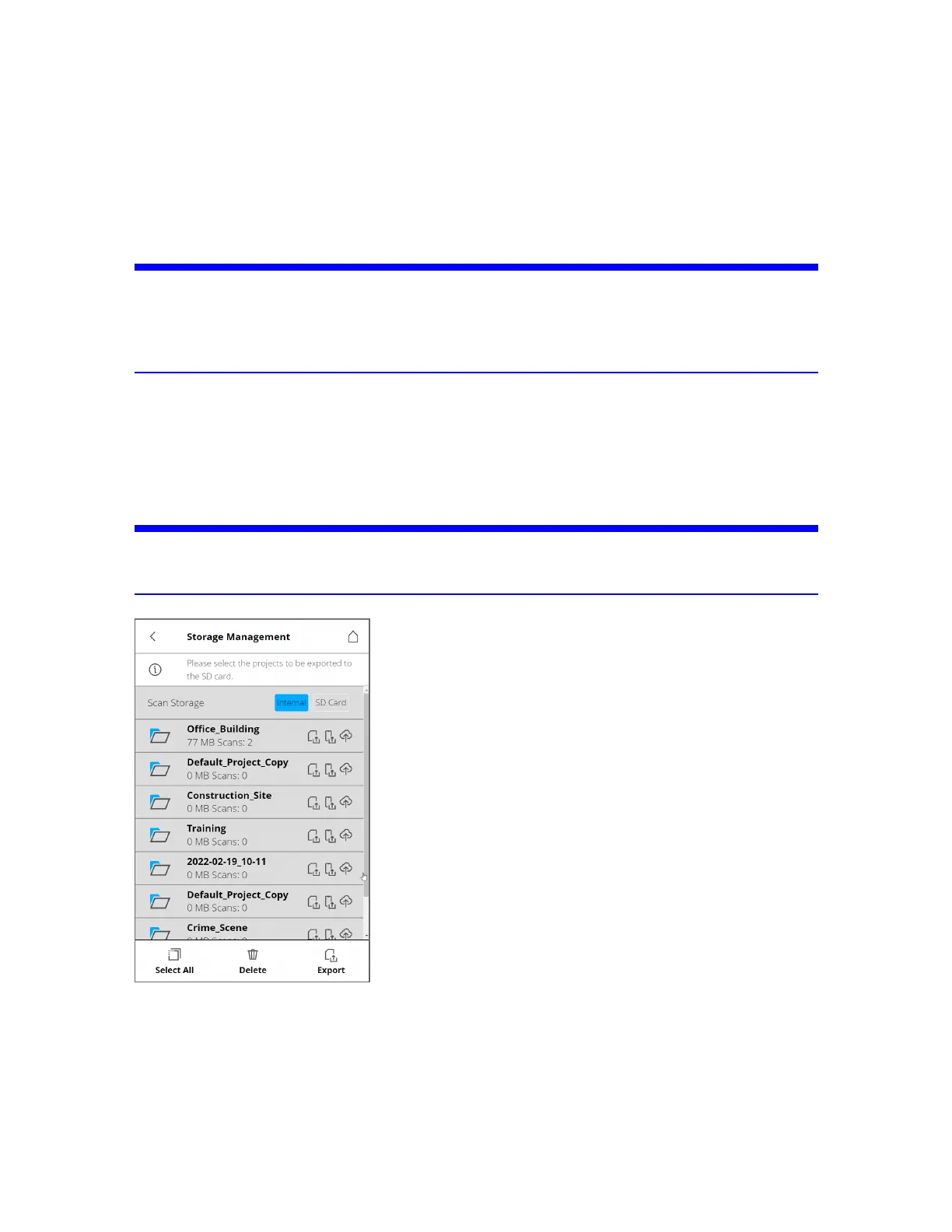
Storage Management
NOTICE: All scans in a project must be saved on the same storage media. Do not switch between
Internal and SDcard storage during a scan project.
Scan Storage - Choose whether to save the scan data on the internal solid state drive (SSD) or on the
removable SD card.
If you select Internal scan storage, you can delete scan projects, or can manually export them to the
SDcard. You can also select Automatic SDCard Synchronization which will mirror the selected
project or projects SSD to the SDcard.
FARO
®
Focus Premium Laser Scanner User Manual
Chapter 6: Controller Software
FARO Focus Premium (March 2022) Page101of157



 To Next Page