5.9. Log sensor data
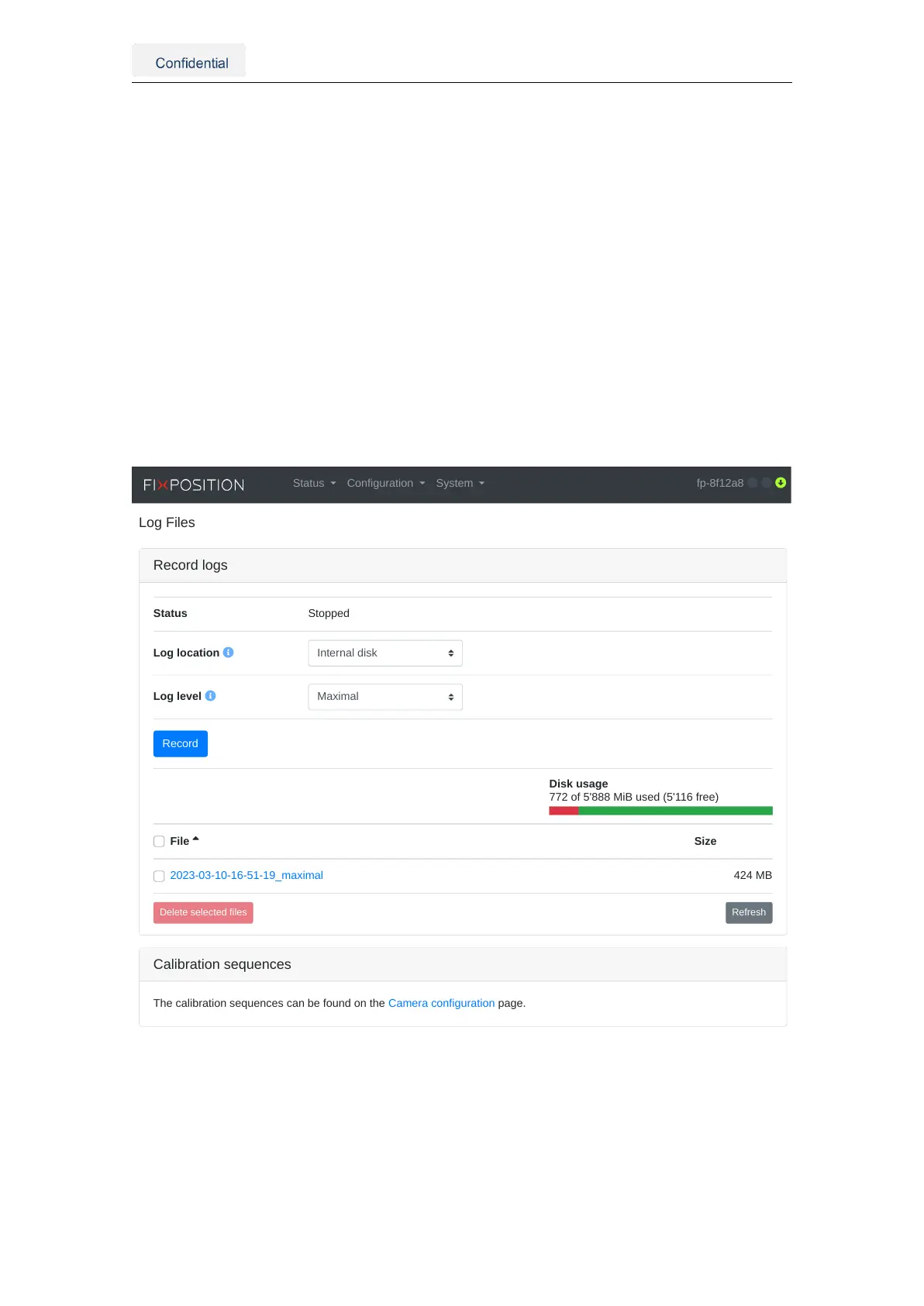
The user can access the web interface and navigate to the "System → Logs" panel to
generate a recording of the sensor. The user must press the "Record" button in the
"Record logs" module to start recording. To stop a recording, press the "Stop" button. The
generated recording is encrypted and meant for debugging purposes for the Fixposition
customer support team.
The user can only use it to visualize the performed trajectory on the Customer Dashboard
and download the corresponding KML data. If the user wants to record the customer
outputs of the sensor, they can record the corresponding ROS topics or log the messages
received.
The user can connect an external drive (minimum write speed 100 MB/s) to the Vision-
RTK 2 through the USB-C port for additional storage. To record the bags in this device,
the user must select "External" in the "Log location" field. Once the drive reaches total
capacity, the logger will overwrite the beginning of the recording.
Record logs
Status
Log location
Log level
Stopped
Record
Refresh
File Size
2023-03-10-16-51-19_maximal 424 MB
Disk usage
772 of 5'888 MiB used (5'116 free)
Calibration sequences
The calibration sequences can be found on the Camera configuration page.
Status Configuration System fp-8f12a8
Figure 5.23.: Recording data module in the web interface
Customers can only see/use/delete their data and download the related KML data. If the
customer wants to use this service, please get in touch with the Fixposition team.
Vision-RTK 2 | Fixposition Positioning Sensor 38


 To Next Page