155
Appendix: Operation Tips
How to use Page buttons
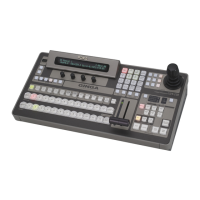
Page navigation functions can be assigned to the front panel buttons on Remote Control Units.
► See Sec. 5-2-2 “Page Function” and Sec. 5-3. “Function Buttons.”
► See [Web-based Control: RU Settings > Assign Function]
Page Up/Page Down buttons
These buttons allow you to move one page forward/back. If the page reaches to the end, it loops
back to the first page.
Ex) Assign Page Up for Group B to Button 9 in the Web GUI
(1) Click System Settings in the left pane.
(2) Click to select [(RU name]-[Assign Function] in the left pane to display the setting page.
(3) Select 9 under [Button ID].
(4) Select Page under [Function].
(5) Select UP under [Up/Down] and B under [Group].
(6) Click Send to apply settings.
Page Jump buttons
These buttons allow you to go back and forth between specified pages.
Ex) Assign Page Jump between 3 and 7 for Group B, C and D to Button 1 in the Web GUI
(1) Click to select [(RU name]-[Assign Function] in the left pane to display the setting page.
(2) Select 1 under [Button ID].
(3) Select Page under [Function].
(4) Select Jump under [Up/Down] and enable B, C and D under [Group],
then select 3 under [Fwd] and 7 under [Rev].
(5) Click Send to apply settings.
If HOME is set for [Rev], pressing the button lets you move between the current page and Page.
If you are in Page 3 (Fwd setting), the button label is displayed highlighted.
The MFR-16RUD/39RU/39RUAunits allow you to assign functions to buttons by front panel
operation.
► For default page buttons on the RU front panel, see Sec. 2-6-1 “Front Panel.”
► For MFR-16RUD units, see Sec. 5-2-2. “Page Function.”
► For MFR-39RU units, see Sec. 5-4-3-4. “PAGE MODE”, 5-4-3-5. “PAGE ASSIGN” and
5-4-3-12. “BUTTON ASSIGN.”
► For MFR-39RUA units, see Sec. 5-4-4-4. “BUTTON ASSIGN” and 5-4-4-10. “PAGE.”



 To Next Page