Rev. 5 – Jun 2020 Page 36 of 91
pressing a channel button (B.6, B.7, B.9, B.10) multiple
times, the user cycles through its layers. The currently se-
lected layer is indicated by the LED color above the chan-
nel button (see Table 4).
An arc of 16 yellow LEDs, the Stage Arc (A.2), provides
visual feedback for the current value selected or edited
per each stage. Furthermore, an RGB LED per each
stage (A.3) provide information about the stage color, which
defines the way a CV or gate is played (slide, freeze,
ratchet, tie... see below §§3.4.4-3.4.6). This color is tem-
porarily overwritten by the cyan playhead when that stage
is played.
All the data of the stage which is currently being edited
are also displayed in real time in the fourth line from the
top of the dashboard.
The five numbers are in the same order of the channel
buttons: from left to right, they display the value of the
last edited stage’s CV A (F.12), CV B (F.13), Length (F.14),
Gate A (F.15) and Gate B (F.16).
When entering Performance Mode (green Pencil LED, B.5),
this row of the dashboard can be set to display, in real
time, the values of the stage that is currently being played
(see below, §8.4).
The four outputs per track are grouped on the right side
of the front panel (E.1 to E.16). The number in each
group refers to the track and the letters to the individual
CV or Gate channels. As a rule of thumb, the symbols
with a letter in a circle refer to CVs, while the ones with
a letter in a square refer to gates.
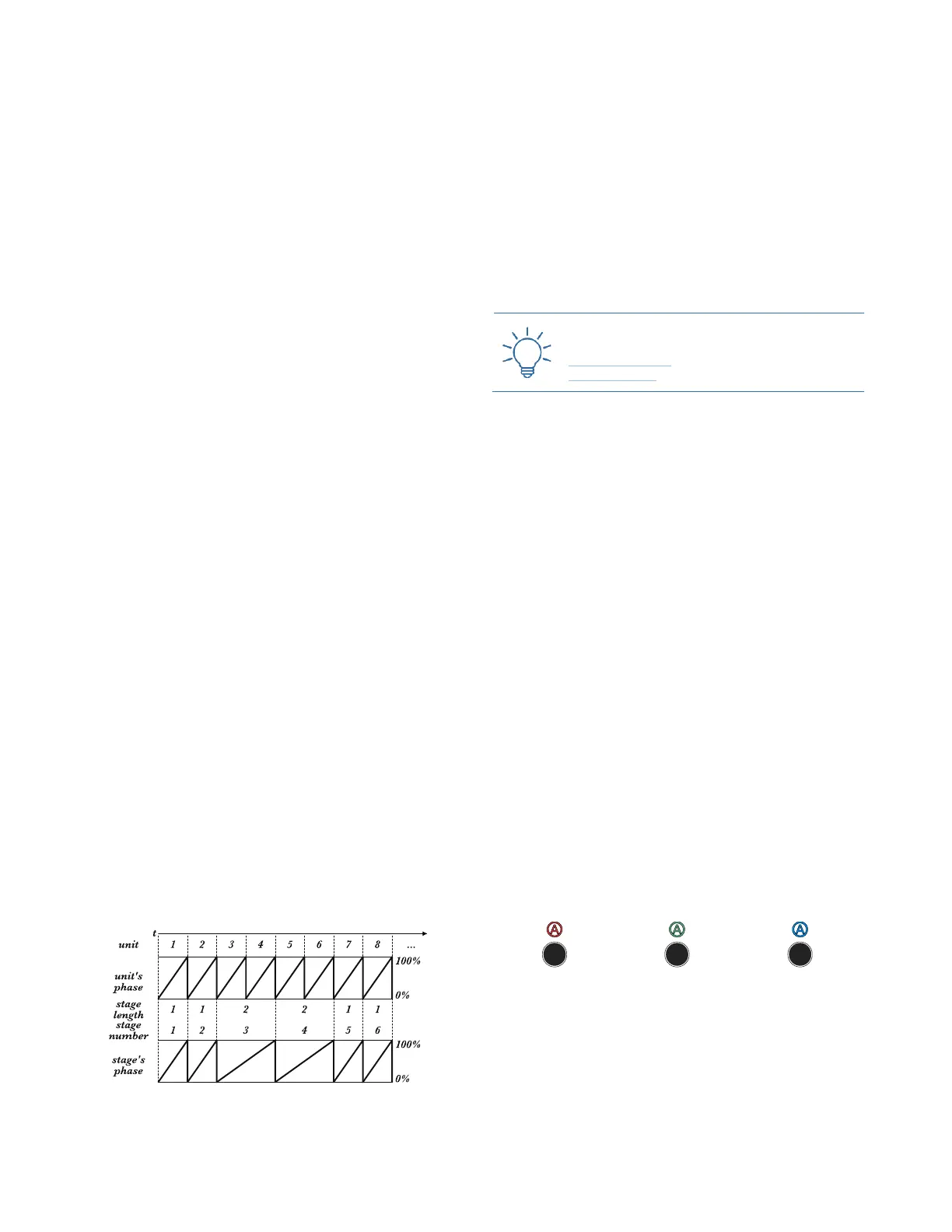
Each pattern by default has a sequence of 16 stages with
equal length of one unit, whose speed depends on the
clock and the time ratio previously selected. First of all,
let’s edit the individual stage length.
3.4.1 Length
The Length section determines the duration of each stage
in terms of units (see above), and it is accessed by pressing
the Length button (B.8).
By default, the length of each stage is 1 unit. In order to
increase it, turn the respective encoder (A.1) clockwise.
Each step of the encoder increases the stage duration by
1 unit, up to a maximum value of 16: the Stage Arc (A.2)
will light up accordingly, displaying the exact number of
units per stage.
Figure 39: Stage Length and stage phase.
It is possible to turn the encoder counterclockwise until
no LEDs is lit: in this case, the stage will have length 0, so
it will be skipped during the playback.
When a given stage's length is being edited, the unit
number is displayed also by the third digit from the left of
the fourth line from the top of the dashboard (F.14).
The total length of a pattern is displayed at the right of
the second row from the top, beside the letter L: this value
may come in handy when you want to edit the length of
two stages without changing the overall pattern length, as
described in the following section.
3.4.2 Maintain Pattern Length on Variation
While performing it may be useful to hold the length of
your pattern fixed while editing stage lengths. Adding or
subtracting units can unintentionally shift the pattern’s
rhythm out of alignment. To reduce this chance, hold
down the Coarse button (B.3) while changing the stage
length. This causes a neighboring stage length to receive
a compensating adjustment.
For example, assuming your pattern has only the first 4
stages with length 1 and the others with length 0, rotating
the stage 2 encoder clockwise will give stage 2 a 2-unit
length for a pattern length of 5 units. Rotating the en-
coder counterclockwise gives stage 2 a 0-length stage, re-
sulting in a 3-unit length pattern. If these steps are per-
formed while the Coarse button is held down, the clock-
wise rotation will increase the stage 2 length to 2, but the
3rd stage will be reduced to length 0 to compensate. Like-
wise, a counterclockwise rotation will decrease the stage
2 length to 0, while the 3rd stage will be increased to
length 2. In both cases the pattern length of 4 units is re-
tained.
3.4.3 CV Layers
The CV channels’ parameters can be modified through
three different layers, which are accessed by pressing the
respective channel button (B.6, B.7) multiple times.


 To Next Page