Rev. 5 – Jun 2020 Page 44 of 91
In this mode, each encoder sets the number of repeti-
tions, from 0 to 16, and the Stage Arc will light up accord-
ingly.
To switch from Pattern to Song mode, enter the Track
Menu, scroll to the Play Mode option and change the setting
from Pattern to Song. Exit the menu, and you will notice
a different layout of the LEDs:
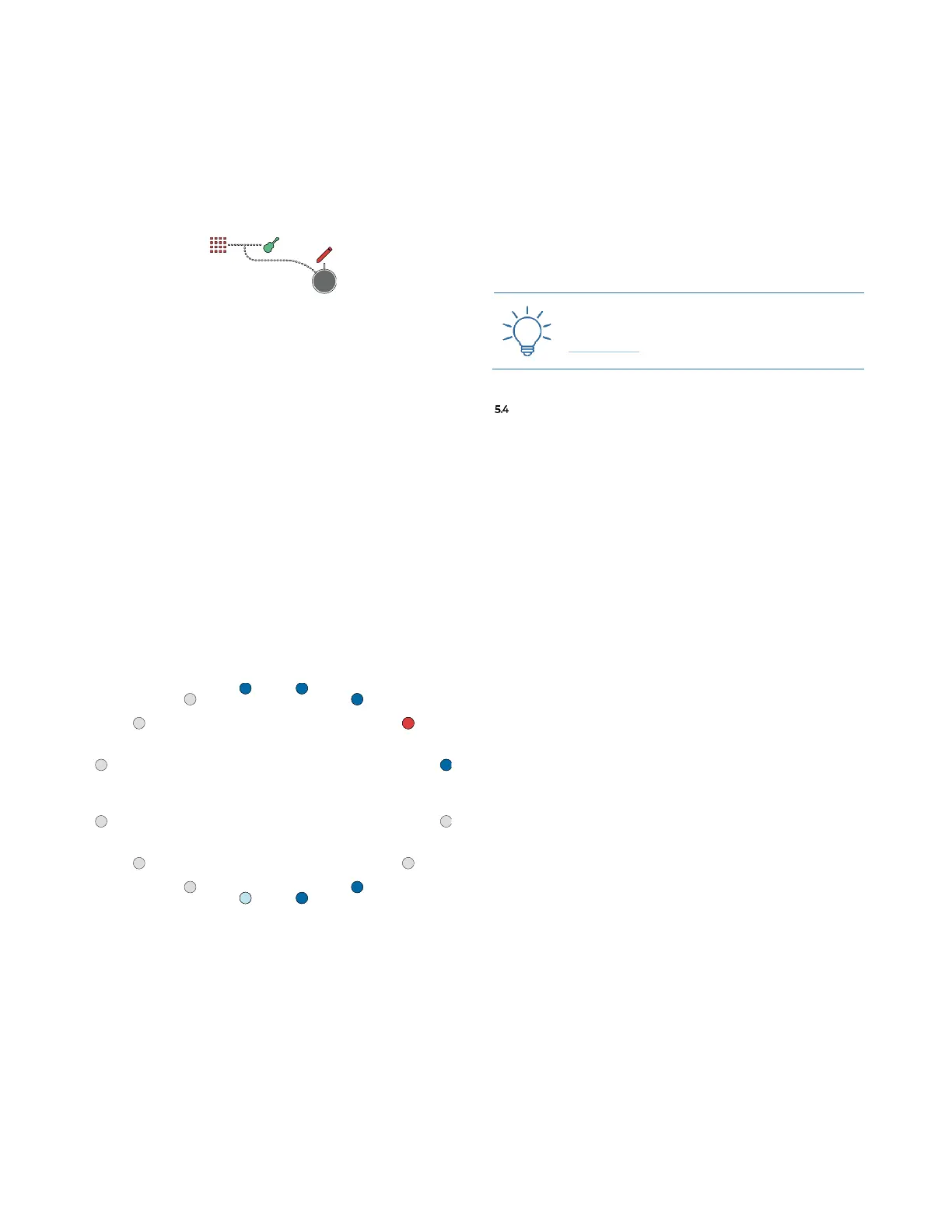
Figure 57: Editing a song while in Song Mode.
This will indicate that the selected track is currently in
Edit Mode (red pencil LED – B.5), it is in Song Mode (green
guitar LED – C.3), and you are seeing/editing the pat-
terns (red pattern LED – C.2).
Once your song structure is set, push the Play/Pause but-
ton (B.13) to start the playback: while playing, the
playhead will display and behave differently depending
on the mode selected.
If the track is in Edit Song Mode, the stage LED:
· will be blue when that slot has a repetition bigger than
zero,
· will be red only on the current playing slot
· will be cyan on the stages that are playing on that pat-
tern. In the example below slots 1, 2, 3, 4, 7, 8, (maybe 9)
and 16 has a length, the song is playing the 3rd slot, and
in that pattern, the 9th stage is playing;
Figure 58: Stage LEDs in Edit Song. Note the playhead on Stage 9.
If the track is in Edit Pattern Mode, the playhead will fol-
low the rules of this mode as described above (see Editing,
Playing and Looping Patterns): it will be visible only when
USTA plays the pattern that is currently being edited;
If USTA is in Performance Pattern Mode, the playhead will
move through all the steps of all the patterns following the
structure determined by the Song.
When the Song Mode is enabled, the Pattern Loop indica-
tors on the dashboard will be replaced by Rep followed by
two numbers: these stand for ‘repetition’ and display the
current repetition of the pattern/the total number of rep-
etitions set for that slot.
5.3.1 Pattern to song while playing (and vice versa)
It is possible to play in pattern or song mode, but it is
also possible to change mode while playing without stop-
ping the track or losing its sync: in the Track Menu, change
the Play Mode option, and at the end of the pattern the
selected mode will come into play.
LIVE PERFORMANCE TOOLS: PATTERN RECALL
When USTA is in Performance mode, either in Pattern
or Song mode, every editing option is disabled: the 16 Stage
Encoders (A.1) are now associated with the first 16 pat-
terns, and while holding the Shift All button (B.2) they are
associated with the last 16 patterns (or from the 17th to
32nd).
They work only as buttons, by pushing which it is pos-
sible to recall any of the patterns on the fly, thus tempo-
rarily bypassing the sequence of patterns you are expect-
ing from the Pattern Loop rules or Song Mode set above.
Once the selected pattern has been recalled and played,
USTA will get back at the original sequence, with differ-
ent outcomes according to the play mode in use and the
pattern loop selected.
USTA will memorize only one value: it means that if
you push two encoders during this mode, only the latter
will be effective.
Furthermore, there are two options: Full Pattern Recall,
which is the default one, or Pattern Mix, available by hold-
ing down Coarse (B.3) before pushing the pattern encoder.
These recall options affect the selected track only.
5.4.1 Full pattern recall
With the Full Pattern Recall, USTA will wait until the ac-
tive pattern has reached its end, then it will play the one
selected by pushing its Stage Encoder (A.1).
If the selected patter is within the Pattern Loop, USTA will
continue to play the patterns after the selected one. (For
example, if the Pattern Loop lasts from pattern 1 to 10, and
you recall pattern 6 while being in pattern 2, the sequence
would be: 2, 6, 7…).
If the selected pattern is outside the Pattern Loop, USTA
will play it once, then continue after the previous pattern.
(In the same example as above, if you recall pattern 15,
the sequence would be: 2, 15, 3, 4…)


 To Next Page