Table 9: Stage Loop LEDs comparison.
When Stage Loop is active, USTA will start the loop sec-
tion once the playhead reaches the From point, it will play
the stages within the Stage Loop for the defined number of
times, then it will continue with the original sequence.
A small example with the following settings: FROM02/03,
LENGTH 04, FOR 02. This means that on Pattern 3 it will play
the following stages: 1 2 3 4 5 [2 3 4 5 2 3 4 5] 6 7… The
stages between square brackets are the Stage Loop.
5.2.1 Infinite Stage Loop
If you set the FOR value to 0, the Stage Loop will loop end-
lessly once engaged: in this way, its duration is completely
up to you. To make the playhead “exit” the Infinite Stage
Loop, double click the Set All button (B.1) to disable the
Stage Loop.
SONG MODE
The Song Mode allows you to arrange your track’s pat-
terns in a custom sequence. It is an alternative mode of
playing beside the default Pattern Mode: this means that
Song and Pattern Mode cannot be active at the same time,
but an option in the Track Menu lets you choose which
one USTA will follow during the playback.
The Song Mode is a series of patterns that are located into
Slots. A song can host up to 4 Pages of 16 Slots each for a
total of 64 Slots. One song per track is available.
Once at least two patterns are composed in one track,
the song mode allows you to arrange them in the desired
order by fitting each of them into one or more slots. Each
slot can be repeated up to 16 times before moving to the
following one.
Bear in mind that the song is not a structural part of the track
but an alternative arrangement of items, therefore, it cannot
be cloned.
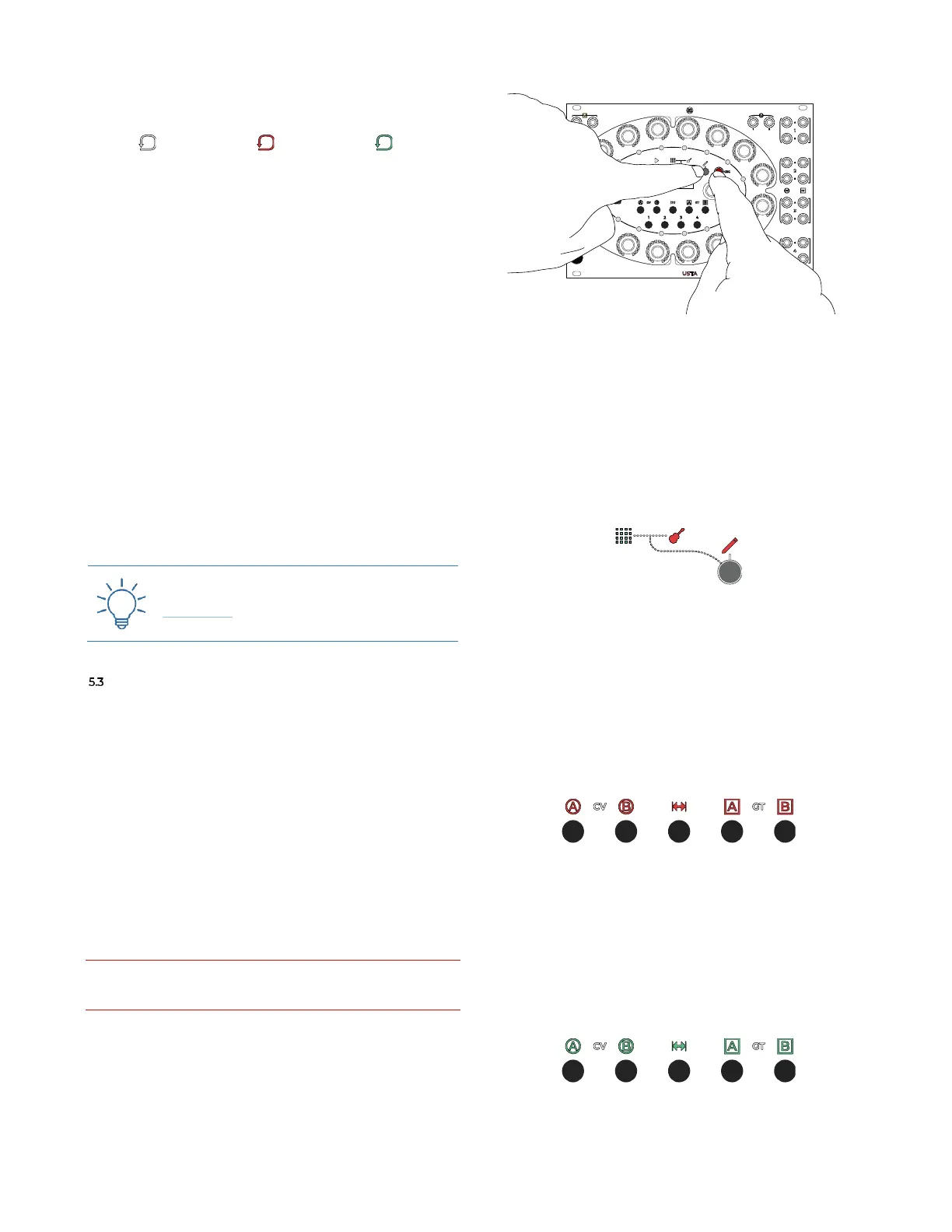
Figure 53: Edit Song combination.
You can create a Song while USTA is still playing in Pat-
tern Mode. To do so, enter Edit mode (if you are not there
yet) by pushing the Pencil button (B.5) and then enter Edit
Song Mode by holding Esc (B.4) and pushing the Pencil But-
ton again.
Now the guitar-shaped Song LED (C.3) will light up red,
and the Patten LED (C.2) will be green: this means that
you are editing the song, while still being in Pattern mode.
Figure 54: Editing a song wile in Pattern Mode.
In this configuration, each of the 16 Stage Encoders (A.1)
edits a slot of the selected page by performing two opera-
tions: selecting the pattern to be played in the desired slot
and selecting the number of times that such pattern must
be played (0 to 16). To change Page simply rotate the navI
Once entering the Edit Song mode, all the five Param-
eter LEDs will turn red: this means that now USTA is
editing the pattern number per slot.
Figure 55: The LEDS when editing the pattern number per slot.
Rotate each encoder to select the pattern to be played,
numbered 1 to 32: the Stage Arc (A.2) will display the se-
lected pattern number.
To edit the number of times that a pattern should be
repeated per each slot, push any of the Layer buttons to
access the repetition parameter: the Layer RGB LEDs
will all light up green.
Figure 56: The LEDs when editing the repetition number per slot.


 To Next Page