Rev. 5 – Jun 2020 Page 48 of 91
6.5.2 Clone a Structure
It is also possible to clone structures (STRUCT) of stages:
these are in fact Layers, Patterns, and Tracks. Layers and
patterns may be cloned within their track only.
To clone any of these structures, hold the Esc button (B.4)
and push Shift All (B.2), then release them.
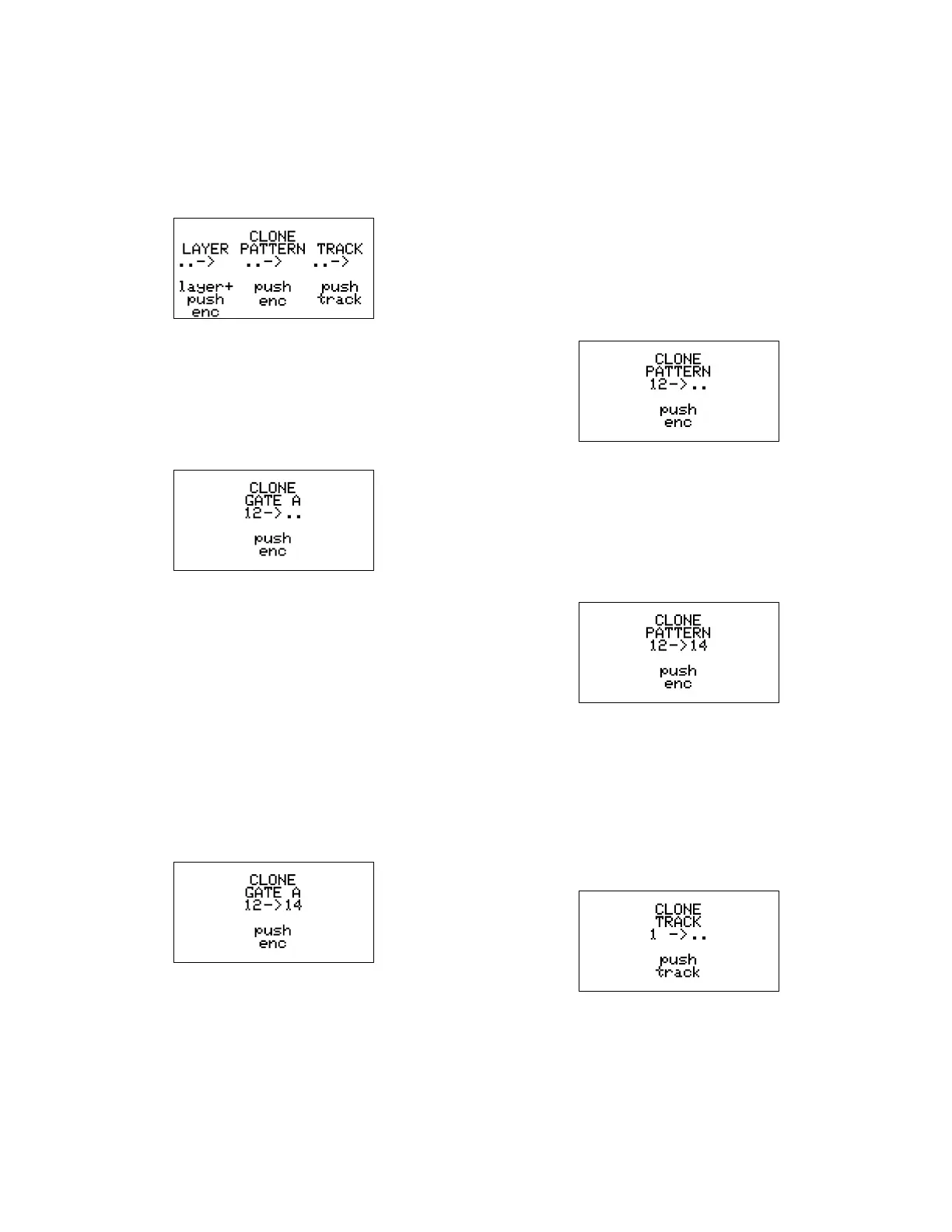
Figure 66: Clone Structure selection.
The Clone Struct menu will appear in the display, pro-
posing all structures that can be cloned. At any moment
simply push Esc to exit the Clone Struct function.
6.5.2.1 Clone a Layer
Figure 67: Cloning Stage 12’s Gate A value.
To clone a Layer (CV A, CV B, Length, Gate A, Gate B) of a
pattern, push and hold the button for the layer you want
to clone (B.6-B.10), then push the Stage Encoder (A.1) to
define the source pattern (encoder 1 for pattern 1, en-
coder 2 for pattern 2 and so on). To access patterns from
17 to 32, push and hold also the Shift All button (B.2).
From now on, push any other Stage Encoder to clone the
selected layer of the source pattern to the desired target
(the example shows cloning of Gate A data of pattern 12
of the selected track). Press other pattern encoders to re-
peat the cloning to multiple targets without restarting the
procedure.
Figure 68: Cloning Stage 12’s Gate A value to Stage 14.
The last cloned target will be updated on the display as
above (14 in the example).
6.5.2.2 Layer Cross-Cloning
It is also possible to clone a layer to a different CV or
Gate channel than the original one, for example, cloning
the CV A Value of Pattern 1 to CV B of pattern 3, or the
Gate B Variation Index of Pattern 15 to Gate A of Pat-
tern 22.
To do so, follow the same procedure as for cloning a
layer, but hold the target CV or Gate button (B.6, B.7,
B.9, B.10) before pushing the target Pattern encoder.
6.5.2.3 Clone a Pattern
To clone a Pattern, when the Clone Struct menu is dis-
played, push the Stage Encoder (A.1) for the source pattern
(encoder 1 for pattern 1, encoder 2 for pattern 2 and so
on). For patterns from 17 to 32, first hold down the Shift
All button (B.2).
Figure 69: Cloning Pattern 12.
From now on, push any other Encoder to clone the data
of the source pattern to the desired target (the example
shows cloning pattern 12 of the selected track). Push ad-
ditional pattern encoders to clone to multiple targets
without restarting the procedure.
Figure 70: Cloning Pattern 12 to Pattern 14.
The last cloned target will be updated on the display as
above (14 in the example).
6.5.2.4 Clone a Track
To clone a Track, when the Clone Struct menu is dis-
played, select the source track by pushing its correspond-
ing Track Button (B.11).
Figure 71: Cloning Track 1.
From now on, push any track to clone the data of the
source track to any target track you want (the example
shows cloning of track 1).


 To Next Page