42
Playback
EN
Playing Back a DivX
®
1 Follow steps 1 to 5 in “Playing Back
a DVD-RW / DVD-R Disc” on page 40.
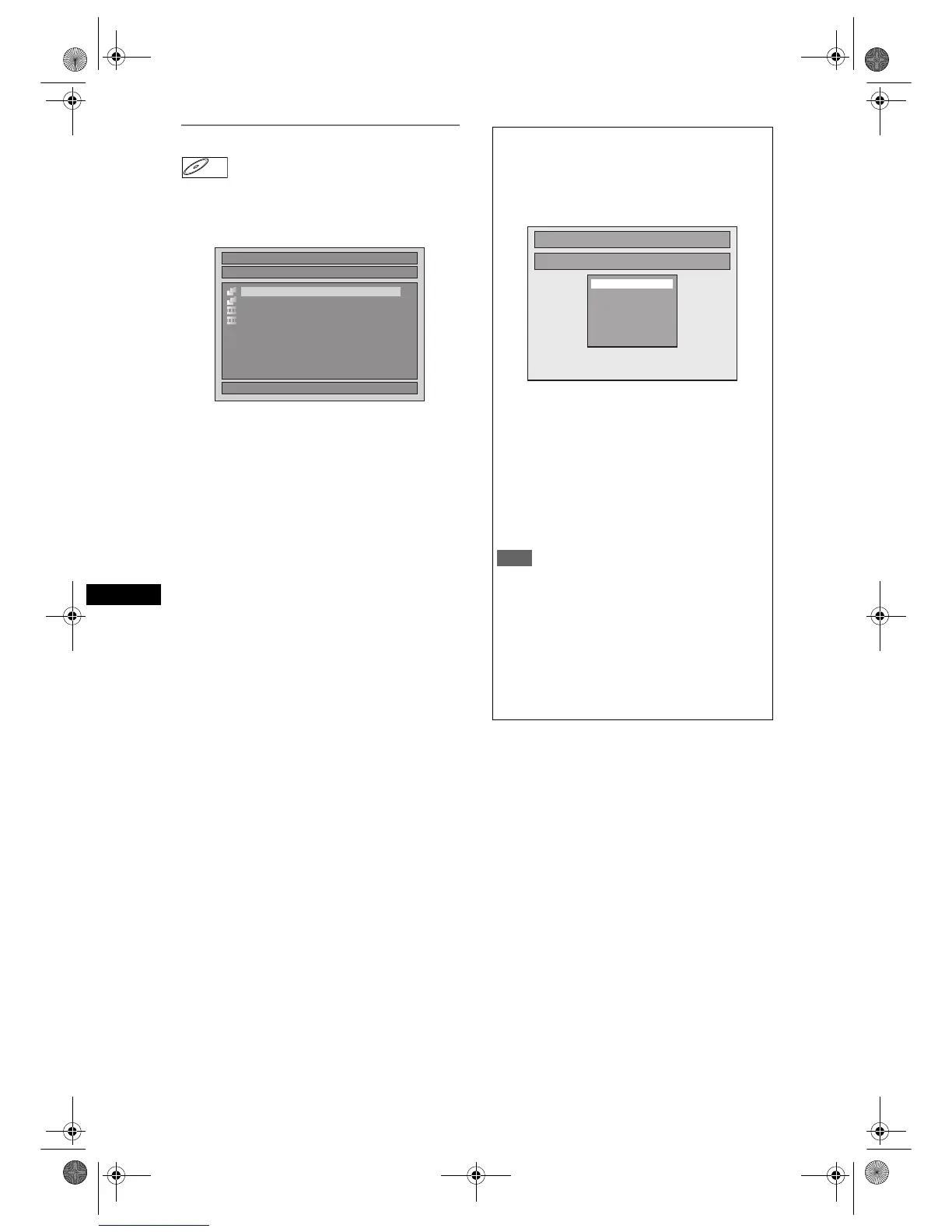
The File List will appear.
To exit the File List, press [TOP MENU] again or
press [STOP S].
To resume the File List, press [TOP MENU].
2 Press [U / D] to select the desired
folder or file, then press [ENTER].
If a file is selected:
Playback will start.
If a folder is selected:
The files in the folder will appear.
Press [U / D] to select the file or folder you want,
then press [ENTER].
•Press [PLAY P], [ENTER] or [P] to move to
any lower folders.
•Press [L] or [RETURN R] to move back to the
folder above.
It is recommended that files to be played back in
this unit are recorded under the following
specifications:
[DivX
®
]
• Official DivX
®
Certified
product
• Playable Codec of AVI files : DivX
®
3.x,
DivX
®
4.x,
DivX
®
5.x,
DivX
®
6.x
• Maximum size of image : 720 x 480 @30 fps
720 x 576 @25 fps
• Sampling frequency of audio : 8 kHz - 48 kHz
• Audio type : MPEG1 audio layer 3
(MP3), MPEG1
audio layer 2,
Dolby Digital
Hint for the purchased or rental official DivX
®
Certified product
• When you purchased or rental a DivX
®
file through
the official site of DivX
®
Video which is called DivX
®
Video-On-Demand (VOD) services, a registration
code is required every time you get the new file from
the DivX
®
VOD services. Refer to “DivX
®
VOD” on
page 44.
•Some DivX
®
VOD files are restricted with the limited
playable times (you cannot play them back beyond
the limit). If your DivX
®
VOD file has such limit, the
playback confirmation screen will appear.
DivX
®
DivX
®
File List
DISC NAME
Folder1
Folder2
1 DivX File1
2 DivX File2
1/ 1
DivX
®
Subtitle
The subtitle created by the user can be displayed
during DivX
®
playback.
1 After the DivX
®
file is selected, the
Subtitle List will appear.
2 Select the desired extension you
want to display using [U / D], then
press [ENTER]. DivX
®
with the
subtitle starts playback. The subtitle
cannot be displayed when the
setting is “OFF”.
• If there is more than one extension, the
extension selection will appear in the Subtitle
List.
Note
• “DivX Subtitle” must be activated in the Language
Menu. (Refer to “DivX Subtitle” on page 67.)
• Playback file and the subtitle file must have the
same name.
• Playback file and the subtitle file must locate in the
same folder.
• Only the subtitle files with the following extensions
are supported; .smi (.SMI), .srt (.SRT), .sub
(.SUB), .ass (.ASS), .ssa (.SSA), .txt (.TXT). (.sub
(.SUB) and .txt (.TXT) files may not be recognised.)
• The subtitles that exceed the playback time of the
DivX
®
file will not be displayed.
Subtitle List
DivX File1
OFF
SMI
SRT
SUB
ASS
SSA
TXT
E9G04ED_EN.book Page 42 Tuesday, March 27, 2007 10:27 AM


 To Next Page