66
Other Setups
EN
Video
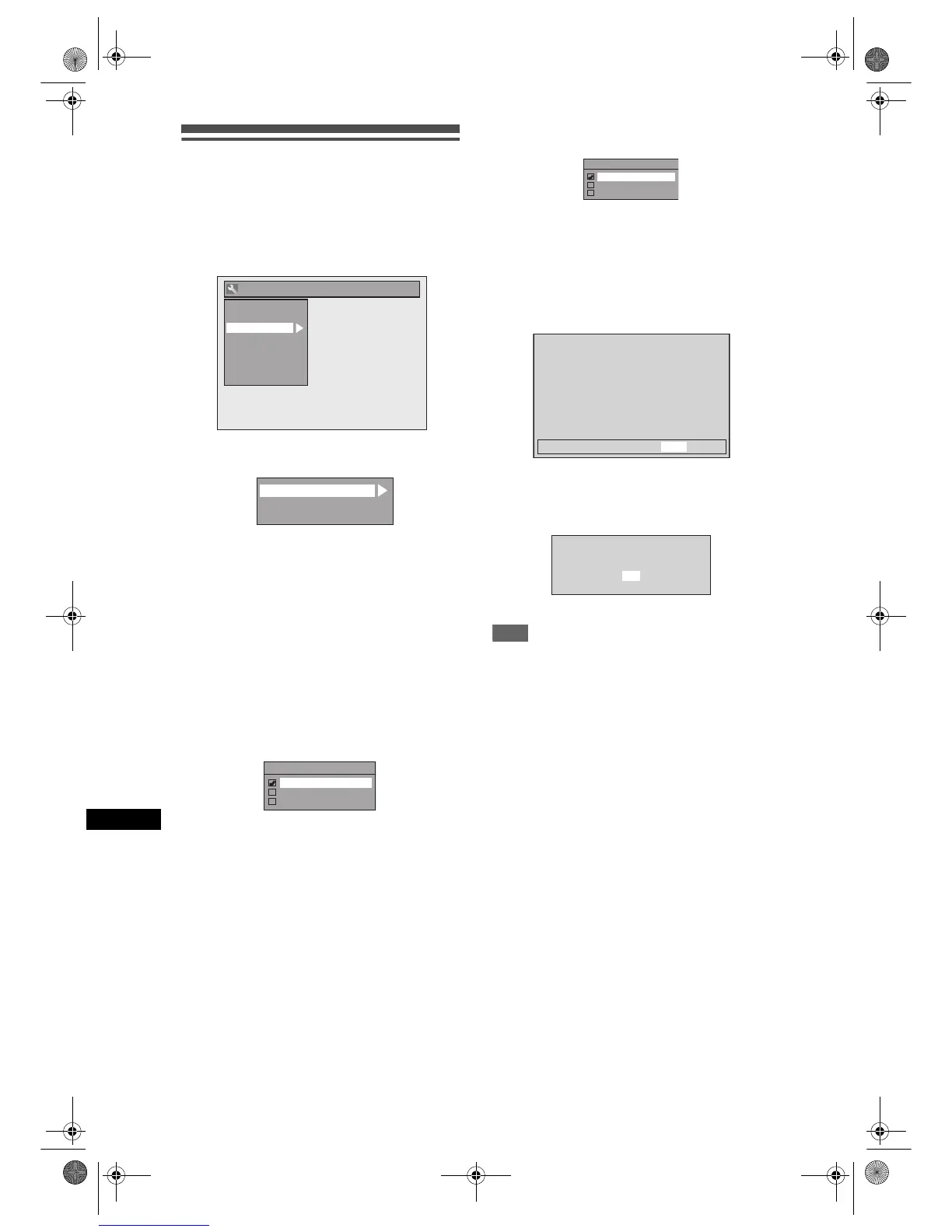
1 In stop mode, press [SETUP]. Select
“General Setting” using [U / D],
then press [ENTER].
2 Select “Video” using [U / D], then
press [ENTER].
3 Select the desired item using
[U / D], then press [ENTER].
4 Refer to 1. and 3. on this page and
set the selected item.
For 2., refer to page 34.
5 When you finish with the setting,
press [SETUP] to exit.
1. TV Aspect (Default: 4:3 Letter Box)
You can select the TV aspect ratio to match the
formats of what you are playing back with the unit and
your TV screen (4:3 standard or 16:9 widescreen TV).
Select the desired setting using
[U / D], then press [ENTER].
If you have a standard TV:
Select “4:3 Letter Box”, so that black bars appear on
the top and bottom of the TV screen when playing
back a wide-screen picture. Select “4:3 Pan & Scan”
for a full height picture with both sides trimmed when
playing back wide-screen picture.
If you have a widescreen TV:
Select “16:9 Wide”.
3. Video Out (Default: SCART(RGB))
This unit is compatible with the Progressive Scan
System. The feature provides you with the higher
definition images than the traditional output system
does. To utilise this feature, you must set Video
Output mode in the Setup menu by following the steps
on the right. “SCART (RGB)” is selected as the
default.
1 Select the desired setting using
[U / D], then press [ENTER].
• If you select “Component Progressive (P)”, proceed
to step 2 below.
• If you select “SCART (RGB)” or “Component
Interlace (I)”, your setting is activated.
• Refer to pages 16 and 17 for more details.
2 Using [L / P] to select “Yes”. Press
[ENTER].
Final confirmation window will appear.
3 Using [U / D] to select “Yes”. Press
[ENTER] within 15 seconds.
Your setting is activated.
Note
• If your TV is compatible with Progressive Scan
(625p/525p), you must use the Component Video
cable (commercially available) to connect this unit to
the TV.
• When changing the Video Out setting (“SCART
(RGB)”, “Component Interlace (I)” or “Component
Progressive (P)”), connect to a VIDEO jack or an
S-VIDEO jack on the TV. If the setting is changed,
for example, to “SCART (RGB)” while the
COMPONENT VIDEO OUT jacks are used to
connect to the TV, a distorted video signal may be
output.
General Setting
Display
Video
Clock
Channel
DivX
Reset All
Recording
Playback
TV Aspect
Select Video
Video Out
1
2
3
TV Aspect
4:3 Letter Box
4:3 Pan & Scan
16:9 Wide
Video Out
SCART (RGB)
Component Progressive (P)
Component Interlace (I)
Activating progressive scan:
Check your TV has progressive scan
and connect with component video cable.
NOTE:
If there is no picture or picture is
distorted after selecting “Yes”,
wait about 15 seconds for autorecovery.
Activate?
NoYes
Confirm again to use progressive scan.
If Picture is good, select “Yes”.
No
Yes
E9G04ED_EN.book Page 66 Tuesday, March 27, 2007 10:27 AM


 To Next Page