10
To import the exact settings to another ship, save the settings of the device in the Setting
Area to the PC database.
1. Click on Reflect Equipment.
2. Copy the file to the PC by using Maintenance> Equipment Management> Export in
the menu.
3. Import to the other ship’s VDR from the PC.
How to Set the Record Pattern
When there are two or more Radar units connected to the VDR, select which radar to
record to.
Note: When using a 6 GB DRU it possible to record to 1 channel, and when using a 9 GB
DRU it is possible to record to 2 channels.
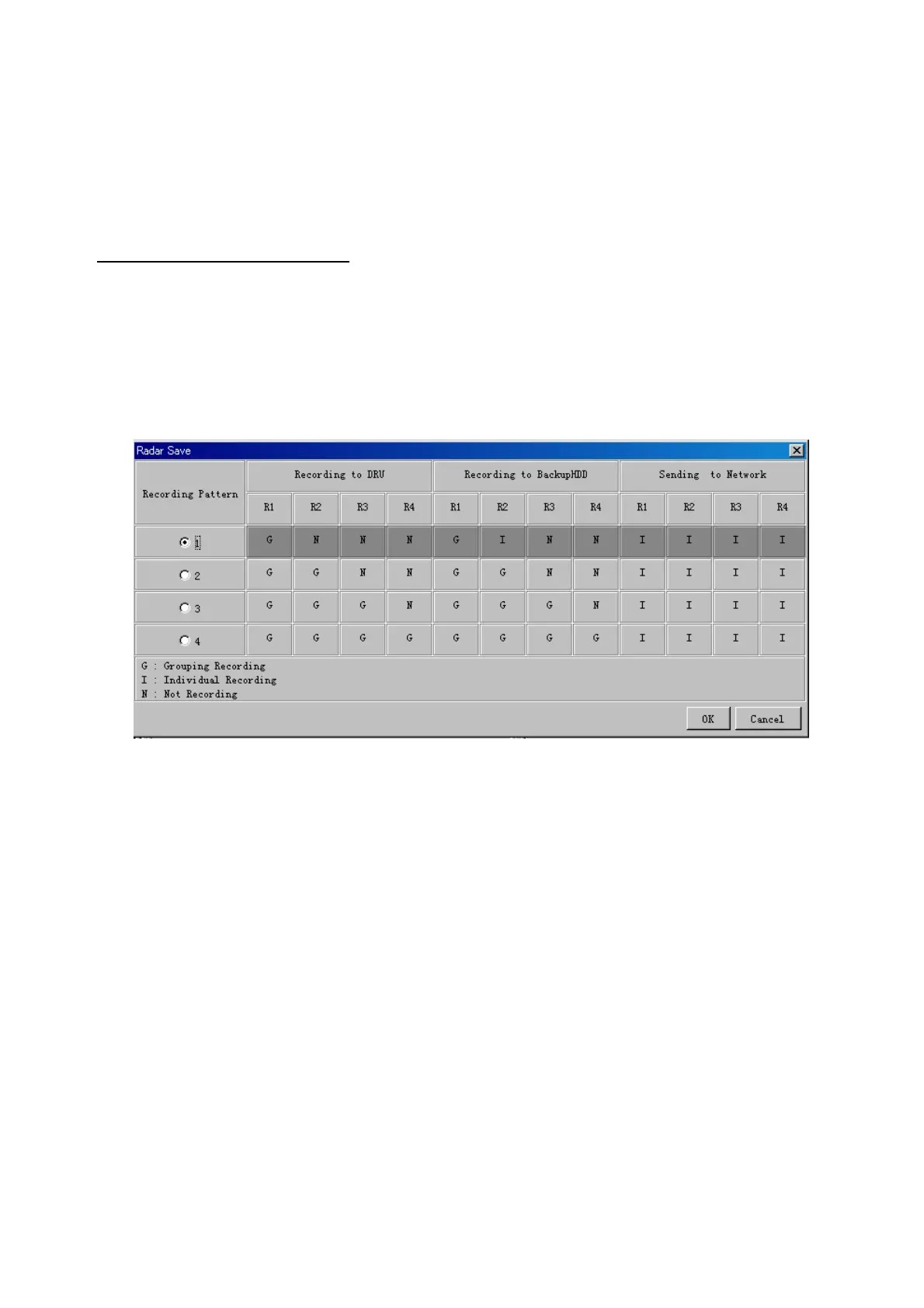
1. In the Setting Area click the Recording Mode button. The following dialogue box
appears.
R1-R4: 1
st
Radar (CH No.1)~4
th
Radar (CH No.4)
G: Records signal to the youngest radar number in a group pattern (ex; R1-R4 are
grouped). If the youngest number is inactive, signal is recorded to the next youngest
number in sequence within the group.
I: Indicated unit records/sends
N: Indicated unit does not record/send
2. Select a recording pattern from Patterns 1-4.
For example, the settings in the above illustration are as follows.
Recording Pattern 1: R1 signal is recorded to DRU, R2 – R4 do not record.
R1 and R2 signals are recorded to the Backup HDD, R3–R4 do
not record.
Network Sending; R1-R4 all send to network.
Recording Pattern 3: Recording signal to the DRU automatically routes to the next
youngest active number in the group, between R1 and R3. R4 Does not record.
Example: If R1 is inactive, signal is recorded to R2.
Recording to Backup HDD: Same as DRU
Send to Network: R1-R4 all is sent to the network.
3. Update I and N as needed.


 To Next Page
 Loading...