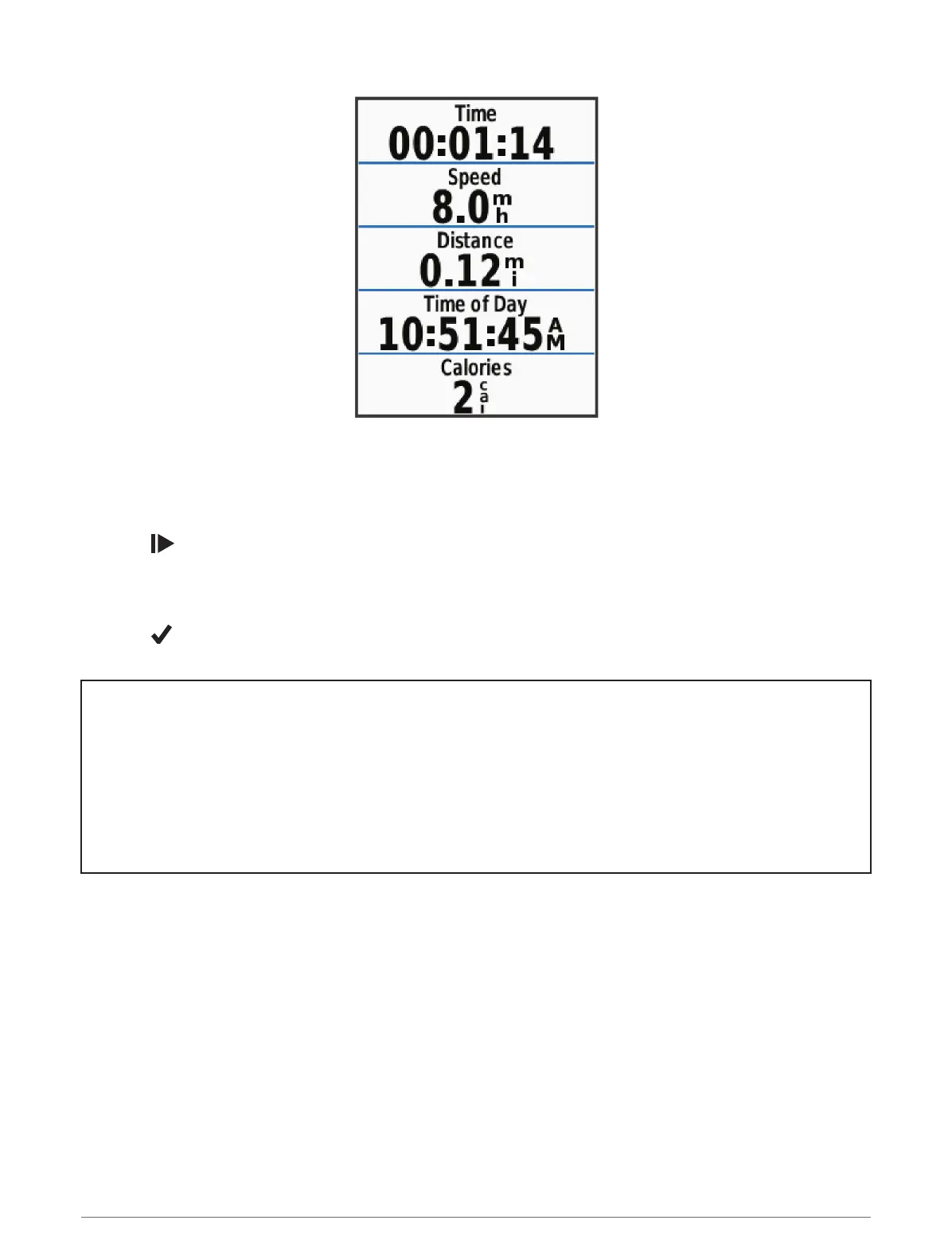
NOTE: History is recorded only while the activity timer is running.
6 Swipe left or right to view additional data screens.
You can swipe down from the top of the data screens to view the widgets.
7 If necessary, tap the screen to view status overlay data (including battery life) or return to the home screen.
8 Select to stop the activity timer.
TIP: Before you save this ride and share it on your Garmin Connect account, you can change the ride type.
Accurate ride type data is important for creating bike friendly courses.
9 Select Save Ride.
10 Select .
Title Segments
Identifier GUID-DB903DC9-7CDF-4DFE-921F-E7E1325DEDE7
Language EN-US
Description
Version 3
Revision 4
Changes SME comments. Adding segments contained in courses.
Status Released
Last Modified 22/04/2017 20:26:00
Author gerson
Segments
Following a segment: You can send segments from your Garmin Connect account to your device. After a
segment is saved to your device, you can follow the segment.
NOTE: When you download a course from your Garmin Connect account, all segments in the course are
downloaded automatically.
Racing a segment: You can race a segment, trying to match or exceed your personal record or other cyclists
who have ridden the segment.
16 Training






 To Next Page