Title inReach Remote (Generic)
Identifier GUID-29D4446B-0685-4E70-8CFC-18F2E7014935
Language EN-US
Description
Version 2
Revision 3
Changes Added "compatible." Older devices without ANT+ can't be used with the remote function.
Status Released
Last Modified 01/10/2019 15:19:23
Author cozmyer
inReach
®
Remote
The inReach remote function allows you to control your inReach device using your Edge device. Go to
buy.garmin.com to purchase a compatible inReach device.
Title Using the inReach Remote
Identifier GUID-28070EF5-36E0-4178-9468-B99DB255D256
Language EN-US
Description
Version 1
Revision 5
Changes Save as from GPSMAP 66 and fenix 6 topics.
Status Released
Last Modified 01/10/2019 15:19:42
Author cozmyer
Using the inReach Remote
1 Turn on the inReach device.
2 On your Edge device, select > Sensors > Add Sensor > inReach.
3 Select your inReach device, and select Add.
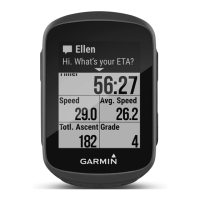
4 From the home screen, swipe down, and swipe left or right to view the inReach remote widget.
5 Select an option:
• To send a preset message, select > Send Preset, and select a message from the list.
• To send a text message, select > Start Conversation, select the message contacts, and enter the
message text or select a quick text option.
• To view the timer and distance traveled during a tracking session, select > Start Tracking.
• To send an SOS message, select SOS.
NOTE: You should only use the SOS function in a real emergency situation.
Wireless Sensors 89






 To Next Page