Reference
4
Learning how to use the Map Page
The Map page is one of your Quest’s main operating pages. This is the fi rst page to appear after the
startup pages, and it provides street detail as you navigate to a destination. Many features make up the Map
page. Whether you’re navigating a route or simply driving with your Quest turned on, you can see a map
that displays your current location as well as surrounding street detail. Additionally, depending on your
current driving mode, data fi elds provide information such as your current speed, your driving direc-
tion, and names of upcoming streets. You can look beyond your current position by “panning,” or moving
around the Map page. You can also zoom into locations to view greater street detail or you can zoom out to
see what’s ahead on your route.
This section shows the many types of Map page views as well as how to use the features on the Map
page. Practice using these features before navigating an actual route so that you can quickly understand
what you are seeing on the Map page and therefore limit time looking away from the road while driving.
Viewing the Map Page for the First Time
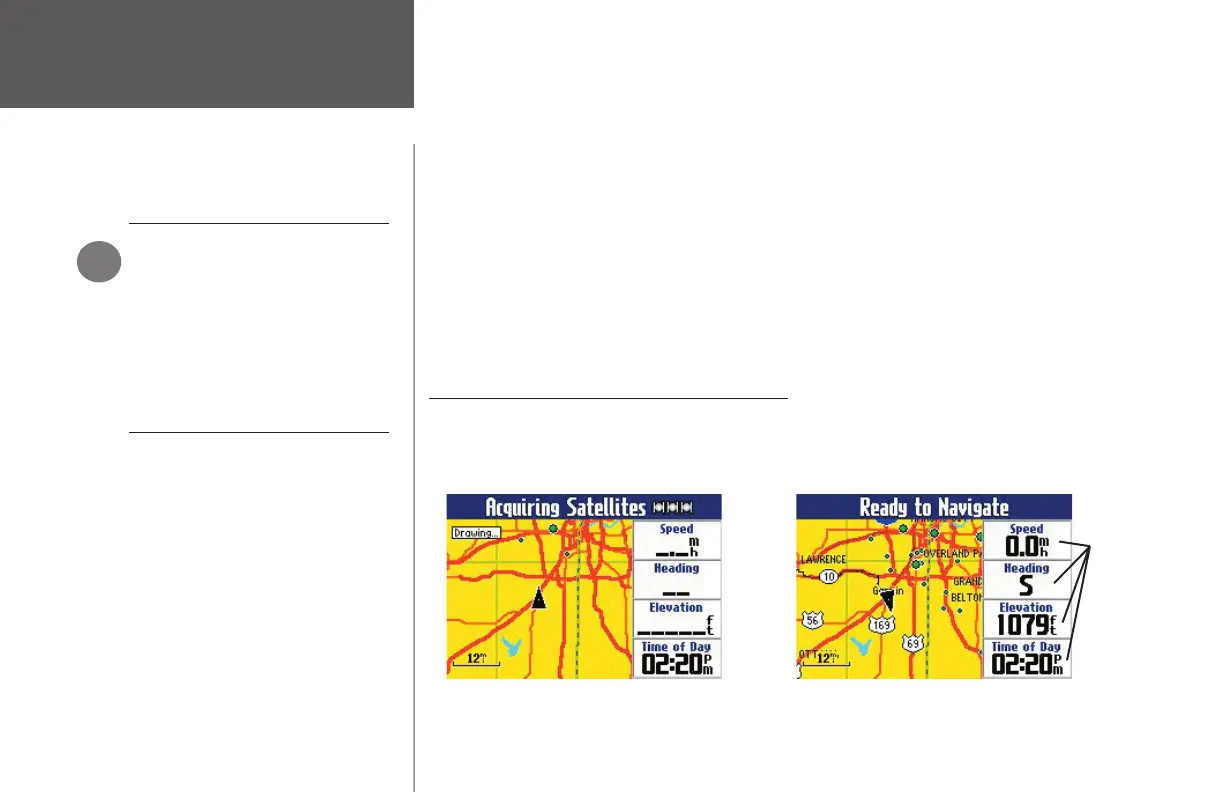
When you turn on your Quest for the fi rst time, you see a map image and a navigator text bar at the top
of the page. The text indicates that the Quest is attempting to locate satellites. Once your Quest locates the
satellites, it establishes a “fi x” on your location. It is then ready to navigate and you are ready to begin.
Using the Map Page
USING YOUR QUEST INDOORS
Your Quest unit cannot acquire
satellites from inside a building.
Thus, you may want to consider
setting your unit to ‘Use Indoors’
status. To do this, press the MENU
key on your unit. A Menu window
appears that includes a variety of
options. Select the ‘Use Indoors’
option.
)
When you turn on your Quest, it searches for
satellites.
Once the satellites have been acquired, your
Quest is ready to navigate.
Data fi elds
190-00323-00_0B.indd 4 8/20/2004, 11:08:00 AM



 To Next Page