Reference
34
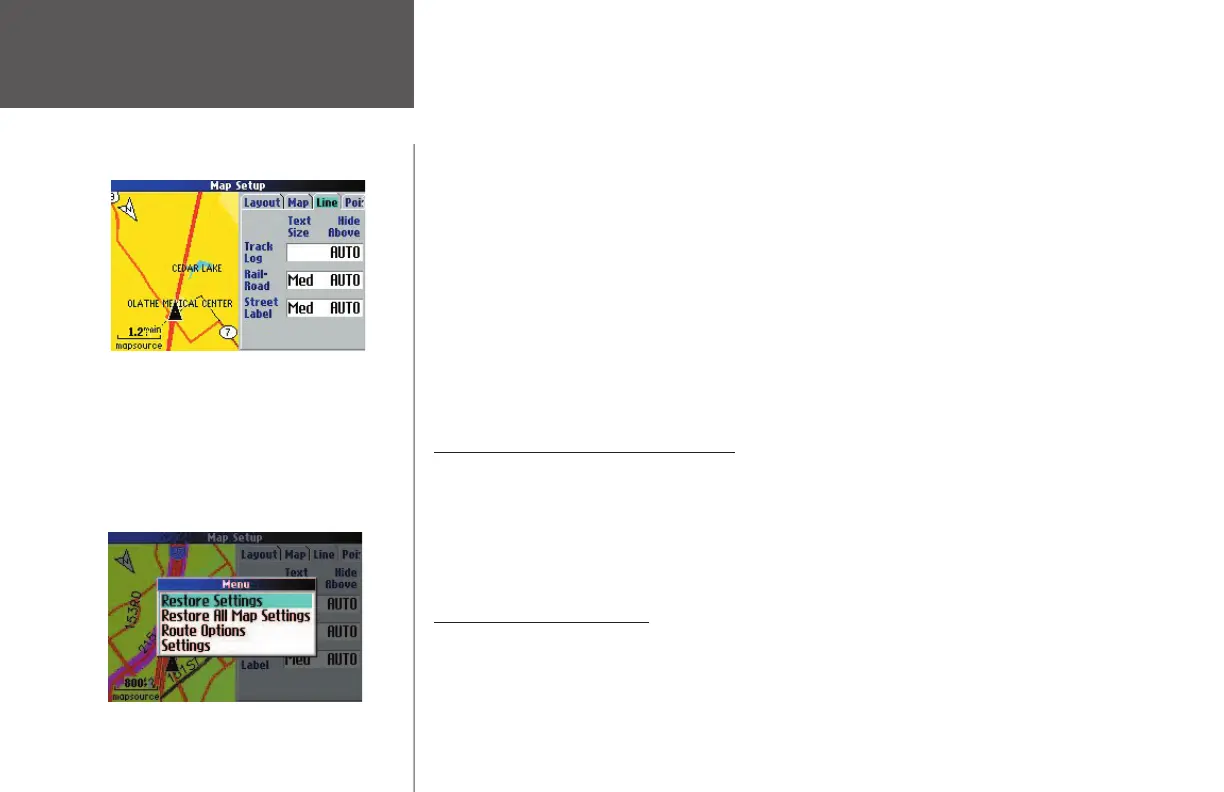
Each of the tabs on the previous page contain two common settings, Text Size and Hide Above:
Text Size — Specifi es how large or small the names of items on your Map page will display. For
example, you may want names of lakes to appear in Medium letters and names of large cities to be in
Large letters. You may want the names of parks to appear in Small letters or not appear at all. If you do
not want the name of an item to appear on the Map page, select Off in the Text Size fi eld. (Note: Name
with Medium and Large letters also appear in bold.)
Hide Above — Specifi es the maximum map scale at which a map item displays. For example, if Hide
Above is set to 120 ft for a map item, then it will not appear on your Map page when you zoom out
past 120 ft. If AUTO is selected, the maximum map scale is determined by the Detail setting to pre-
vent your Map page from becoming too cluttered. If OFF is selected, the item will not be shown.
Some map data is only visible at certain zoom scale ranges. For example, you may set Street Label (from
the Line tab) to Hide Above 200 miles, but the street names will not show above a 0.8 mile zoom scale.
Setting the Hide Above to AUTO generally gives the best display performance because the Quest factors in
all known settings.
Restoring Map Setup Default Settings
You may restore map settings for each individual setup tab or for all tabs. First, make certain you are
on the Map Setup page. If you want to restore one tab’s settings, make certain that tab is selected on the
Map Setup page. Then, press the MENU key from your Quest. A Menu window appears. From the Menu
window, select Restore Settings. All original settings for that tab are restored. Select Restore All Map Settings if
you want to restore every original setting on the Map Setup page.
Customizing the Display
You can change the lighting and color on the Quest for optimal viewing. Select Display Setup from the
Settings page. The following items appear:
Backlight Timeout — Specifi es the amount of time the backlight stays on when you are not touching
keys on the Quest. The timeout only applies when you are using the Quest on battery power.
The Map Setup page shown above shows the Line
tab settings. You can change one or all of the settings.
To restore them to their original settings, press your
Quest’s MENU key. A Menu window appears, as
shown below.
To restore the Line tab settings, select ‘Restore Set-
tings.’ To restore all Map Setup settings, select ‘Restore
All Map Settings.’
Customizing the Map Page
190-00323-00_0B.indd 34 8/20/2004, 11:08:28 AM



 To Next Page