Reference
40
Vertical Speed – Allows you to display vertical speed in feet/minute, meters/minute, or meters/second.
Elevation – Allows you to display elevation in feet or meters.
Datum – Allows you to select from over 100 different map datums allowing the Quest to match up with
just about any paper map or chart. Use the default setting if you are unfamiliar with datums.
Magnetic Variance – Allows you to input a magnetic variance when you select User from the Heading
fi eld.
Customizing Time
Time Format – Allows you to choose either a 12- or 24-hour time format, or UTC. When you select the
12-hour time format, the clock reads like a standard clock with 12-hour AM and PM cycles. The 24-hour
option sets the clock to display a 24-hour cycle (military time).
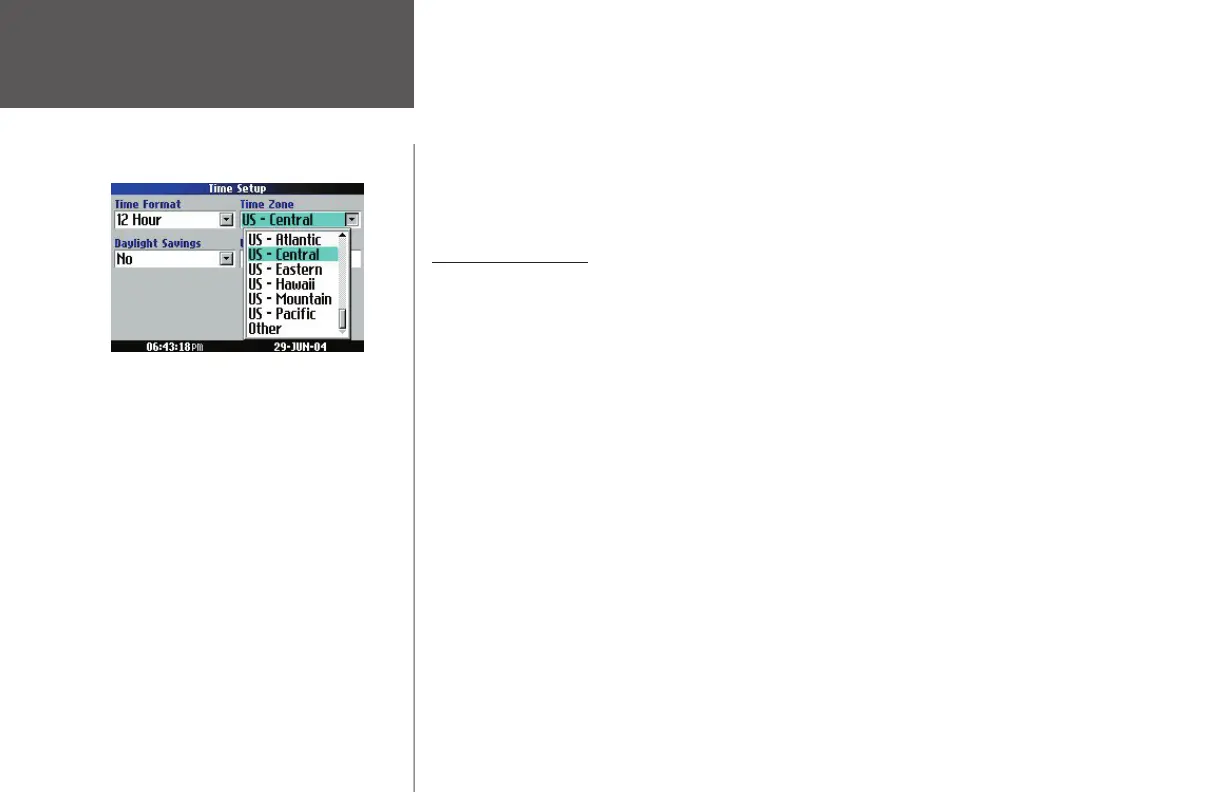
Time Zone
– Can be set to one of the U.S. time zones, or you can choose from a list of cities all over the
world. If your time zone is not on the list, select Other. If you select Other, you can manually enter the
difference between UTC and the local time zone in the UTC Offset fi eld. Select UTC Offset (use the onscreen
keyboard that appears). If you are not certain what the offset is between UTC and the local time zone,
experiment. Simply enter incremental offset values until the correct local time appears. Keep in mind that
as you move West of the Prime Meridian (0° longitude) the offset is negative (-), and as you move East of
the Prime Meridian the offset is positive (+). In other words, it is earlier in the day when you move West
and later in the day when you move East.
Daylight Savings – Can be turned on (Yes), off (No), or set to Automatic (Auto) if it is available.
Customizing Time
Choose from a variety of available time
zones.
190-00323-00_0B.indd 40 8/20/2004, 11:08:34 AM



 To Next Page