Reference
14
Finding Places and Routing to Them
Use the FIND feature on your Quest to take the guess work out of locating a city, street, park, restau-
rant, or hotel. You can even use FIND to see what rest areas are approaching as you near a highway exit.
To Find a Place and Route to It
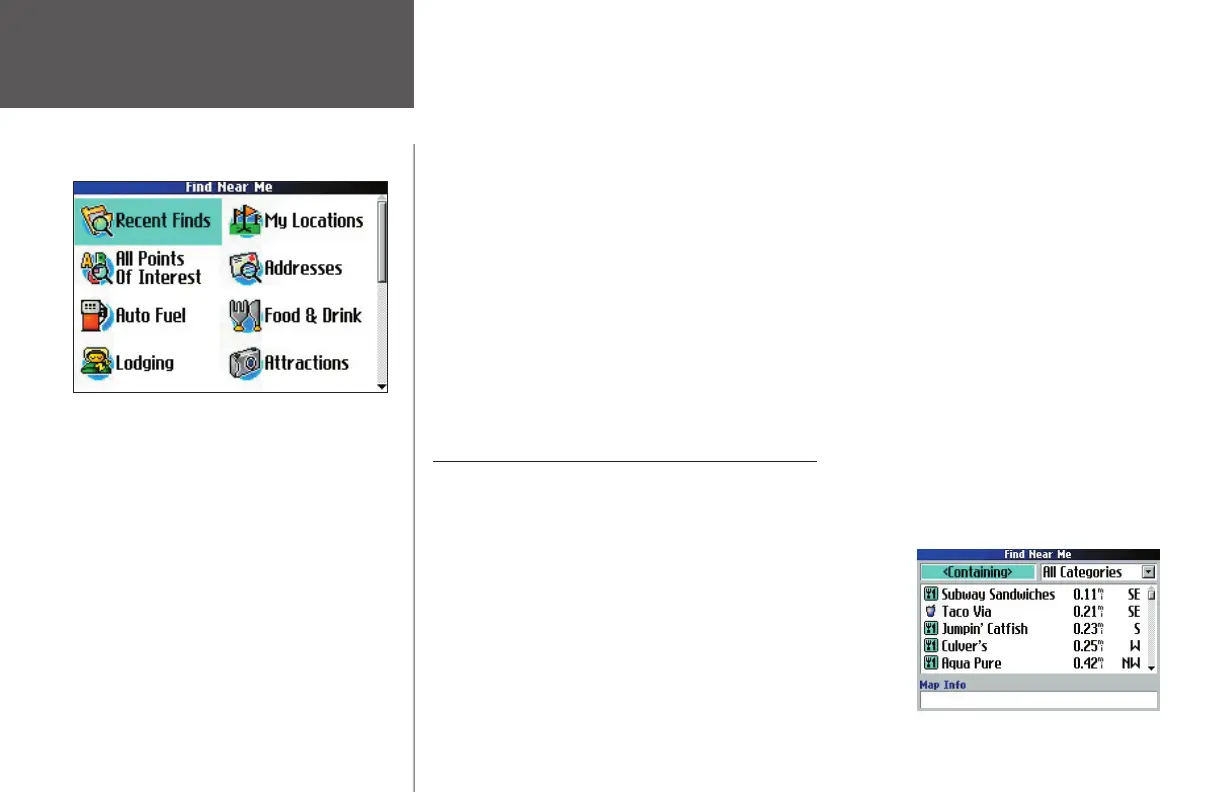
1. Press the FIND key on your Quest. A ‘Find’ page appears (it may also say ‘Find Near Me’).
2. From the ‘Find’ page, select an option that will help you fi nd your destination such as ‘Food & Drink,’
‘Lodging,’ ‘Addresses,’ or ‘All Points of Interest.’ Press the OK key on your Quest. A list of places near your
current location appears.
3. Select the place you wish to visit (use the rocker pad) and press OK. An information page appears.
4. Select ‘Route To’ on the information page and press OK. Your route is calculated.
In addition to simply fi nding a place and routing to it by selecting Route To, you can refi ne and enhance
your search. The following subtopics in this section illustrate how. To learn more about planning and even
modifying routes, see Planning and Modifying Routes, page 24.
Finding Places to Eat, Sleep, Shop, and Visit
Your Quest includes thousands of businesses and attractions that are provided by the City Select map-
ping software. To view a complete list of all these places that are nearest you, select All Points of Interest
and press OK. If you want a more specifi c list, select from the additional options located on the Find page:
Auto Fuel, Food & Drink, Lodging, Attractions, Leisure, Shopping,
Services, Transit, or Emergency & Government. Note that your Quest
searches for places the same way for all options listed above.
Assume you want to fi nd a restaurant that is near your current
location. Select Food & Drink and then press OK. A list containing all
restaurants, beginning with the closest, appears (right):
Finding Places
The Find page, shown above, is a scrollable list. Press
down on the rocker pad to see more options.
190-00323-00_0B.indd 14 8/20/2004, 11:08:09 AM



 To Next Page