Reference
32
Customizing your Quest
If you’ve experimented with creating routes and fi nding places using your Quest, you may feel you’re
ready to customize it to enhance your navigational needs. Take a moment to look at the options in this
section and decide which features you’d like to customize.
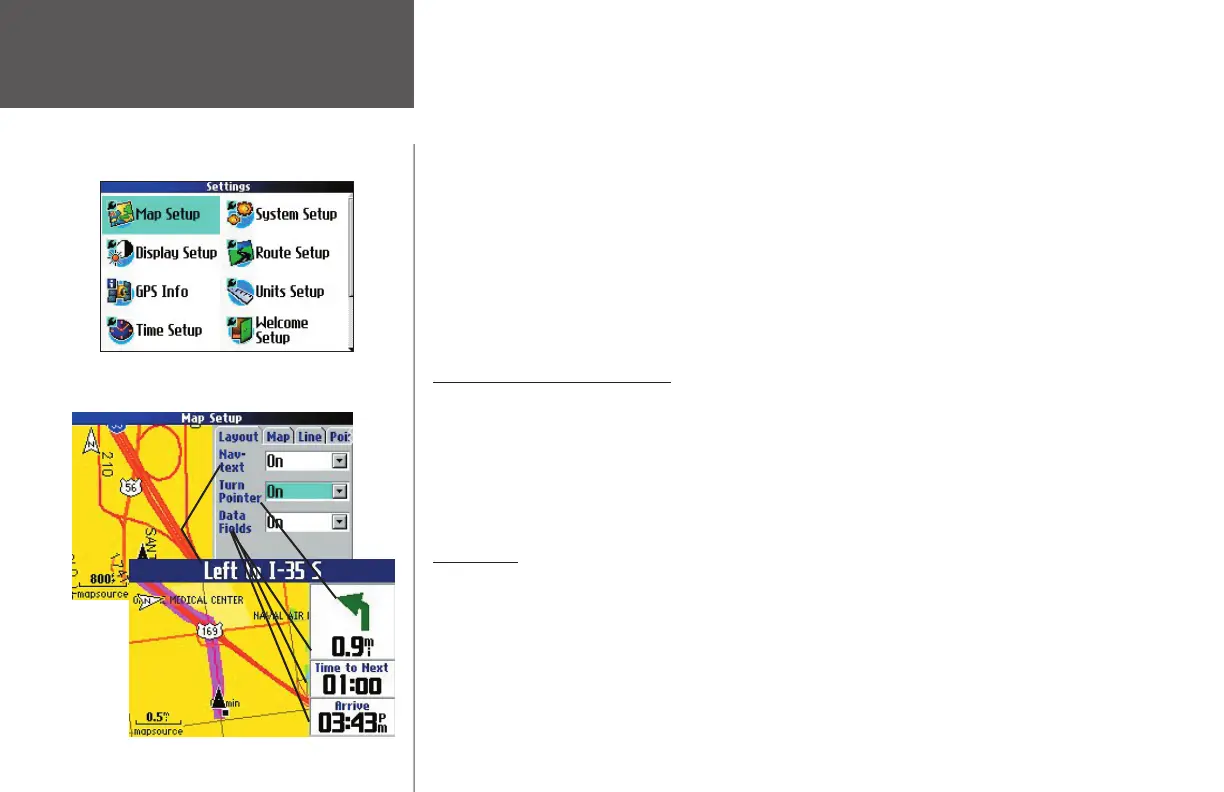
In general, most customizations are made through the Settings page. Access this page by pressing the
MENU key once and then selecting Settings from the Menu window that appears. You can also access it by
pressing the MENU key two times.
Note that your Quest’s factory settings (or default settings) do not need to be changed in
order for your unit to function completely. Experiment with a variety of settings as you become more
familiar with your Quest. If you do not like your trial settings, you can change some or all of them, as
described throughout this section.
Customizing the Map Page
You can customize the way information appears on the Map page in order to make your viewing expe-
rience more pleasurable. For example, you can change the color of the Map page, show more or less detail
on the Map page, or even prevent items such as railroads from appearing on the Map page.
Many of your changes to the Map page can be made by selecting Map Setup from the Settings page. A
Map Setup page appears, which features six tabbed sections: Layout, Map, Line, Point, City, and Area.
Layout tab
Navtext — Displays or hides the navigational text at the top of the Quest.
Turn Pointer — Displays or hides the turn pointer that appears on the Map page in routing mode. (Note
that the turn pointer uses two data fi elds.) If you choose to hide the data fi elds on the Map page, the turn
pointer appears in the lower right-hand side of the page.
Data fi elds — Displays or hides data fi elds on the Map page.
Most customizations are made through the Settings
page. Access this page by pressing MENU and select-
ing ‘Settings.’
Customizing the Map Page
190-00323-00_0B.indd 32 8/20/2004, 11:08:26 AM



 To Next Page