Reference
6
Saving your Favorite Places in “My Locations”
As stated previously, you can use the map pointer to hover over areas around and beyond your
current location. You might hover over a favorite restaurant or friend’s house, or perhaps a good fi sh-
ing spot you found at the lake or a special camping place in a National Park. If these are areas you
want to remember, you can save them to a special folder in your Quest called “My Locations.”
For example, assume that you recently discovered a terrifi c camping
area at Milford Lake and you want to add it to “My Locations.” Make
sure that the map pointer is positioned at this location and then press the
unit’s OK key. An information page about this location appears. Select
Save and press OK. The new page displays location coordinates and
other information. It also allows you the opportunity to change the name
of the location and add comments. You can also categorize this location
in the Category fi eld and you can change the icon that’s associated with
the saved location.
You can fi nd this saved location again by using the FIND key. See Finding “My Locations,”
page 21.
Note: You can also save your current physical location to “My Locations.” See page 23.
Using the Onscreen Keyboard
Add this spot to “My
Locations” by press-
ing the unit’s OK key.
1
2
Details about this spot appears
on a general information page.
Select ‘Save’ and press OK to
open a ‘My Locations’ page for
your favorite spot.
Select any of the text
boxes to create new,
personalized information.
3
To customize this page, simply select
a fi eld, press OK, and enter the new
information.
Select the icon box
and choose from a
variety of symbols
that appear.
Assign a special category to
your spot so that you can fi nd
it more easily during a future
search.
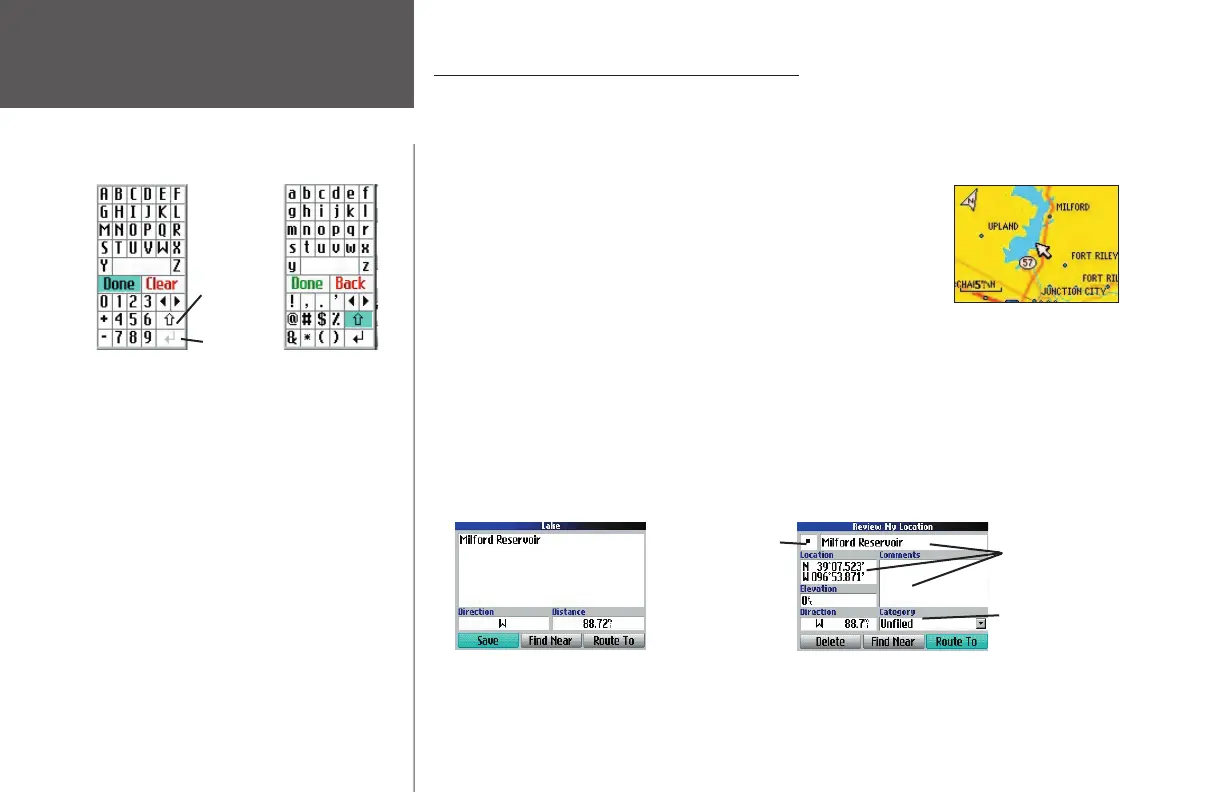
The onscreen keyboard such as the one shown
above appears when you wish to change the
name of a location, add comments, or enter
addresses. Use the rocker pad to select a letter
or number and then press OK. To create spaces,
select the blank space between the Y and Z. Use
the ‘Clear’ (‘Back’) box to delete letters/numbers.
The < and > keys are backspace and forward-
space keys. The up arrow changes the capital
letters to lower case and the numbers to symbols.
Use the ‘return’ key to create a new line. When
you have entered all text, select ‘Done.’
The onscreen keyboard is used in a variety of
places throughout the Quest. Its appearance may
alter, depending on your purpose for using it, but
the functionality remains the same.
‘return’ key
The up arrowThe up arrow
changes thechanges the
capital letterscapital letters
to lower caseto lower case
and numbersand numbers
to symbols.to symbols.
ĺĺ
190-00323-00_0B.indd 6 8/20/2004, 11:08:02 AM



 To Next Page