Reference
7
Zooming in and out on the Map Page
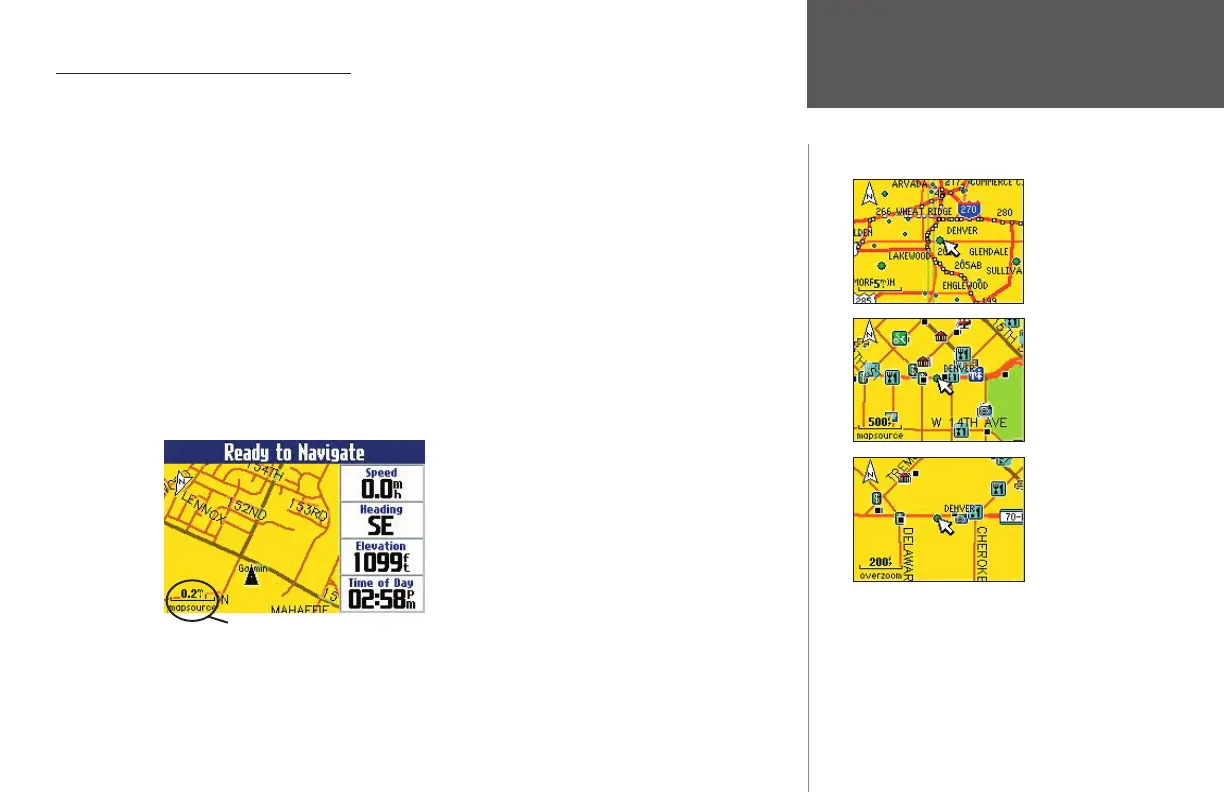
Use the IN and OUT keys on your Quest to view greater detail in a specifi c area or to gain a broader
view of the surrounding area. A map scale appears on the lower left of the Map page. It displays the current
zoom level showing on the Map page (such as 500 miles, 200 meters, or 200 feet) as well as what map data
your Quest is using to create the current image. Your Quest includes a “base” map and a “MapSource” map.
The base map provides only general information such as city names and highway exits. The MapSource
map (which can be from City Select or another mapping software you transferred to your Quest) includes
specifi c details such as businesses, parks, and other points of interest. Thus, if you are viewing Denver at a
map scale of 200 miles, your Quest will display information from its base map. The map scale will switch
from the base map to the more detailed MapSource map as you continue to zoom in to Denver. When the
Map page is displaying detailed mapping information, “MapSource” appears under the zoom level (3 miles,
120 meters, etc.). When it is reading from the base map, the area under the zoom level is blank.
If you continue to zoom in to Denver or any city, “overzoom” appears on the map scale. Displaying at
around 500 - 300 feet, “overzoom” indicates that the current scale exceeds the optimum resolution of avail-
able map detail.
Using the Map Scale
Base map
of Denver
at 5-mile
zoom.
MapSource
(detailed)
map of
Denver at
500-foot
zoom.
MapSource
map of
Denver at
200-foot
“overzoom.”
Map Scale
This example shows a Map page
shown at a zoom level of .2 miles.
The Quest is using MapSource
mapping data such as City Select.
190-00323-00_0B.indd 7 8/20/2004, 11:08:03 AM



 To Next Page