Reference
8
Viewing the Map Orientation
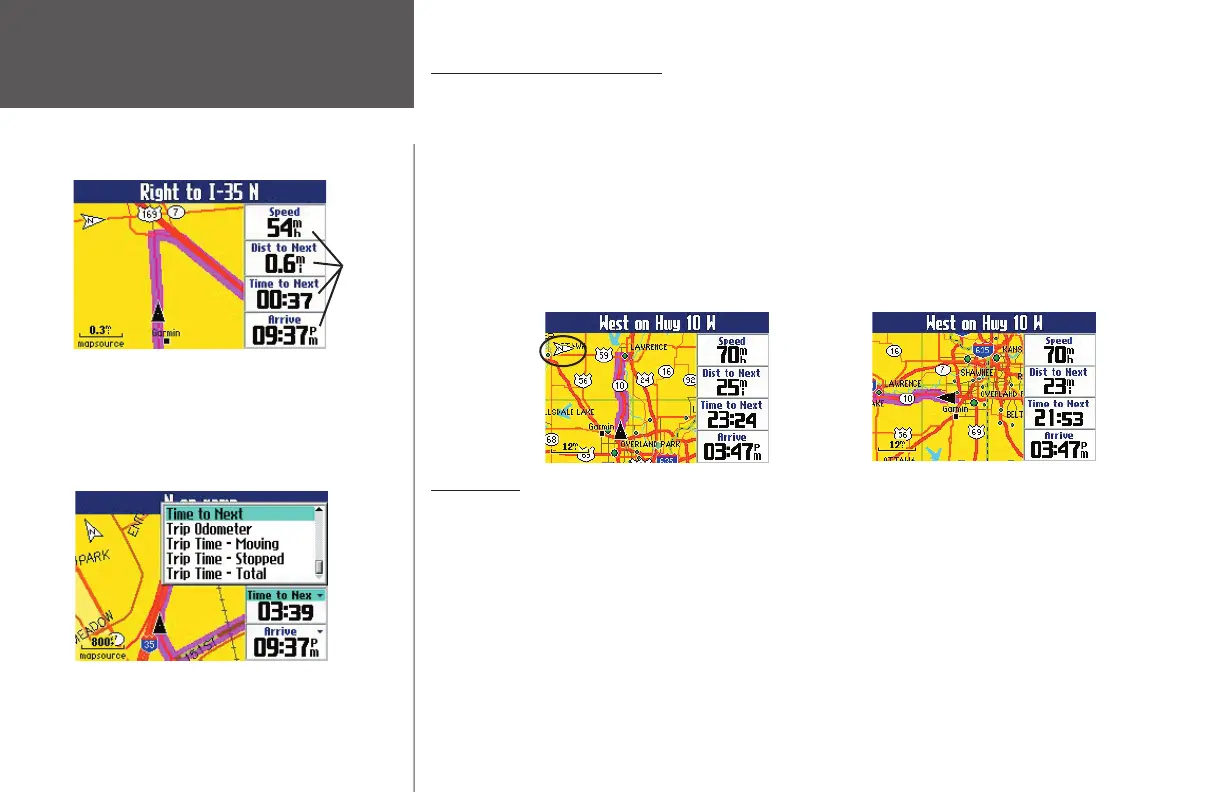
The orientation of roads can appear on your Map page in one of two ways. North Up shows your Map
page with North always at the top, as if you were reading a paper map. Thus, as you are driving, the posi-
tion icon on your Map page moves to the left as you go West, right as you go East, and so forth. With Track
Up, your Map page automatically rotates so that your direction of travel always appears at the top of the
Map page. As you head South, then, the Map page shifts so that South appears at the top of the Map page. If
you are using Track up, a white N indicator displays in the top left corner of the Map page. It always points
to the North.
Your Quest is set to display the Map page in Track Up mode until the zoom level reaches 200 miles. To
change the map orientation settings, see page 33.
Data Fields
The Map page contains customizable informational boxes called data fi elds that appear along the right-
hand column of the page. Information in these fi elds differ depending on whether you are merely traveling
with the Quest turned on (driving mode) or you are navigating a route (routing mode). Data fi elds also
appear on the Trip Information page (page 12) and the Compass page (page 23).
To change the data fi elds that appear on the Map page, press the MENU key while you are on the Map
page. Select Edit Fields from the Menu window that appears. Use the rocker pad to select the data fi eld you
wish to change. Press OK, and choose from a variety of fi eld options that appear. Press OK again to set the
new fi eld option. When you are fi nished changing the data fi elds, press PAGE to exit the Edit Fields mode.
For a complete list and description of data fi eld options, see Appendix B.
North Up
Track Up
You can change the data fi elds that appear on
the Map page when you are in driving or routing
mode. While you are on the Map page, press the
Menu key, and then select ‘Edit Fields.’ Select the
data fi eld you wish to change and press OK. Then,
choose from a variety of fi eld options, as shown
below.
For a complete list and description of data fi eld
options, see Appendix B.
Data Fields
Changing Data Fields
190-00323-00_0B.indd 8 8/20/2004, 11:08:04 AM



 To Next Page