Reference
5
Map Page Features
The Map page comes with many useful features and functions that help you as you view cities or
places, and as you navigate routes. Practice using these features while your vehicle is stationary.
Panning (or moving around) the Map Page
Panning allows you to “move” the viewing area on the Map page in order to view areas beyond the
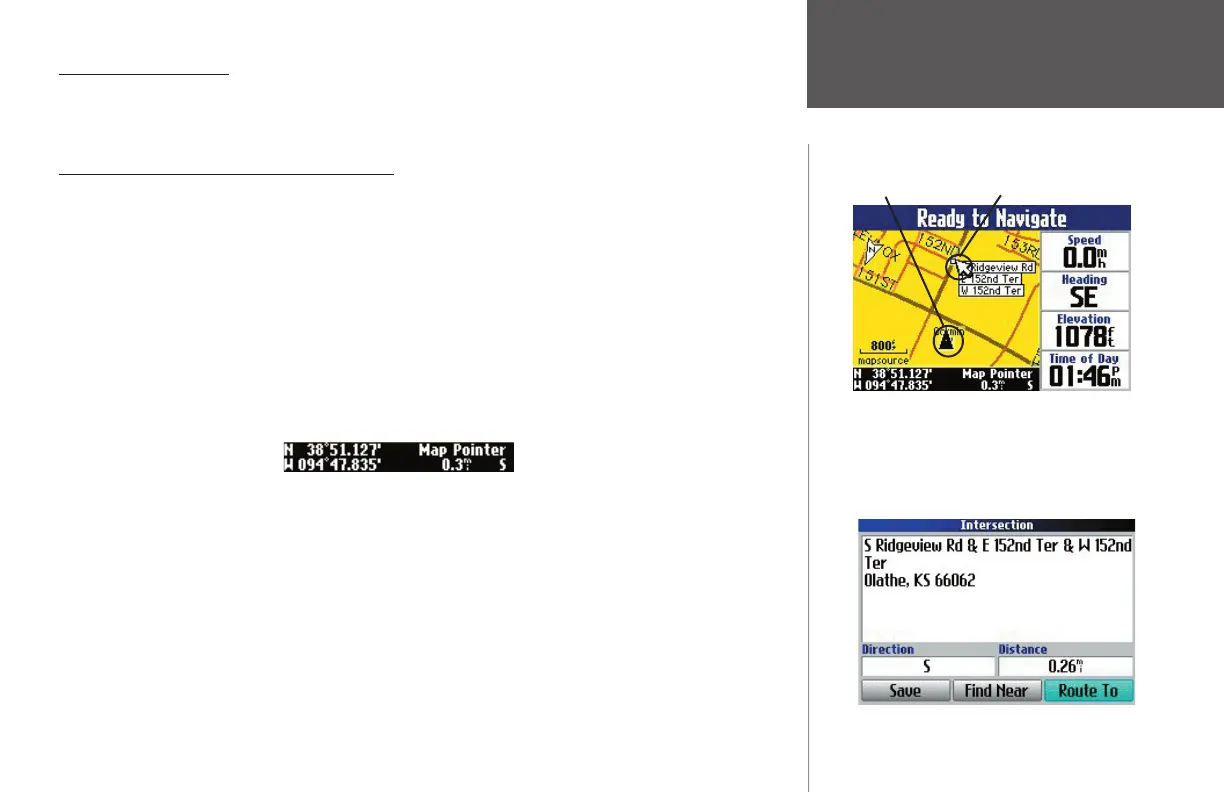
displayed area. The white arrow, or “ map pointer,” serves as a target marker as you pan across the Map
page (use the rocker pad to move the map pointer). The map pointer hovers over existing map objects such
as businesses, parks, lakes, schools, or other points of interest. The map pointer can also hover over areas
where no map data exists.
The black triangle, or “ position icon,” shows your current physical location on the Map page. It may
be hidden from view at times if you are panning beyond your current location. However, you can see how
far the map pointer is from your current location by viewing the “ distance bar.” This black bar appears at
the bottom of the Map page only when you are panning. As shown below, the distance bar gives the coordi-
nates at the map pointer’s location. It also displays your distance and direction from the map pointer.
Note: The position icon shows your current physical location whether you are in a vehicle or are walking.
Map Page Features
While ‘panning,’ the map pointer serves as the
target marker. If it stops on a known location, infor-
mation about the location will appear on the Map
page, as shown above. Press the Quest’s OK key,
and an information page on this location appears,
as shown below.
Position icon Map Pointer
distance bar
190-00323-00_0B.indd 5 8/20/2004, 11:08:01 AM



 To Next Page