Reference
24
Planning and Modifying Routes
Planning and Modifying Routes
The quickest way to navigate to a place using your Quest is to fi nd your destination using the FIND
key and routing to it. But if you want to plan trips where your starting location might not be your current
physical location, use the Quest’s Route Planner feature. For example, you are planning to visit a relative’s
house and you want to plan a route from the relative’s house to a nearby amusement park. Once you plan,
create, and save the route, you can retrieve it when you need it and you won’t have to stop to ask for direc-
tions or consult a map.
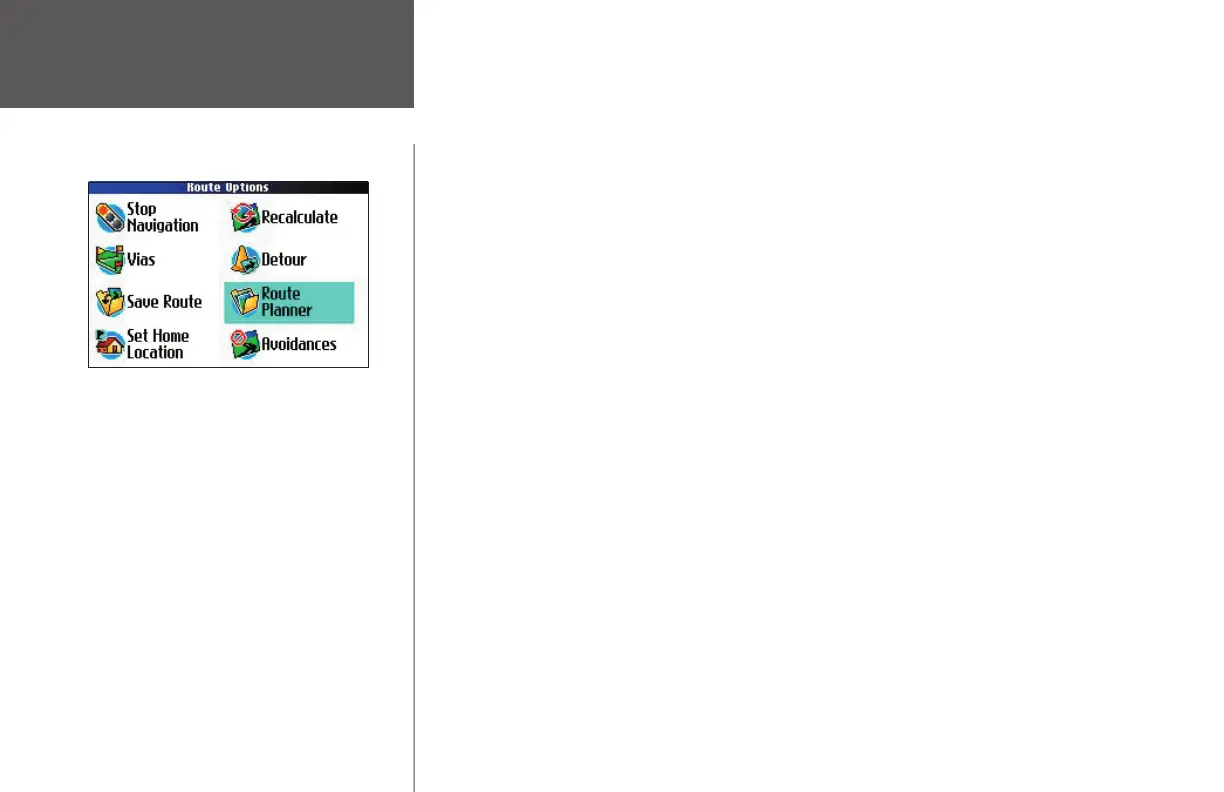
The Route Options page lists many options for planning routes. To access the Route Options page, press
MENU, and then select Route Options. You can also press and hold the MENU key on your Quest for two
seconds. The options below are available, although some may be disabled when you view this page if you
are not in routing mode. When you create a route and activate it, the following options appear:
Stop or Resume Navigation
– Stops the current active (or simulated) route or resumes a stopped route.
Vias – Adds or removes an extra stop to be reached on the way to a fi nal destination. A list of via points
can also be sorted by their closest distance from you, creating an optimal route that visits all vias.
Save Route – Saves the active route, or the last route you activated.
Set Home Location – Allows you to set a Home location that can be your home, offi ce, or any other place
to which you return most often. Once set, you can opt to go “Home.”
Recalculate
– Recalculates the active route for faster time or shorter distance. This option is available
only available in routing mode. (Note: While the route is being calculated, you can stop it by pressing the
MENU key and selecting Stop Calculating from the Route Options page.)
Detour – Calculates a new route to a destination by avoiding part of the current route. This option is only
available in routing mode.
Route Planner – Allows you to create and activate a new route or activate an existing route.
Avoidances – Allows you to avoid certain road types that may be undesirable on your route. You can also
avoid specifi c roads and areas by using the Custom Avoids feature (see page 38).The Quest will use these
road types only if alternative routes take you too far out of your way or if no other road is available.
The options shown above appear while you are
navigating or simulating a route.
190-00323-00_0B.indd 24 8/20/2004, 11:08:20 AM



 To Next Page