Reference
12
Trip Information Page
While navigating a route, you can access yet another page, the Trip Information page. If you are making
a long trip, the Trip Information page can be very useful. It indicates your current speed and provides many
helpful statistics about your trip. (Note that you can also access the Trip Information page in driving mode.)
Be certain to reset the trip information (data) before beginning a trip (see next page). If you make
frequent stops, leave the Quest powered on in order to receive satellites. This allows the unit to accurately
measure elapsed time during the trip.
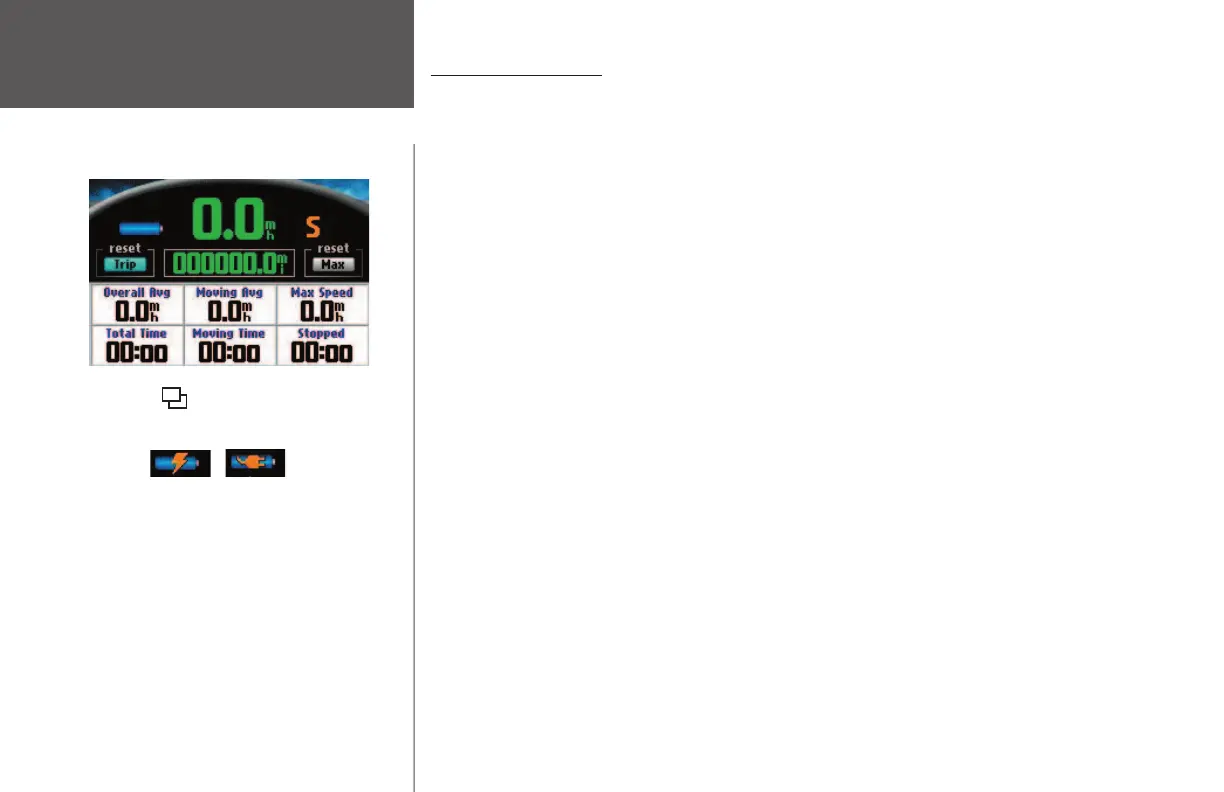
The following pre-set information is displayed on the Trip Information page:
Power (Battery)
– Indicates battery power status.
Speed
– The current vehicle speed, displayed in miles or kilometers per hour.
Heading – The vehicle’s current direction of travel.
Trip Data Reset – Allows you to reset all trip data (except maximum speed).
Trip Odometer – A running total of distance traveled based on the distance between second-by-second
location readings.
Max Speed Reset
– Allows you to reset the maximum speed.
Speed-Overall Average – Your average speed of travel (including time stopped) while the Quest has been
tracking your location.
Speed-Moving Average
– Your average speed of travel while the vehicle has been in motion.
Speed-Maximum – The maximum speed recorded.
Trip Time-Total – The total length of time that the Quest has been tracking your location since the Trip
Computer was last reset. This is always equal to Moving Time plus Stopped Time.
Trip Time-Moving – The length of time that the vehicle has been in motion.
Trip Time-Stopped – The length of time that the vehicle has been stopped (or stationary) during the time
the Quest has been tracking your location.
Access the Trip Information page anytime by pressing
the PAGE key.
Trip Information Page
Both symbols in the batteries above indicate
that the Quest is connected to external power.
The battery displaying a lightning symbol
indicates that the Quest is charging. The battery
displaying a plug indicates that the Quest is
fully charged.
190-00323-00_0B.indd 12 8/20/2004, 11:08:08 AM



 To Next Page