Reference
23
Using TracBack
Finding Where You Are and Using TracBack
Your Quest contains a “Where Am I?” feature that allows you to know
where you are at all times. This is particularly useful if you are traveling
off road or on unmarked roads, hiking, boating, or are any place where
street signs or navigational markers are not available. If at any time you
need to know where you are, press the FIND key and then select Where
Am I? Or, press and hold the OK key on your Quest. A Where Am I?
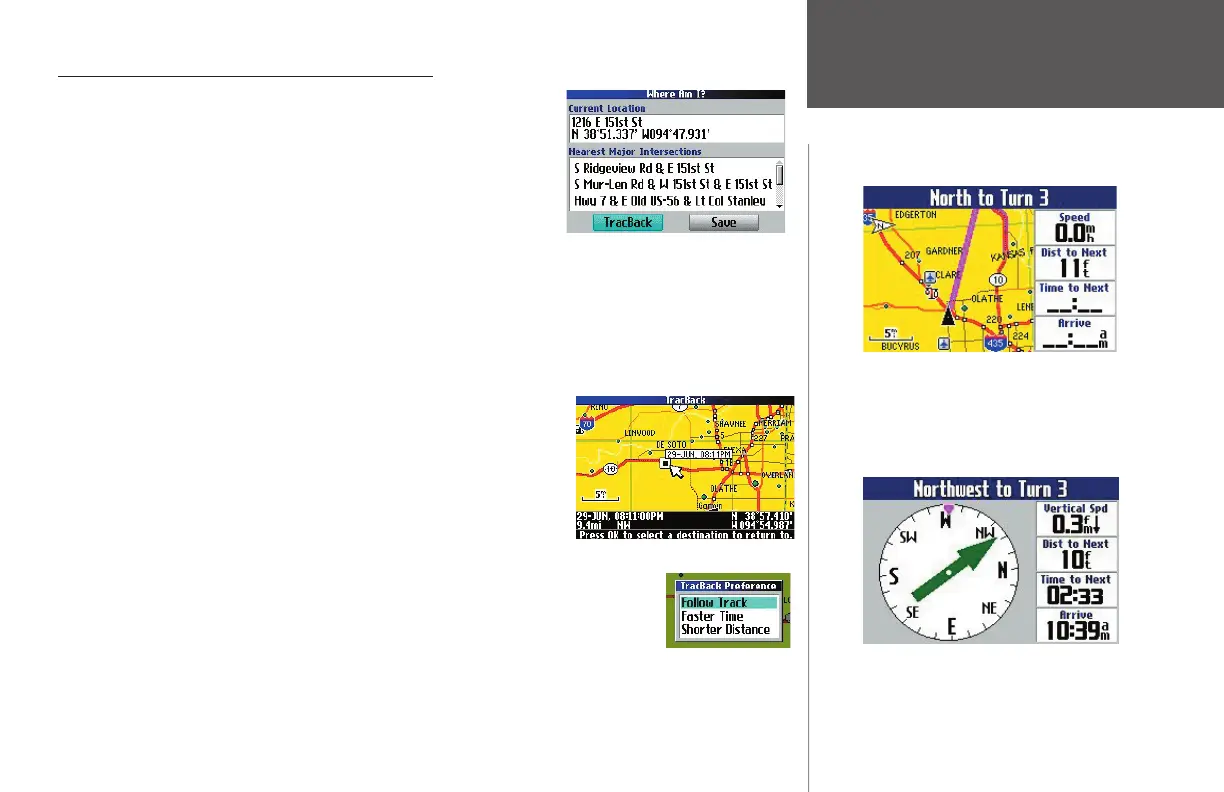
page appears, listing your current location as well as the nearest major
intersections. Press Save to save your location to My Locations.
In addition to telling you where you are, your Quest also tracks
and stores an electronic bread crumb trail of where you have been. As
a result, you can backtrack your most recent movements by using the “TracBack
®
” feature. This feature is
particularly useful when navigational markers are not easily available.
To use TracBack, select TracBack from the Where Am I? page. You are
asked if you wish to TracBack to the beginning of the track. Select No if
you want to select a destination along your route, or Yes if you want to
tracback to the beginning of the track. If you select No, A TracBack page
appears which shows your most recent travel path. As you hover the map
pointer over a part on the path, the time you last visited that area appears
as shown at right:
When you have selected the spot to which you wish to return, press OK. A TracBack
Preference window appears, asking if you want to return to this spot by following your
original track, by taking the fastest route to it, or by taking the shortest route to it.
Select your preference, and the Quest calculates your route.
Note: Follow Track is not recommended when you are driving on roads.
The example above shows directions using
‘Follow Track’ as a TracBack Preference. If
using a compass is more effi cient, press the
PAGE key to view it. You can use a Bearing
Pointer, as shown below, or press MENU to
use a Coarse Pointer.
A street name is listed under
‘Current Location’ if one is available.
Otherwise, it only lists your current
coordinates.
You can change the data fi elds on the Compass
page just as you can for the Map page (page 8).
For a complete list and description of data fi eld
options, see Appendix B.
190-00323-00_0B.indd 23 8/20/2004, 11:08:19 AM



 To Next Page