Reference
27
Saving a Route
Your Quest always remembers the last route you created until you turn off the unit. Thus, you can save
the route either during the navigation or after the route is complete. In either case, simply press MENU
and select Route Options to access the Route Options page. Select Save Route and click OK at the verifi cation
window that appears.
Your Quest can hold up to 50 saved routes. Thus, if you have saved routes prior to taking a trip, you
only need to retrieve the appropriate route and activate it as you prepare to leave. To select a route from a
list of saved routes, select Route Planner from the Route Options page. A list of your saved routes appears.
Select the name of your desired route and press OK. An information page for your selected route appears.
To activate the route, select Navigate. If you wish to change the route by adding via points, use the rocker
pad to select the Via Points box (see Adding Via Points in this section for more information).
Deleting a Saved Route
You can delete a single route or all of the saved routes that exist in your Quest. Select Route Planner from
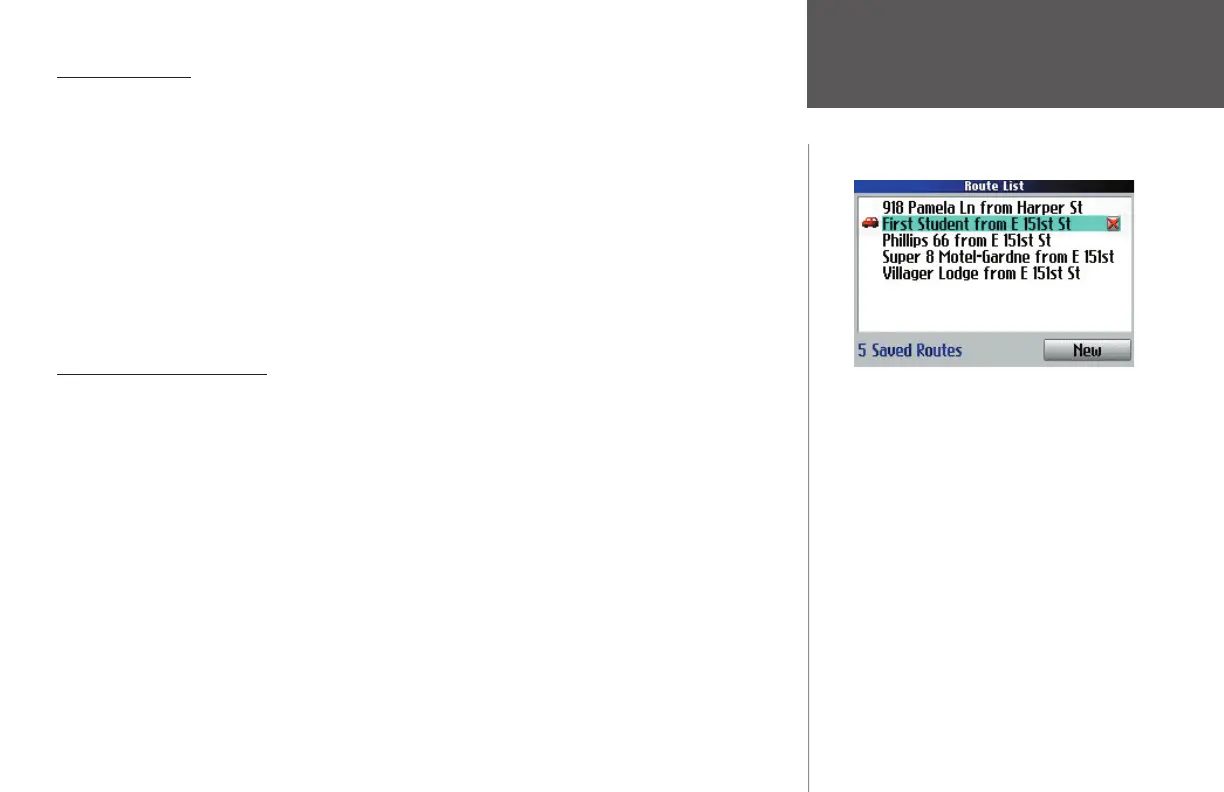
the Route Options page. A list of your saved routes appears on the Route List page. Select the route name that
you wish to delete and then use the rocker pad to move to the red X at the right of the route name. When
the X is highlighted, press OK. Select Yes when the verifi cation window appears.
Should you decide to delete all routes you have created (particularly if they are merely practice routes),
press your Quest’s MENU key while you are on the Route List page. A Menu window appears. Select Delete
All and then select Yes when the verifi cation window appears.
Creating Routes
Your Quest can save up to 50 routes. In the list
above, the route displaying a vehicle icon is the
active route.
190-00323-00_0B.indd 27 8/20/2004, 11:08:23 AM



 To Next Page